
Documentation Library
Qubic System — product manuals and technical documentation.
76 manuals
·
6 categories
Software
Software applications and simulation guides
Hardware
Motion platform hardware manuals
Tutorials
Step-by-step guides and tutorials
Product Cards
Product specification sheets and datasheets
Miscellaneous
Wallpapers and additional resources
3D Prints
3D printable models for motion platforms



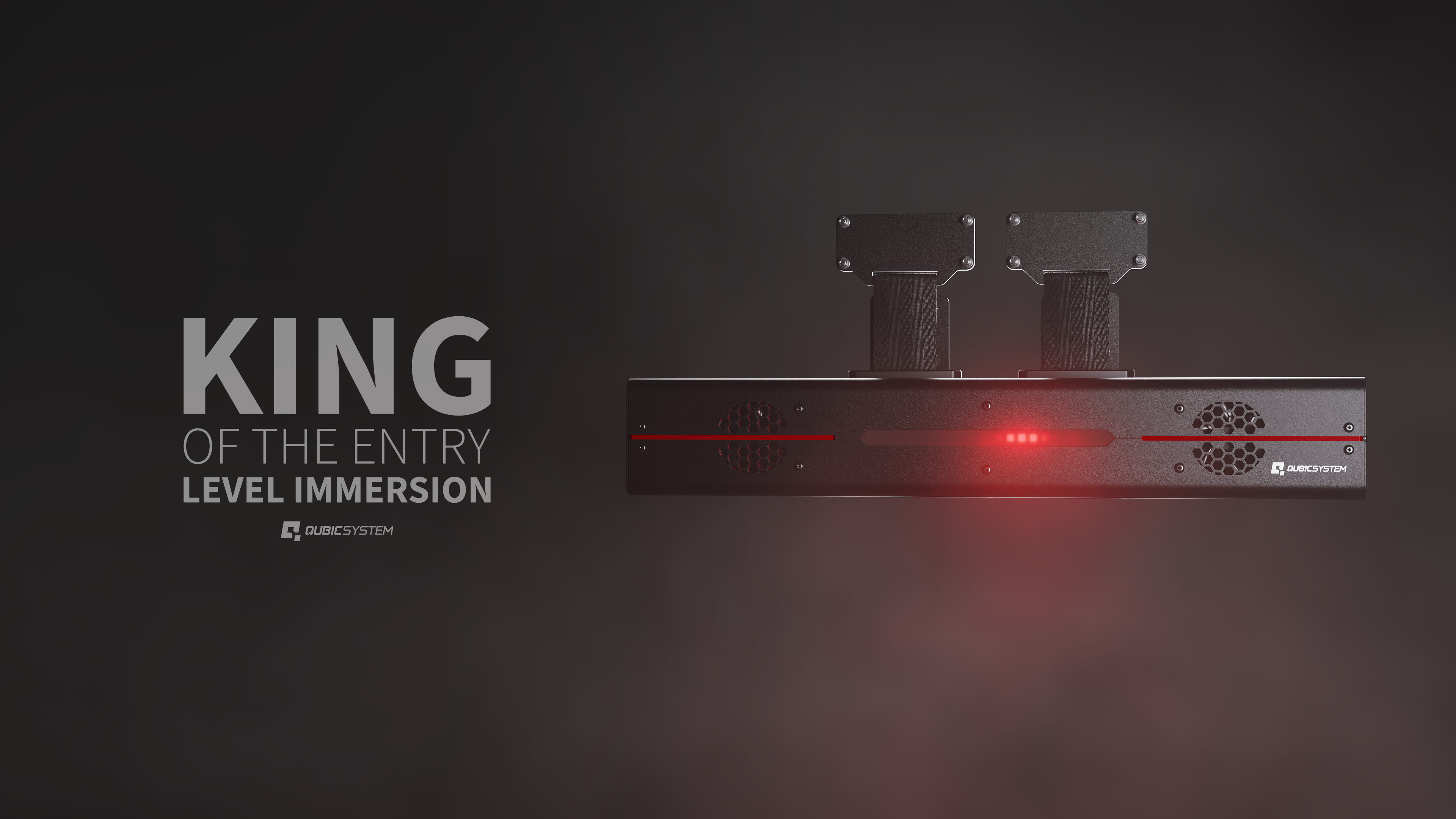
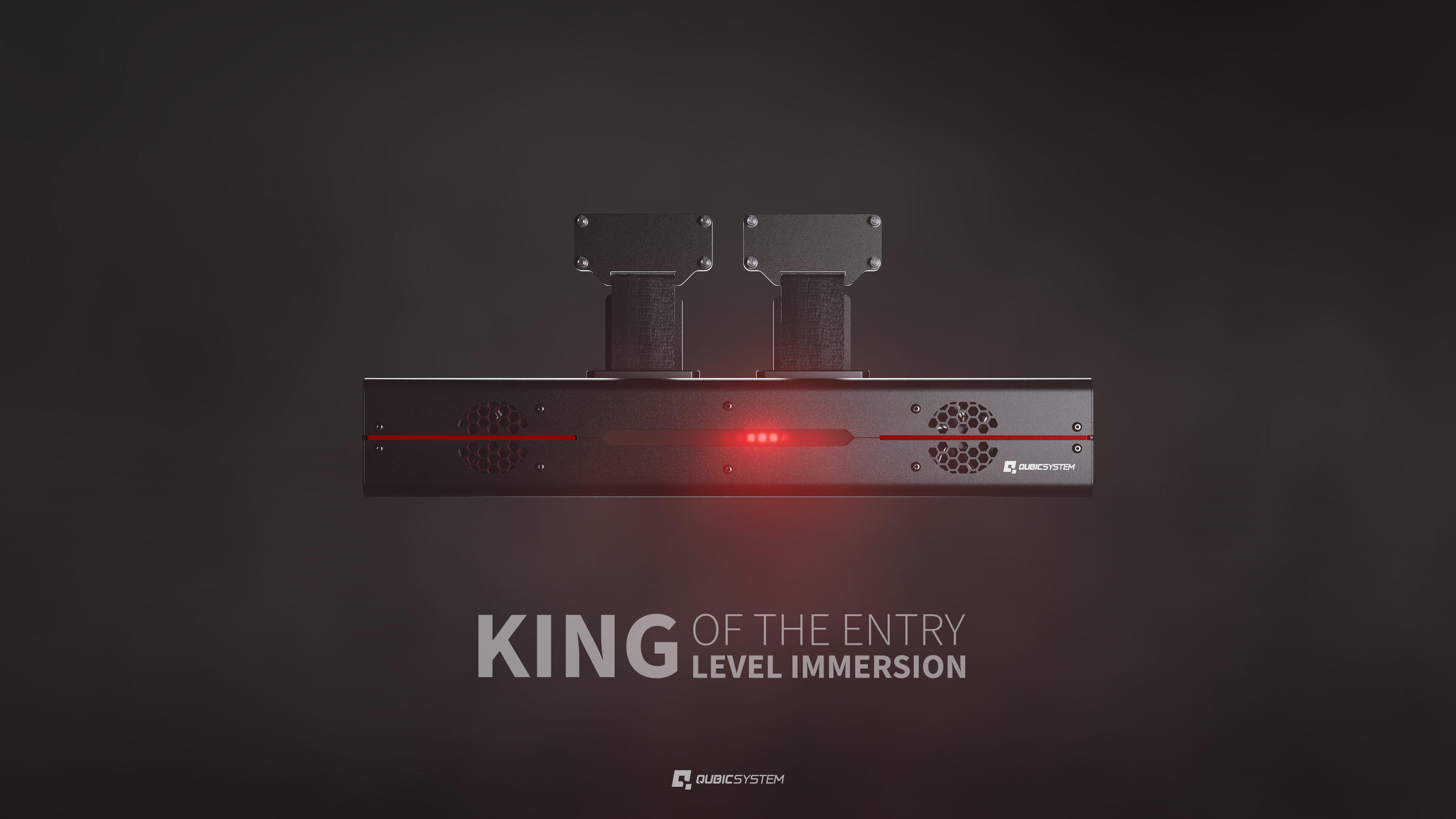



QS-CH2
User manual for QS-CH2.
1 Safety precautions
Read all safety instructions before installing and using this product. Save this document for future reference. If ownership of this product is transferred, be sure to include this manual. Following coloured frames are used in this manual to draw attention to important information or warnings:Info
The instructions included in this frame indicate information that is considered important, but not injury- or damage-related.
Warning
The instructions included in this frame indicate a dangerous situation that, if not avoided, could result in a user injury or device damage.
1.1 General safety
Warning

Keep hands and feet away from the moving parts when device is in motion.
Warning

Always ensure that cockpit attachment points can withstand forces generated by the QS-CH2 (approved construction or tested for expected load). Check the cockpit for loose mounting points.
Warning
To reduce the risk of burns, fire, electrical shock, injury or mechanical damage always TURN OFF THE POWER SUPPLY before plugging and unplugging the QS-CH2 .
Dangerous voltages level can be present in Power Cabinet for a few minutes after turning off the machine.
Warning

The device is intended solely for individuals OVER THE AGE OF 16. In case of use by individuals with limited physical, sensory, or mental capabilities, strict supervision is required. Read safety instructions before using the device.
- Use the QS-CH2 only for its intended purpose, according to instructions.
- Unplug the QS-CH2 from the power supply if it is not used for an extended period of time or when there is a need to perform hardware installation, maintenance, service or repair.
- Turn off the QS-CH2 when it is not in use.
- The QS-CH2 was designed for indoor use only - DO NOT store or use the product outdoors.
- Keep the QS-CH2 away from heat sources, high humidity, water, and other liquids. DO NOT store in places where water vapor condensation may occur due to low temperatures.
- DO NOT disassemble the Power Cabinets or actuators. Any tampering with or altering the product will void the warranty, pose a serious risk of electric shock, and may irreparably damage the product.
- If the device starts emitting unusual noises, smoke, or indicating that the device is not working properly, STOP using the QS-CH2 immediately and contact technical support.
- DO NOT cover the ventilation holes in the device.
- Keep the power cord plug and the socket dry, clean and dust-free.
- Protect the power cord from being damaged by being stepped on, rubbed against, or pinched.
- DO NOT use the QS-CH2 if the ambient temperature is below 5°C (41°F) or above 40°C (104°F).
- DO NOT use the QS-CH2 if it has been damaged, or any component is broken or missing. Please contact technical support.
- DO NOT use attachments or replacement parts not recommended or approved by the manufacturer. If you must replace a damaged power cord, use only certified products with the same rating as the one being replaced.
- Connect the QS-CH2 to a correctly grounded outlet only.
- If you want to increase safety level of the system, you can add external safety devices. For detailed information check section 6.
- Use only certified components and fasteners when installing seat, seat belts and other accessories to QS-CH2 .
Warning
Stop using the QS-CH2 immediately and contact technical support when the machine starts to emit unusual noise, smoke or any other suspicious behavior indicating the machine is not working properly.
1.2 Health and safety instruction
The safety of Qubic System users is the top priority. To protect users and bystanders against injuries caused by mechanical parts movement and electrical connectivity, the following instructions must be strictly performed.Warning
As with any mechanical device, the user is responsible for inspecting the condition of the machine prior to use and adhering to safe operating procedures.
- DO NOT use the QS-CH2 on very soft or fragile surfaces like rubber, glass, or foam.
- Ensure that all QS-CH2 modules are mounted properly.
- Be aware that without anchoring QS-CH2 will crawl a little in every direction during operation. Those movements could damage the surface in the long term. Manufacturer, its subsidiaries, and their partners are not responsible for any floor damages.
- DO NOT mount the rig in tight or cluttered spaces – remember that QS-CH2 moves and nothing should restrict its motion range.
- Seatbelts and other harnesses should be mounted to parts of the motion rig that move in the same way as the seat. DO NOT attach them to any static part or ground.
- Cables must not be stretched and should be kept in a way that prevents them from getting under actuator or any part that can crush or tear them.
- If you want to use the QS-CH2 in an unusual application, and you are not sure, that the desired setup is feasible, please contact, the distributor/reseller.
- Check if cables are mounted properly – they are not stretched or loosely connected to the socket.
- Check if there are no objects in the motion range of the platform.
- Check that all elements are properly fixed.
- Check if there are no sharp edges nearby.
- Check if everyone around is aware of machine rapid movements.
- Make sure that no one stands in the range of motion (minimum 1.5 m).
- Motion Lock Switch should be mounted close to the operator or user of the machine – it has to be easily reachable in every situation.
- Check Motion Lock Switch AT LEAST once a month to reduce the possibility of unknown failure – more information available in chapter 4.
- When the QS-CH2 is turned on, it requires Motion Lock button cycle and then performs a start-up calibration. For details go to section 2.9.
WarningIn order to perform a calibration, QS-CH2 will move after turning the power on and cycling the Motion Lock button. Stay in the safe distance from that movement and do not try to interrupt it.
- DO NOT interrupt or change the weight of payload mounted to the QS-CH2 during start-up calibration.
- Before getting on or off the machine ALWAYS activate Motion Lock (press the red button)
- In case of game crash or freeze, the Motion Lock Switch must be pressed before getting off the machine.
Info
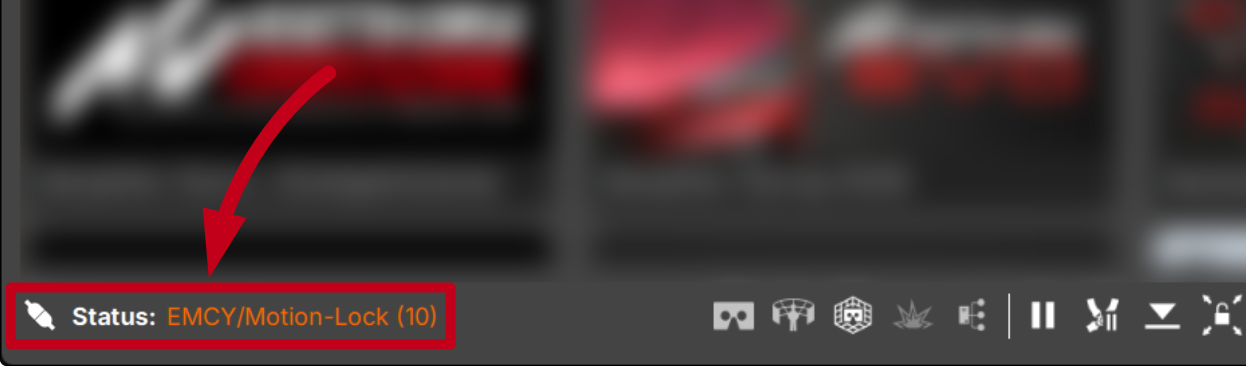
To check if the QS-CH2 is in the Motion Lock mode - go to QubicManager application main window. Platform status is displayed in the lower left corner of the main application window. Motion Lock engaged:
Info
Motion Lock input is not SIL/PL (safety integrity level/performance level) rated and DOES NOT guarantee safety. If you wish to achieve specific SIL/PL ranking, consider introducing a power cut-off device that is controlled by an external safety relay and cuts off the power to all Power Cabinets. Example application of the power cut-off contactor can be found in section 6.3.2 and 6.3.3 and .
Warning
Dangerous voltage level are present in the Power Cabinet and cables during the operation and for up to a few minutes after turning off the machine.
- For VR Headset users:
- Remove the VR goggles before entering or exiting the rig.
- Ensure that VR Headset is not limiting the operation range of QS-CH2 .
- Check if the whole VR setup is not in range of motion of the machine.
- DO NOT place the connection loosely under the motion rig.
Info
It is recommended that the connected PC is capable of running the game at stable 90 frames per second or more when VR Headset is used. Lower values can cause VR sickness.
- DO NOT use QS-CH2 if you are pregnant, tired, or under the influence of alcohol or drugs.
- STOP USING the QS-CH2 immediately if pain, fatigue or any discomfort appears.
- For every two hours of using the system, we recommend at least 15 MINUTES OF BREAK.
- DO NOT put your hands or legs in the actuators range of motion!
- DO NOT use the QS-CH2 around small children or pets.
- DO NOT put any items between actuators and stabilization plates.
- DO NOT pull the wires connecting the actuators with the power cabinets.
Warning
In case of any service operations - plugging and unplugging the actuator must ALWAYS be performed with Power Cabinet's power switched OFF.
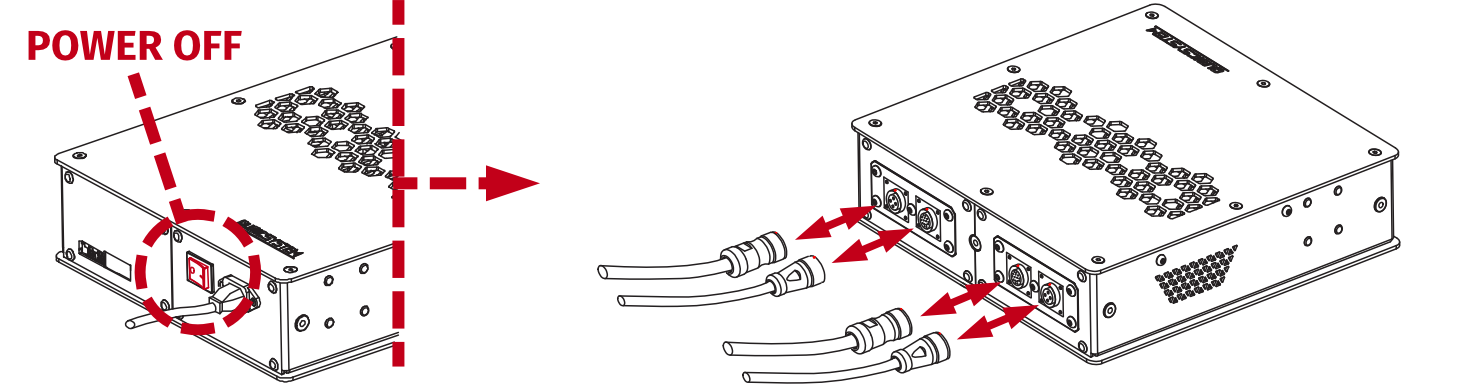 Always make sure that all PUSH-PULL connectors are plugged all the way in - ring lock MUST click into place. Loose connections may result in serious actuator damage.
2 Technical details
QS-CH2 is 2DoF (Degree of Freedom) motion platform delivering SURGE and YAW movements. It is dedicated for car driving simulations and flying simulators. It utilizes two longitudinal linear motion actuators with dedicated a Power Cabinet under the floor to replicate longitudinal and lateral acceleration. It perfectly replicates oversteer and acceleration/braking effects. Full system only requires 1.5 square meters of space.2.1 System components
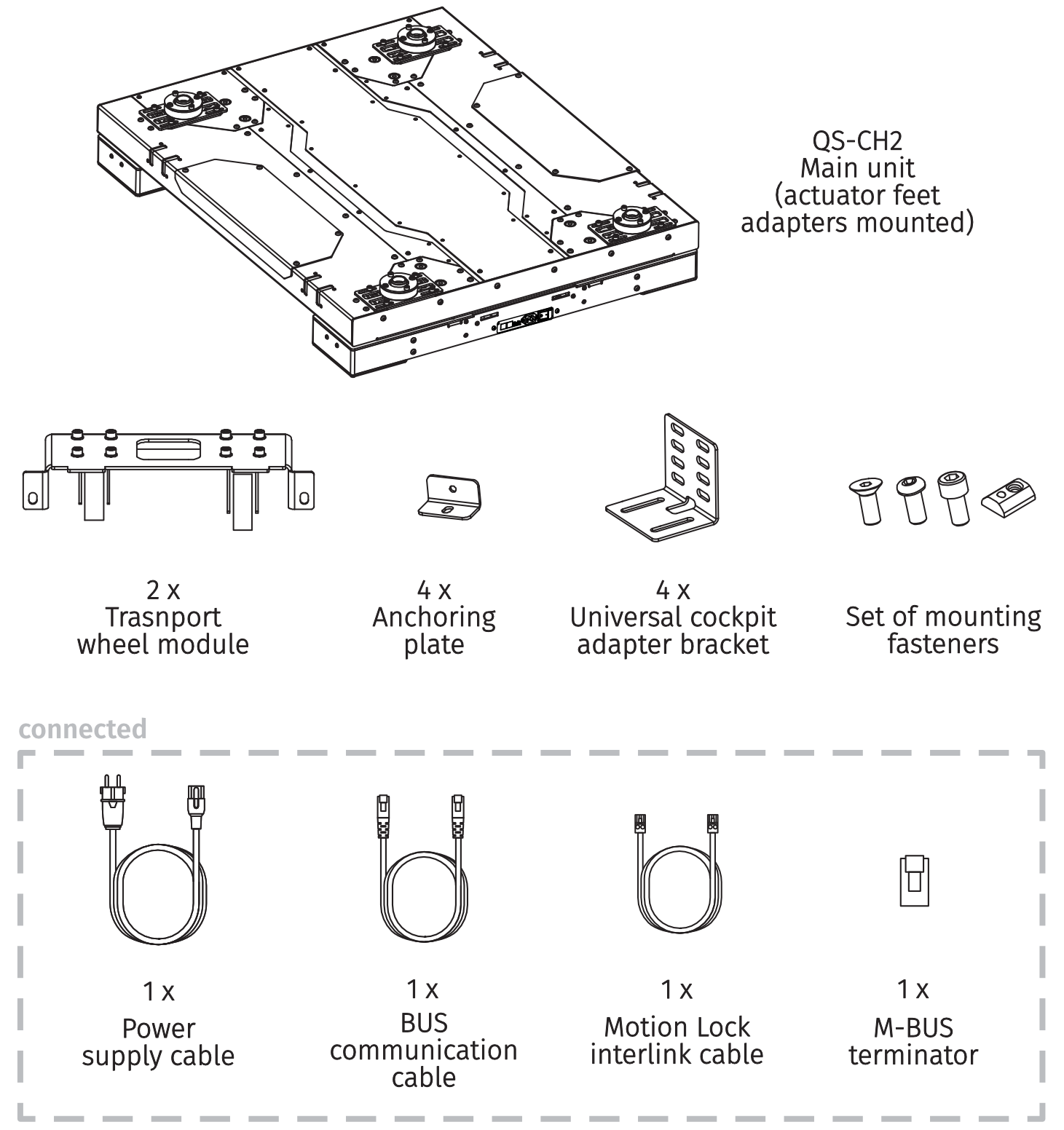
Info
If you are running QS-CH2 as a single device: QS-MC6 set (including M10 controller and Motion Lock button) is required. It is not included in a QS-CH2 set and has to be purchased separately.
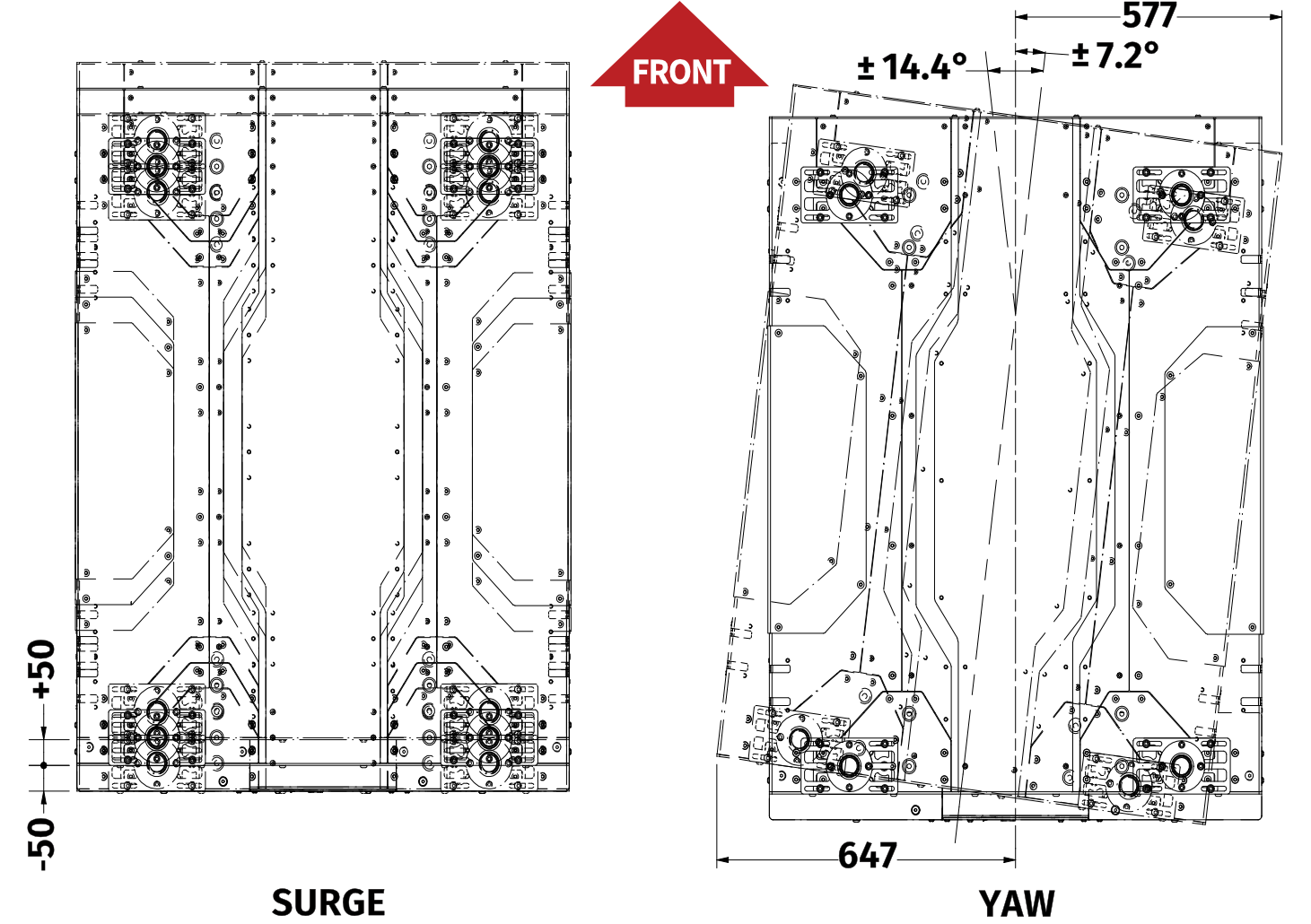
2.2 Excursions
2.3 Dimensions
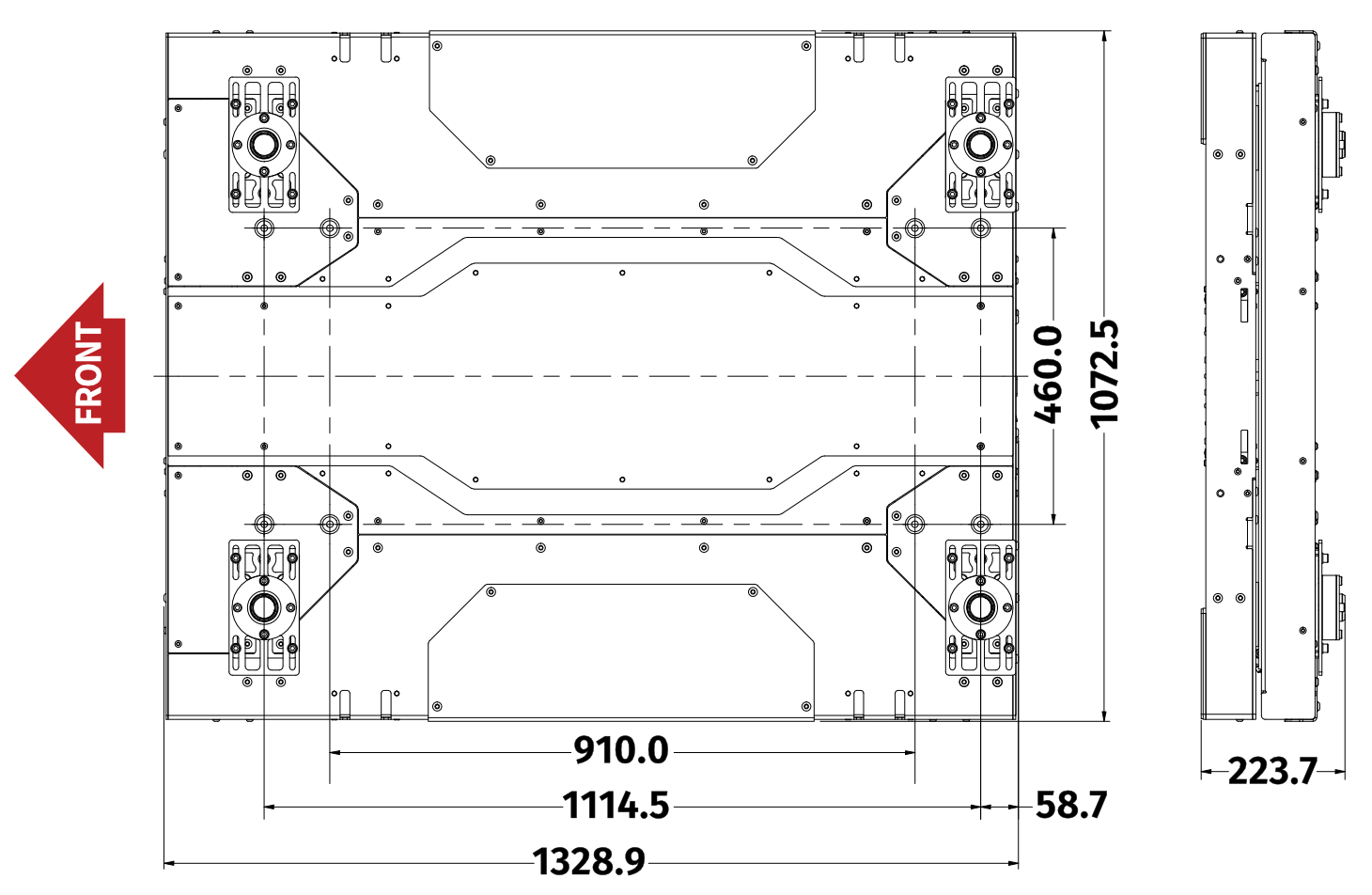
2.4 System specification
| QS-CH2 | |
|---|---|
| Architecture | 2DOF |
| Actuator stroke | 100 mm |
| Platform weight | 160 kg |
| Gross moving load | 300 kg |
| Excursions | |
| Yaw | -7.2°, 7.2° |
| Surge | -50 mm , 50 mm |
| Maximum velocity | 800 mm/s |
| Maximum acceleration | 0.8G* |
2.5 Power requirements
QS-CH2 requires a 120/230± 10% VAC 50-60 Hz single phase with ground and neutral connection.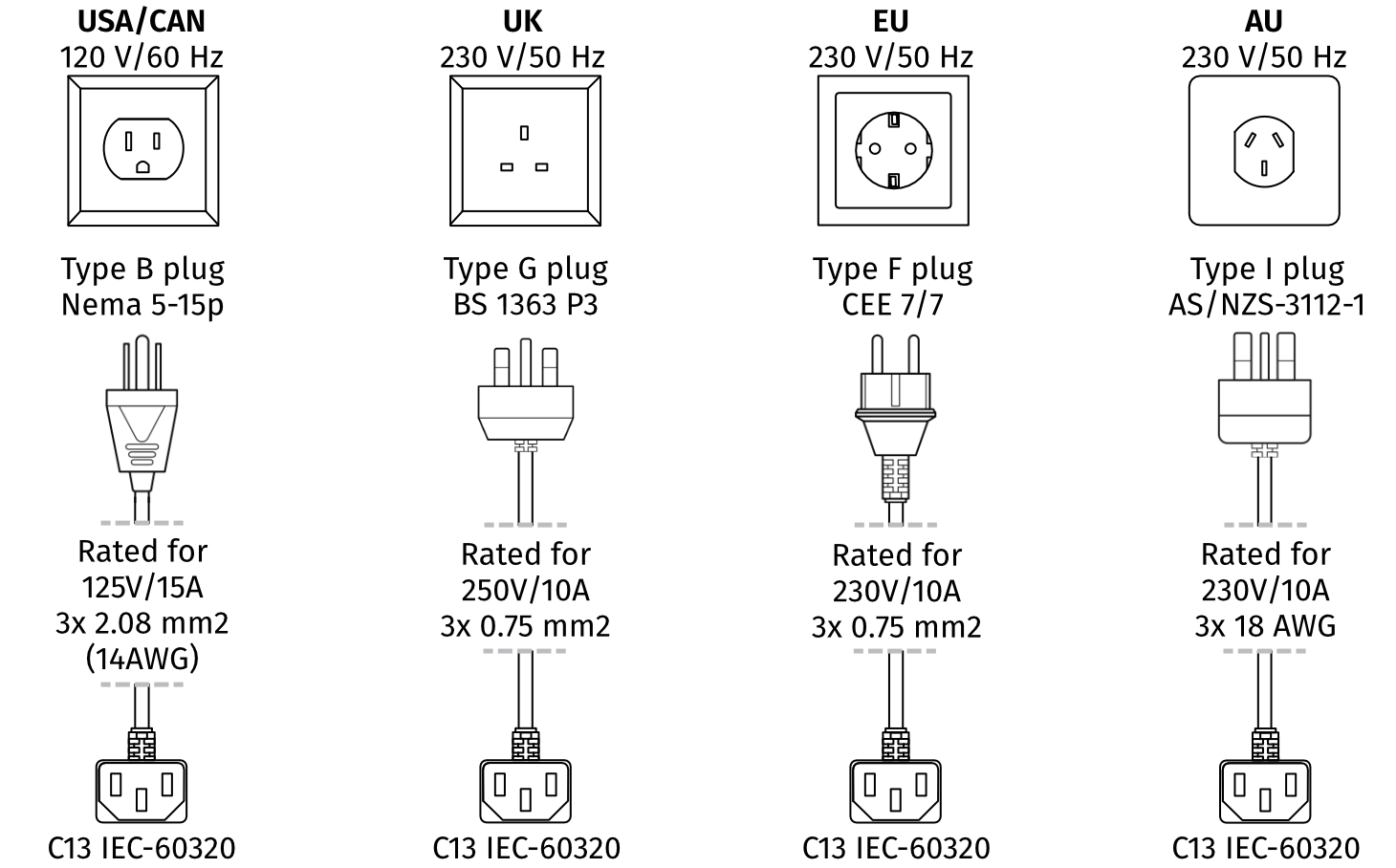
Info
Always UNWIND THE CABLE COMPLETELY when using a cable reel and untangle an extension cord before connecting the device to the power supply.

Warning
- The device is NOT intended to be used in an IT earthing/grounding system.
- The product must be connected to the mains power supply with a protective earth (PE) and a residual current circuit breaker (RCCB).
2.6 Power Consumption
Table below contains power consumption data for QS-CH2 measured with a 200 kg payload:| Converter specification | Breaker specification | Power consumption | ||||||
|---|---|---|---|---|---|---|---|---|
| Average Power [kVA] | Peak Power [kVA] | Peak Current [A] | Average Power (stress test) [kW] | Average Power (typical game) [kW] | ||||
| 120 V power supply | ||||||||
| 1 | 1.5 | 12.4 | 0.7 | 230 V power supply | ||||
| 1.3 | 1.7 | 7.4 | 0.6 | 0.06
| ||||
Info
- Q-MODE is unavailable for QS-CH2 .
- 2DoF single set of QS-210/220 works only in Heavy-Duty mode with QS-CH2 .
2.7 Environmental conditions
The QS-CH2 should be operated within ambient conditions as specified below:- Indoor use and storage only
- Temperature: 5° - 40° Celsius / 41° - 104° Fahrenheit
- Humidity: 0% - 70% (without water vapor condensation)
- Maximum altitude: up to 2000 m / 6561 ft
2.8 Transportation wheels
Transportation wheels can be mounted for transportation purposes. Put the transportation wheels mounting bracket to the mounting points in the front and back of the QS-CH2 . Screw both bolts with nuts gradually one by one using 17 mm socket wrench until the bracket is flush against the side of the device and platform is high enough to be transported.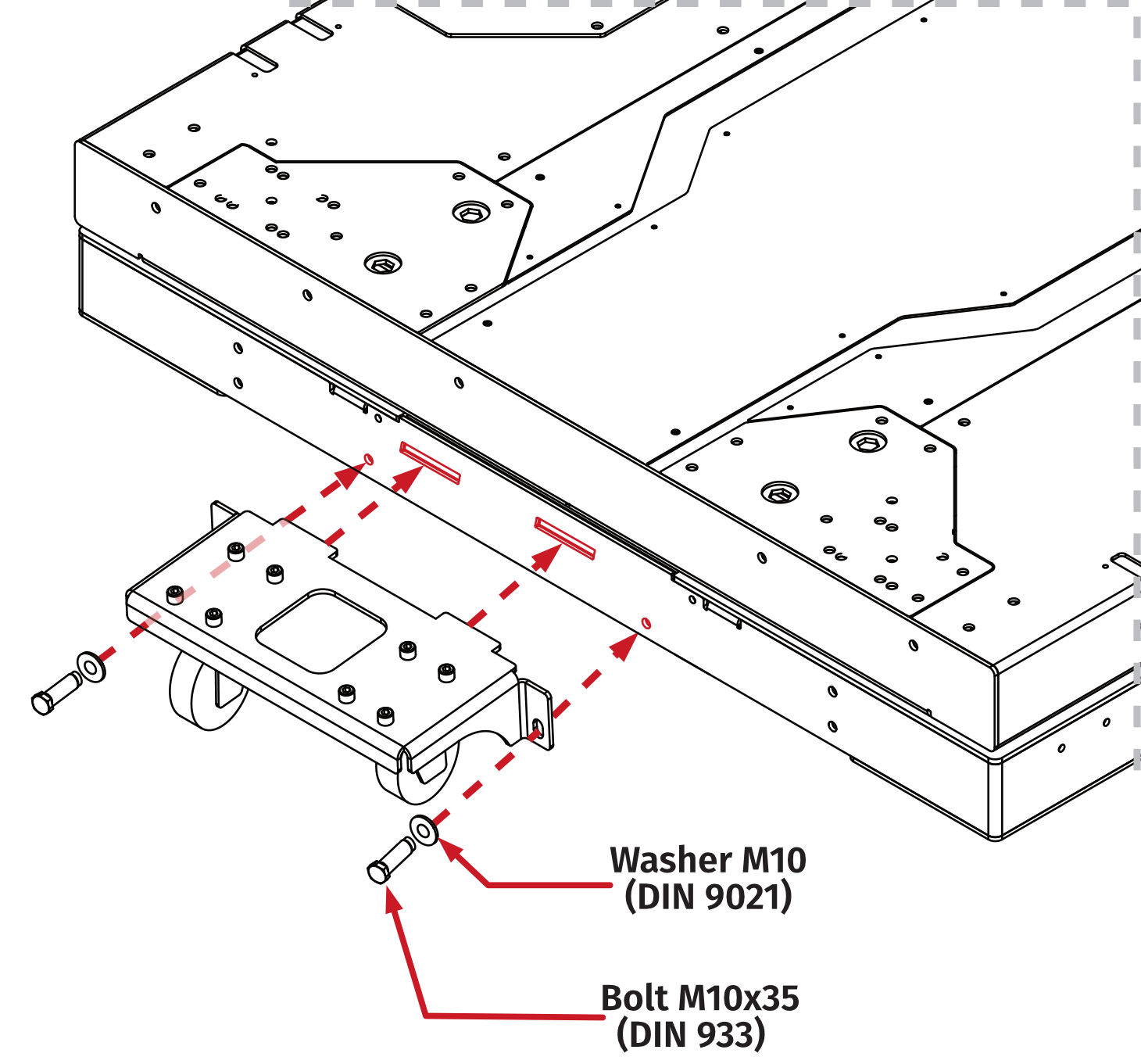
Info
Transportation wheels can be mounted to QS-CH2 with payload attached.
2.9 Cold start procedure
For safety reasons, and in strict compliance with the requirements of ISO 14118:2017 (E) concerning the prevention of unexpected start-up, QS-210, QS-220, QS-V20, QS-CH2, and QS-S25 motion systems require one complete cycle of the Motion Lock switch whenever power is restored after being cut off or during the start-up. Follow the steps below:- Verify that the motion platform is OFF - the power switch on the Power Cabinet is not backlit, and QubicManager displays an Offline status.
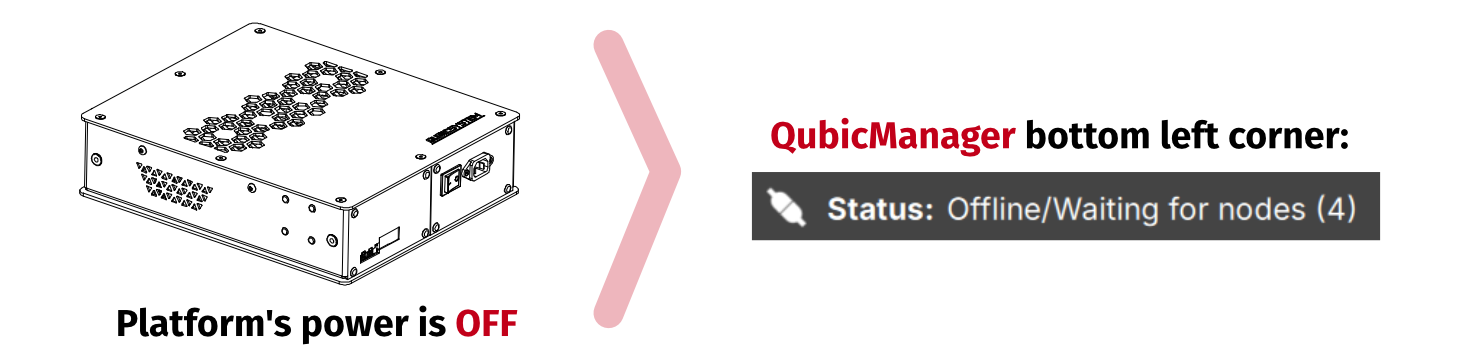
- Turn the Power ON. The platform will not move.
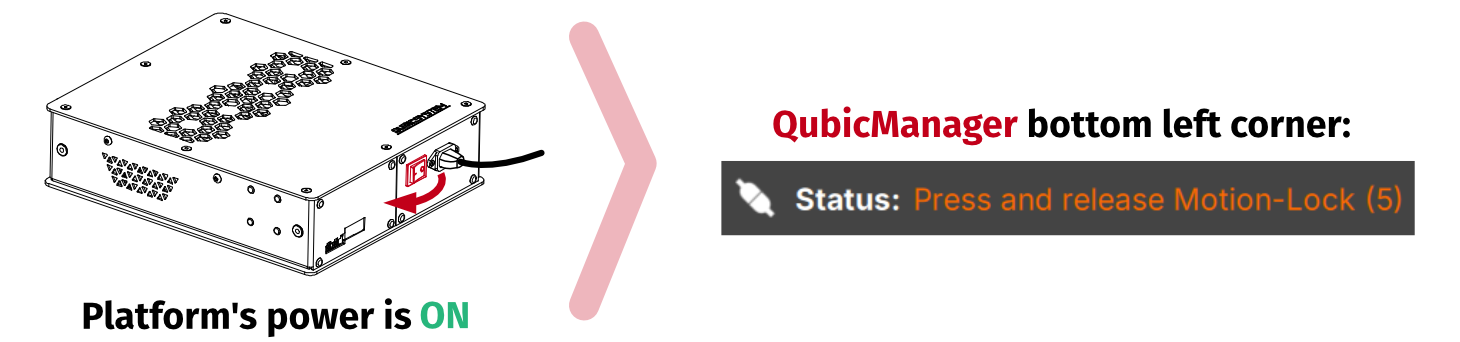
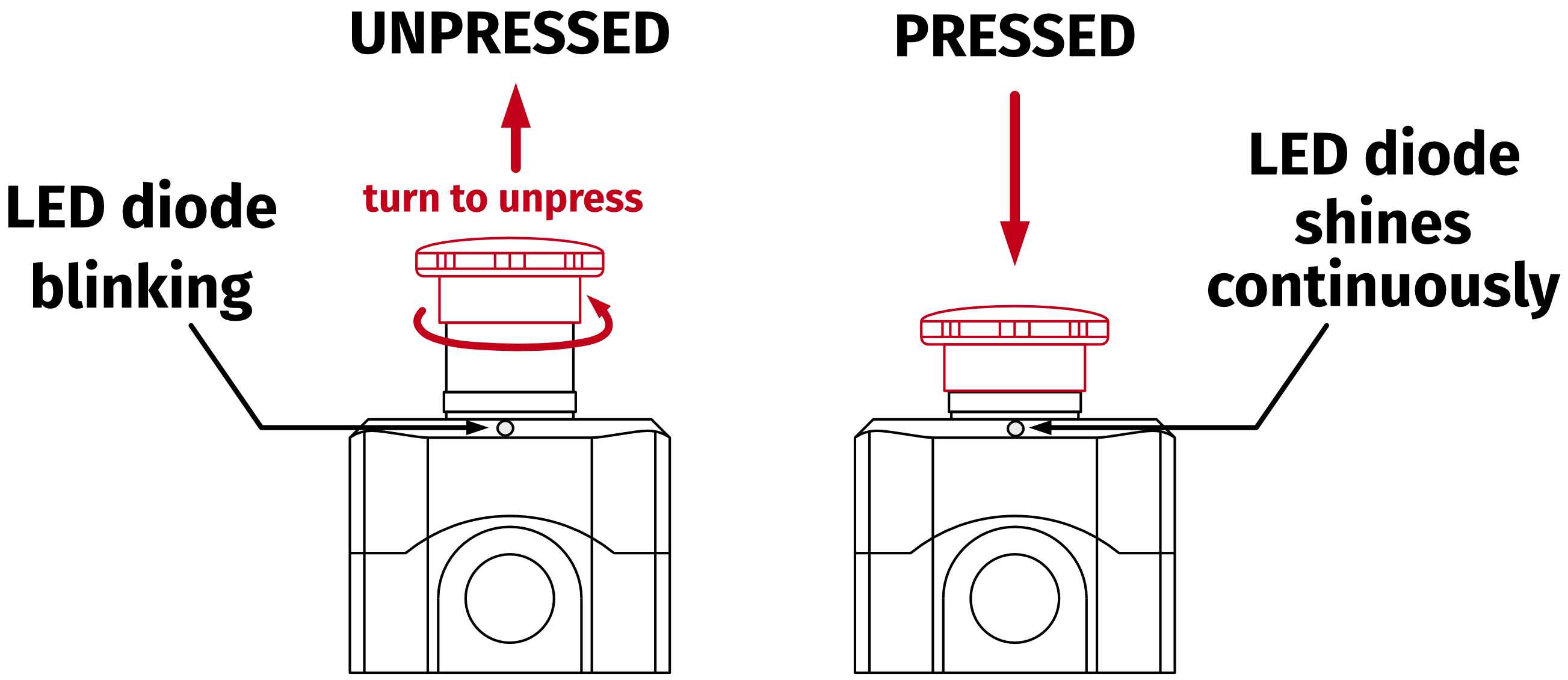
- Press the Motion Lock button - diode emits constant light. The platform will not move.
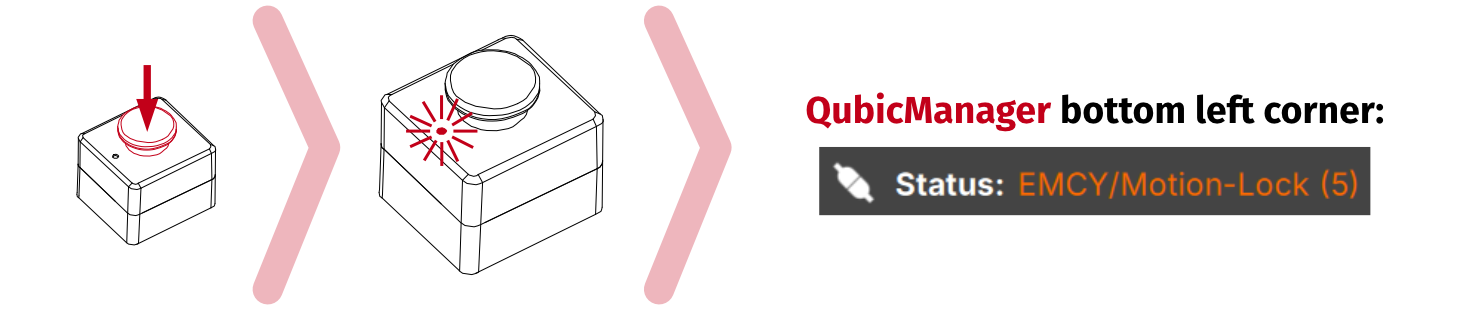
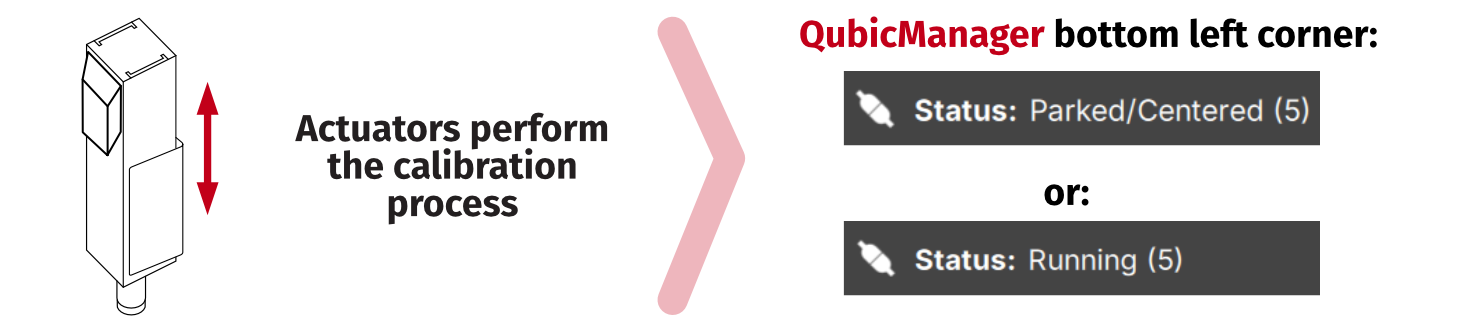
- Turn the Motion Lock button counterclockwise - diode blinks. The system will perform start-up calibration. Do not change the payload.
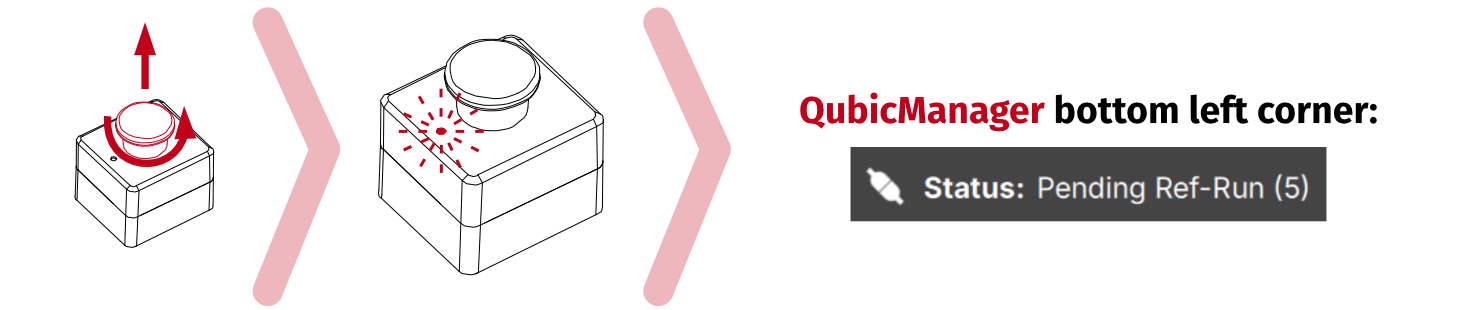
- If the status displays Parked/centered or Running - the motion platform is ready for operation.
Info
- If the status displays - no need to perform a Cold start procedure, the platform is ready for operation.

- If the platform was already powered ON while starting the QubicManager and status displays - start from step 3.

- If the Motion Lock was already engaged during start-up and the status displays - no need to cycle through the stages, start from step 4.

- For the procedure to work, M10 controller must be powered on (via USB) - QubicManager does not have to be running.
3 Installation
Warning
Use small amount of medium strength thread locker on all mounting bolts that are not screwed in with a locknut.
| Bolt | Size | Torque |
|---|---|---|
| DIN 912 | M8 x 40 | 23 Nm |
| DIN 912 | M8 x 12 | 23 Nm |
| DIN 7991 | M8 x 20 | 17 Nm |
| DIN 7380-1 | M6 x 16 | 7 Nm |
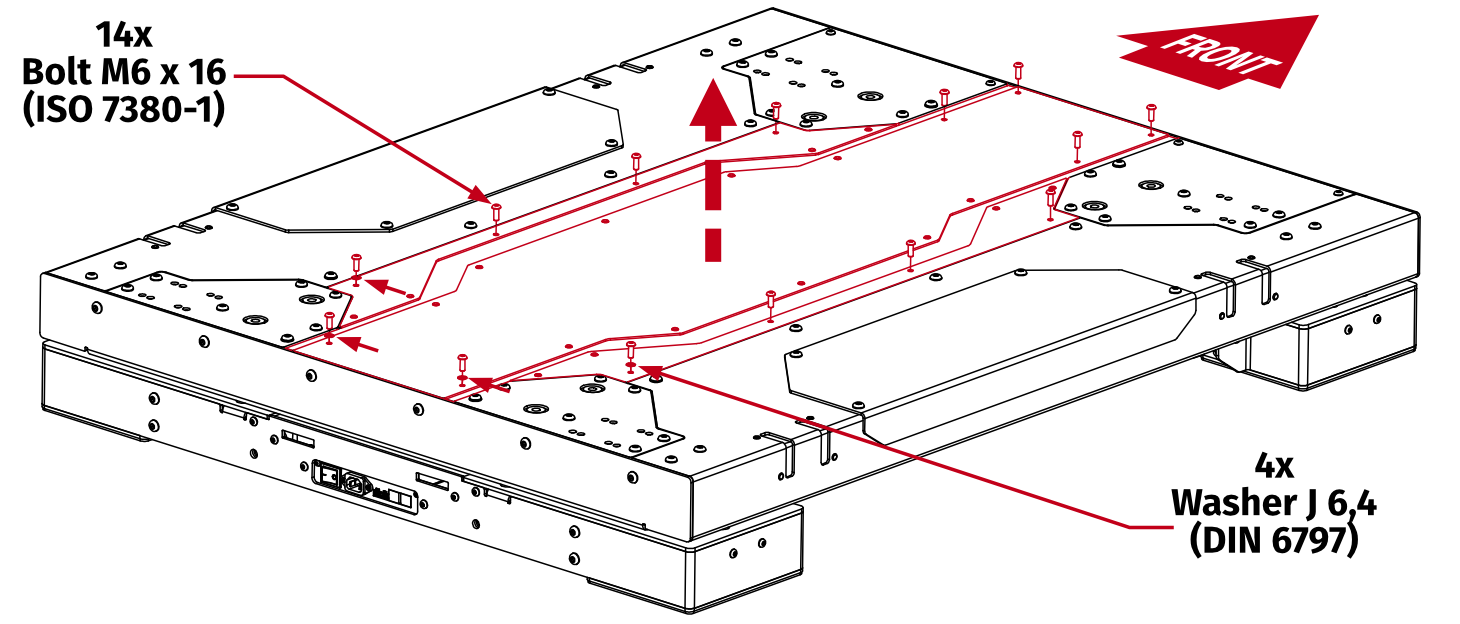
3.1 Removing top cover
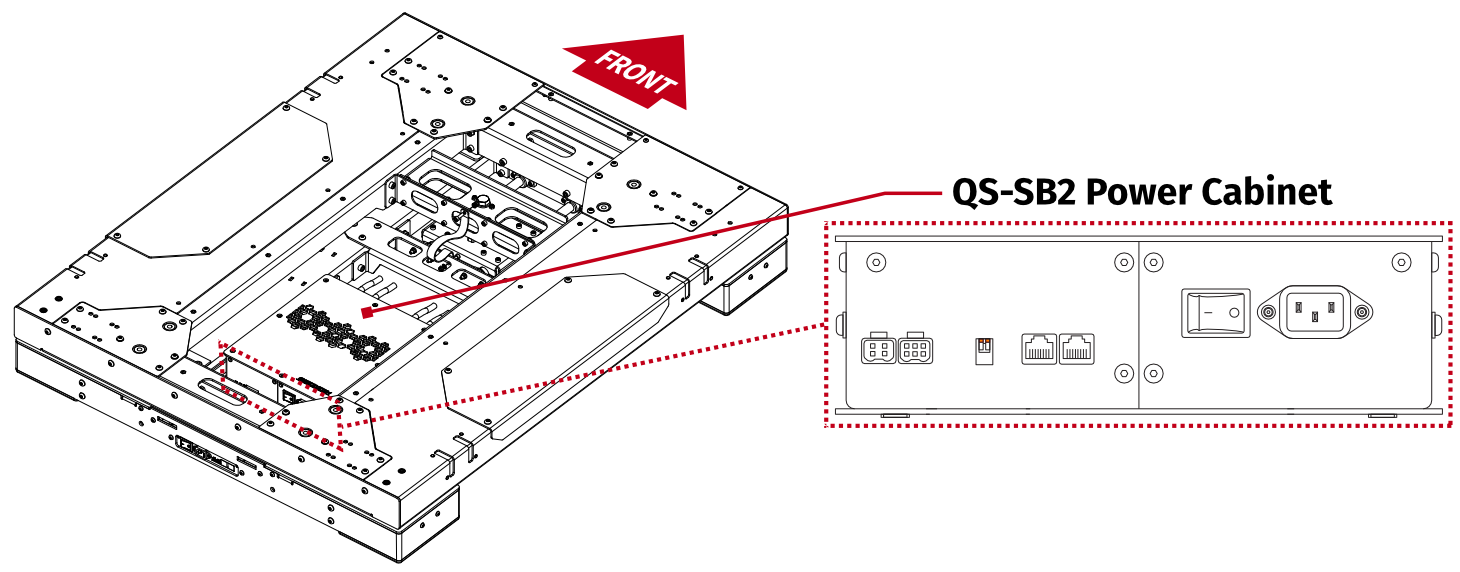
Different setups may need different CFG switch configurations. Go to section 3.10 for full connection diagrams.Info
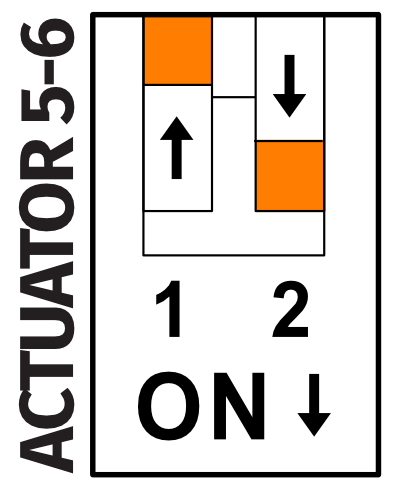
By default, the CFG switches are set for a 5DoF setup - actuators 5-6 (QS-CH2 last in the M-BUS circuit):
Info
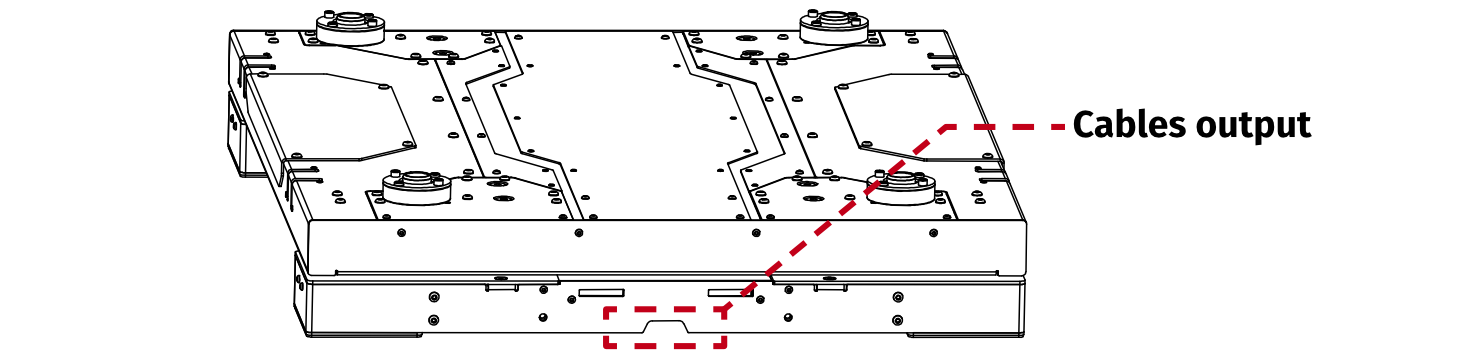
The revised version of the QS-CH2 is equipped with push-pull actuator connectors which are connected with Power Cabinets from the factory and DO NOT require any attention from the user.
3.2 Previous revision with no connection panel - switching the power switch ON
In previous revisions there was no cable connection panel - while the top cover is removed, ensure that the power switch on Power Cabinet is in the ON position (dash, instead of a circle). Once the switch is ON - the backlight is ON. After installing the cockpit on top of the QS-CH2 it will no longer be possible.Info
While the top cover is off - also ensure correct CFG switch setup. Go to section 3.8 for more details.
3.3 QS-CH1/QS-210/QS-220 actuators mounting feet
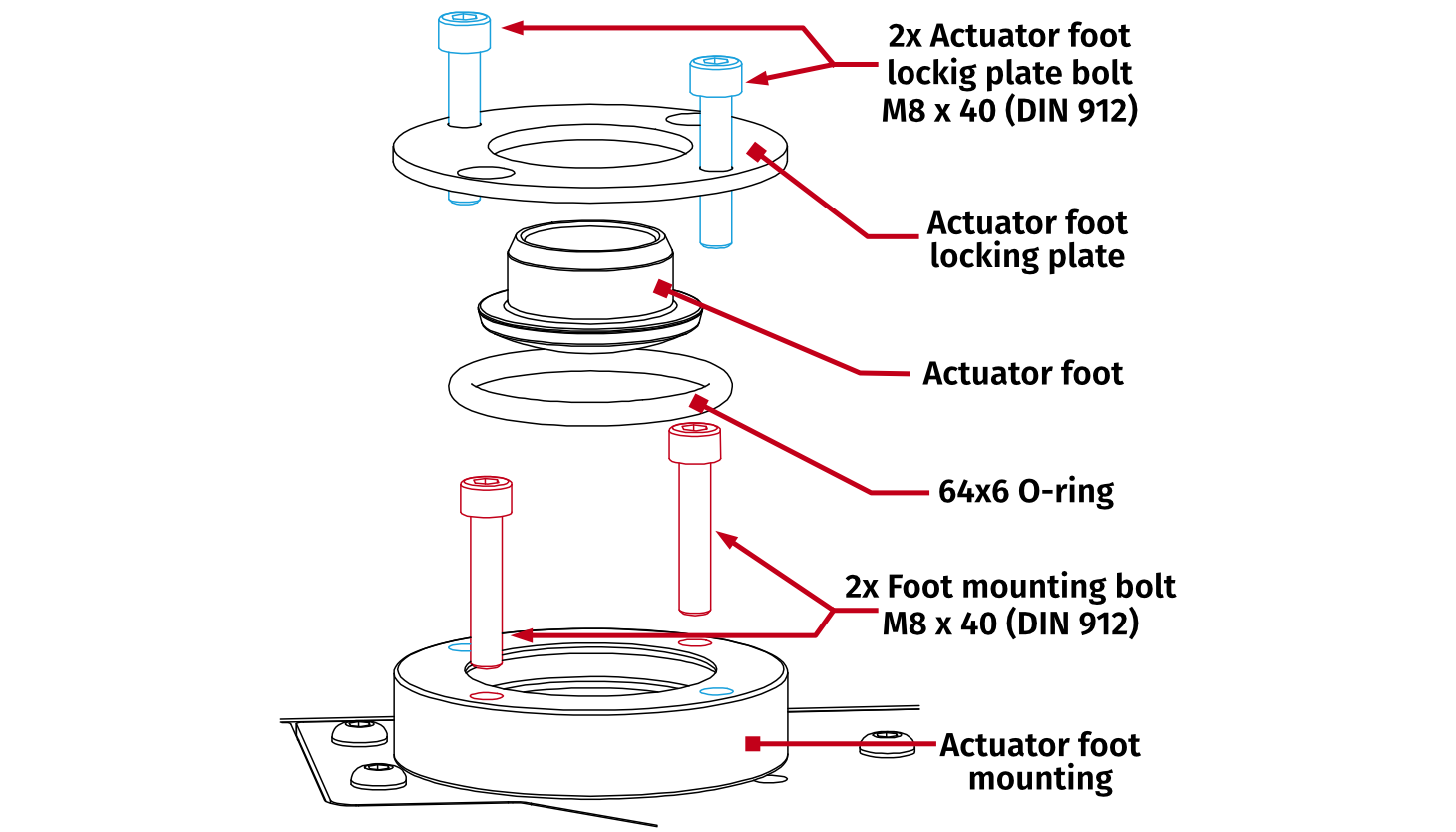
In order to mount Qubic System motion actuators onto the QS-CH2 platform - all actuator feet must be screwed in with the actuator feet and the locked in place by the top locking plate. Actuator feet mounting holes: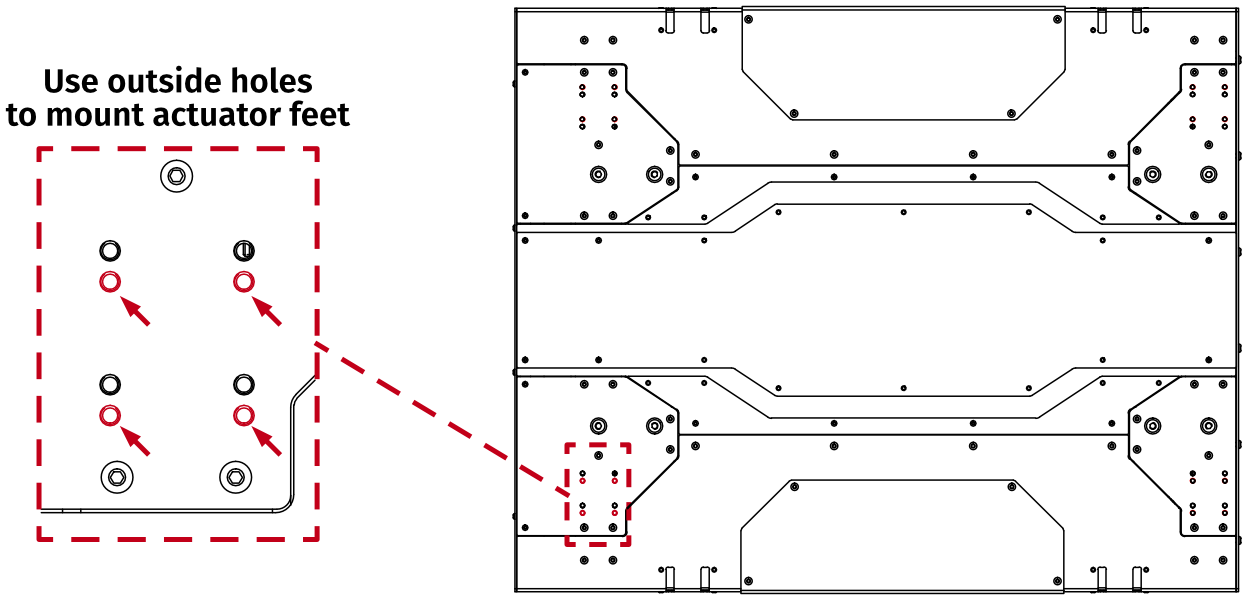
Info
Disassembled elements of QS-CH2 's Actuator foot:
-
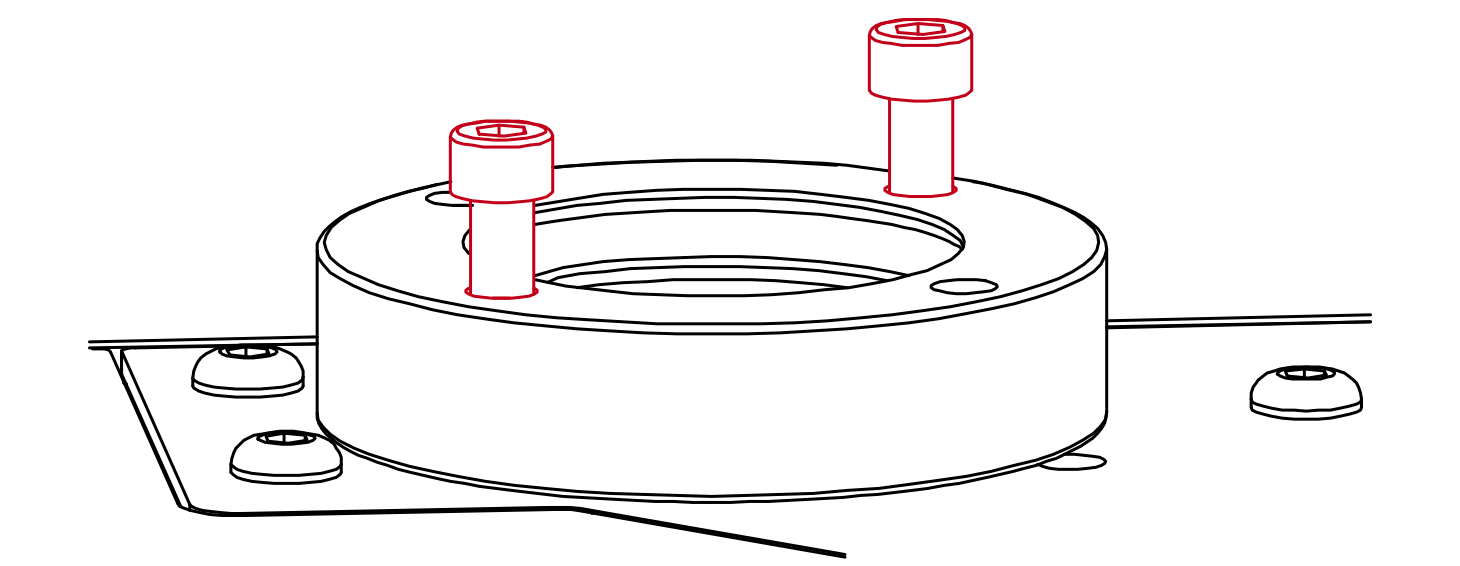 Screw in all 4 of actuator feet mountings to the platform.
 - Lift the platform to gain access to actuator feet.
Warning
- sep-0.5em
- Gaining access to the bottom of actuator rods requires lifting up the full cockpit. Due to weight of the motion platform use only certified car-lift or hoist and ALWAYS place car-stands under lifted cockpit as a safety measure.
- Actuator feet are filled with grease - do not remove it. Use rubber gloves during installation.
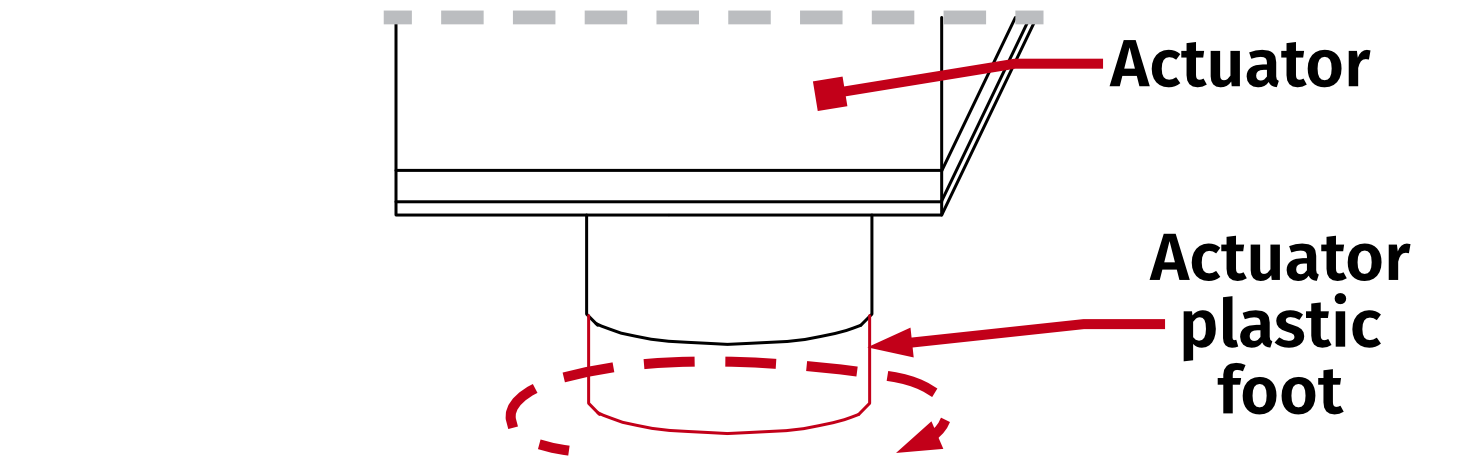 Remove all plastic feet from the actuator by unscrewing them counterclockwise.
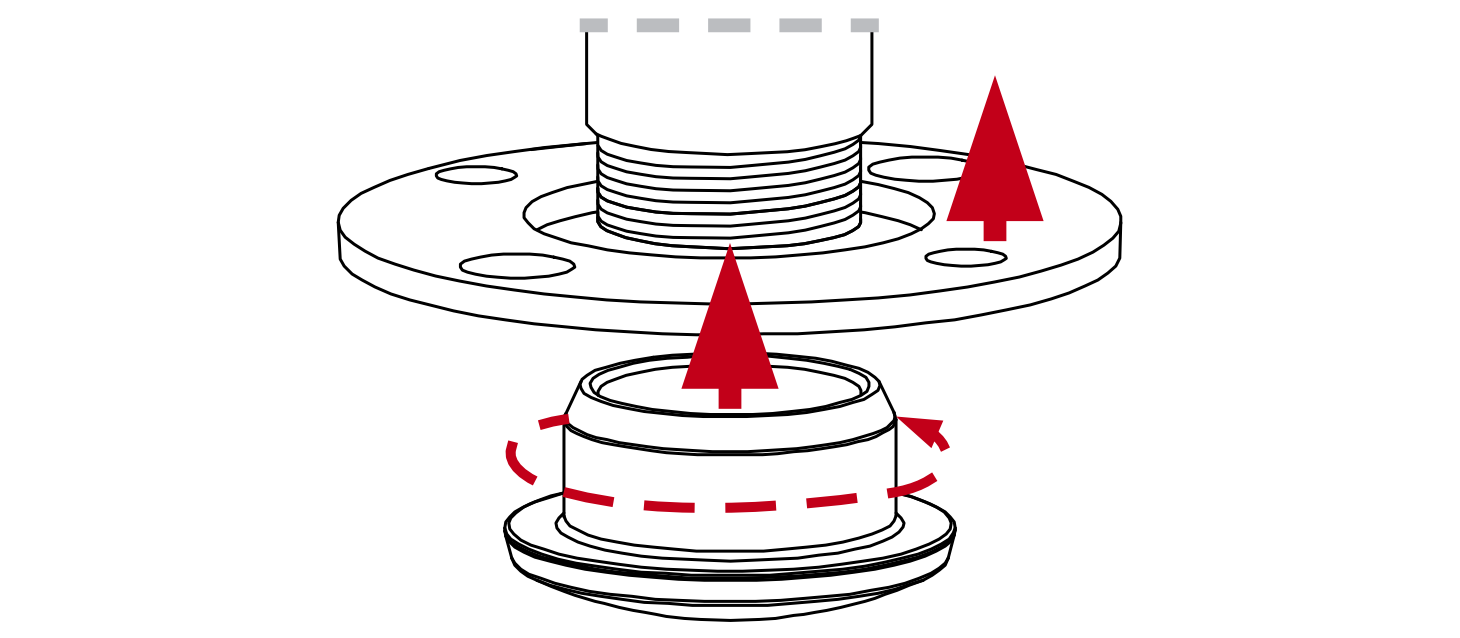 Slide the Locking plates into the actuator rods and screw in QS-CH2 's actuator feet.
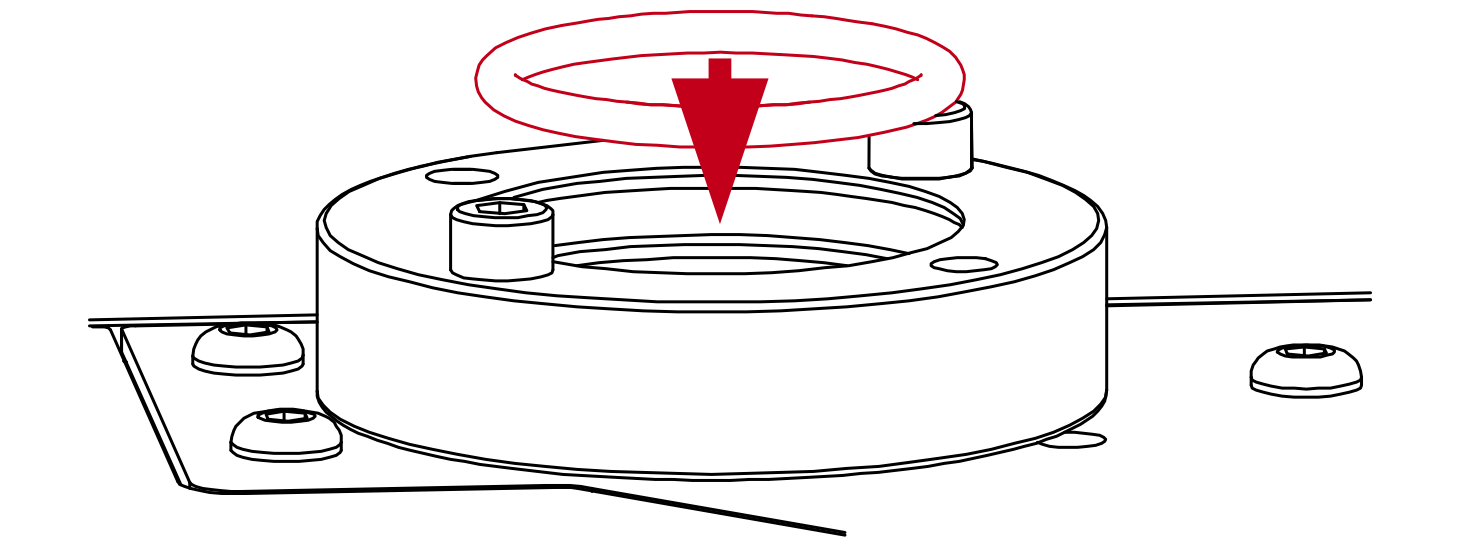 Place the O-rings into the feet mountings.
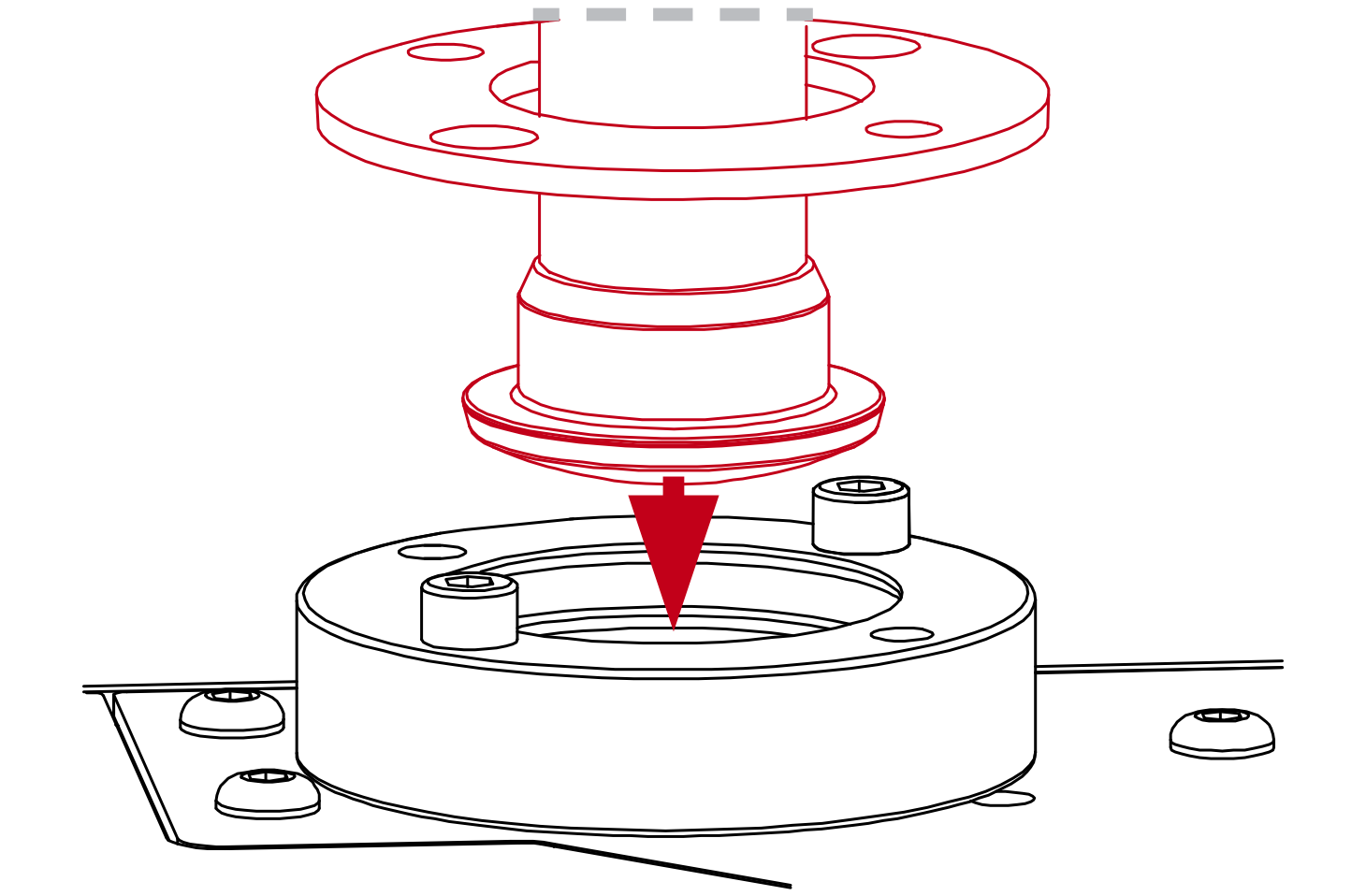 Lift the full platform and place into the Actuator mountings.
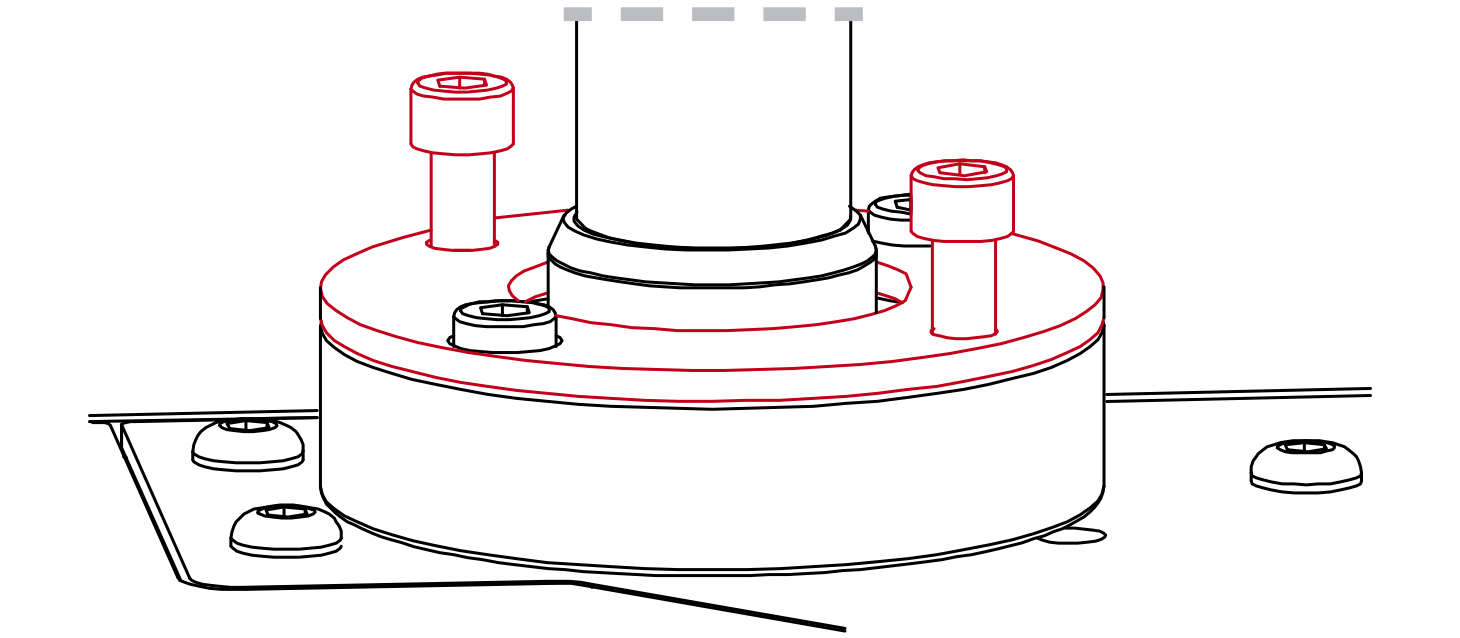 Screw in the actuator foot locking plates.
 - Torque down all bolts. For torque values go to page .
Info
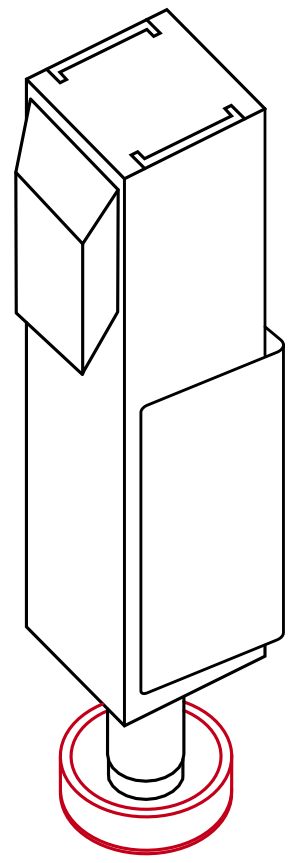
- All actuators MUST be placed on Actuator feet.
- Actuator feet are filled with grease - do not remove it. Use rubber gloves during installation.
- Tolerance for piston rod misalignment relative to Actuator foot center point is max. 5 mm.
3.4 Custom cockpit actuator feet adjustment
In order to fit a custom motion actuators implemented cockpit - transverse adjustment will be needed. Use included adjustment plates to set the width of actuator feet.Info
To calculate if your cockpit will fit QS-CH2 's Actuator feet adjustment range:
2x 55.4 mm + cockpit width = must be between 660.5 mm and 750.5 mm
Adaptability dimensions (both QS-210 and QS-220's actuator rod center axis to adapter edge measure 55.4 mm):
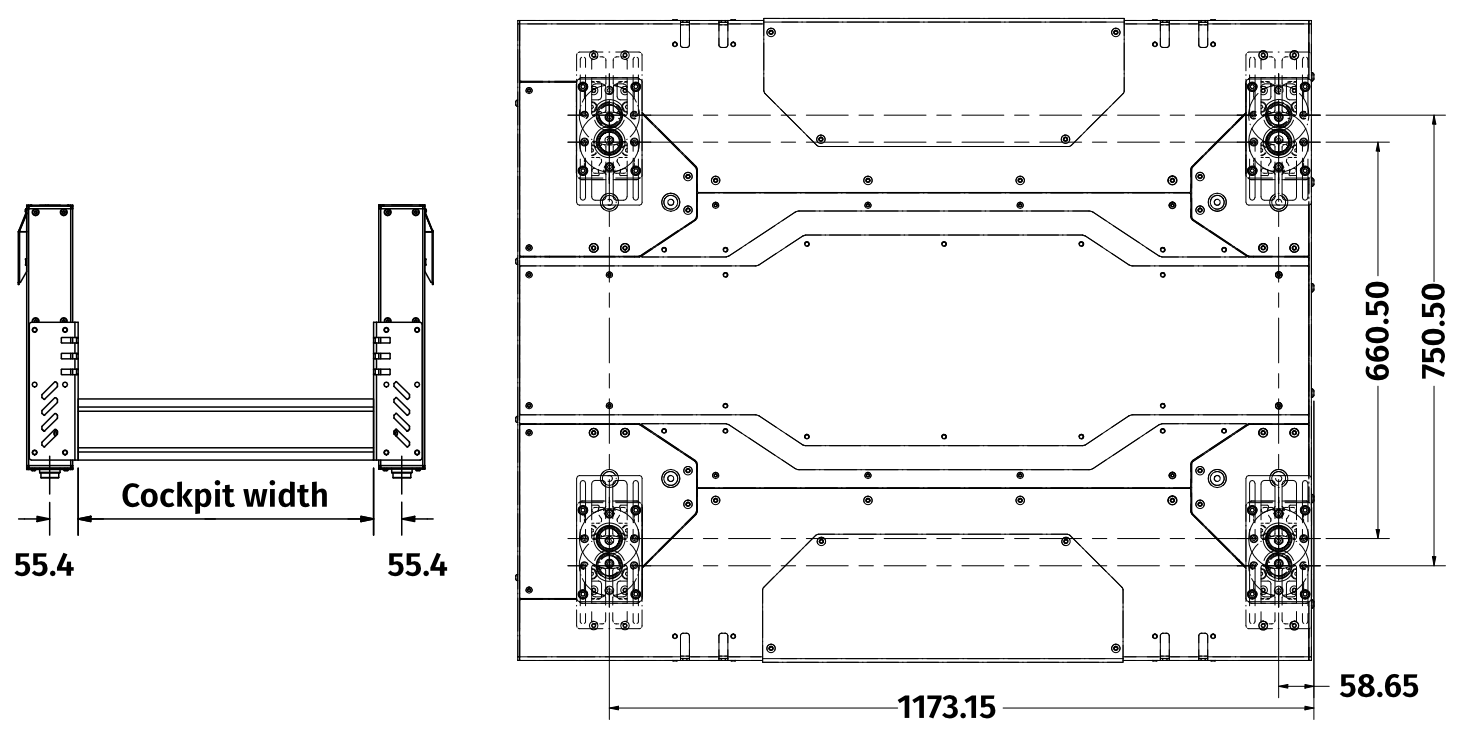
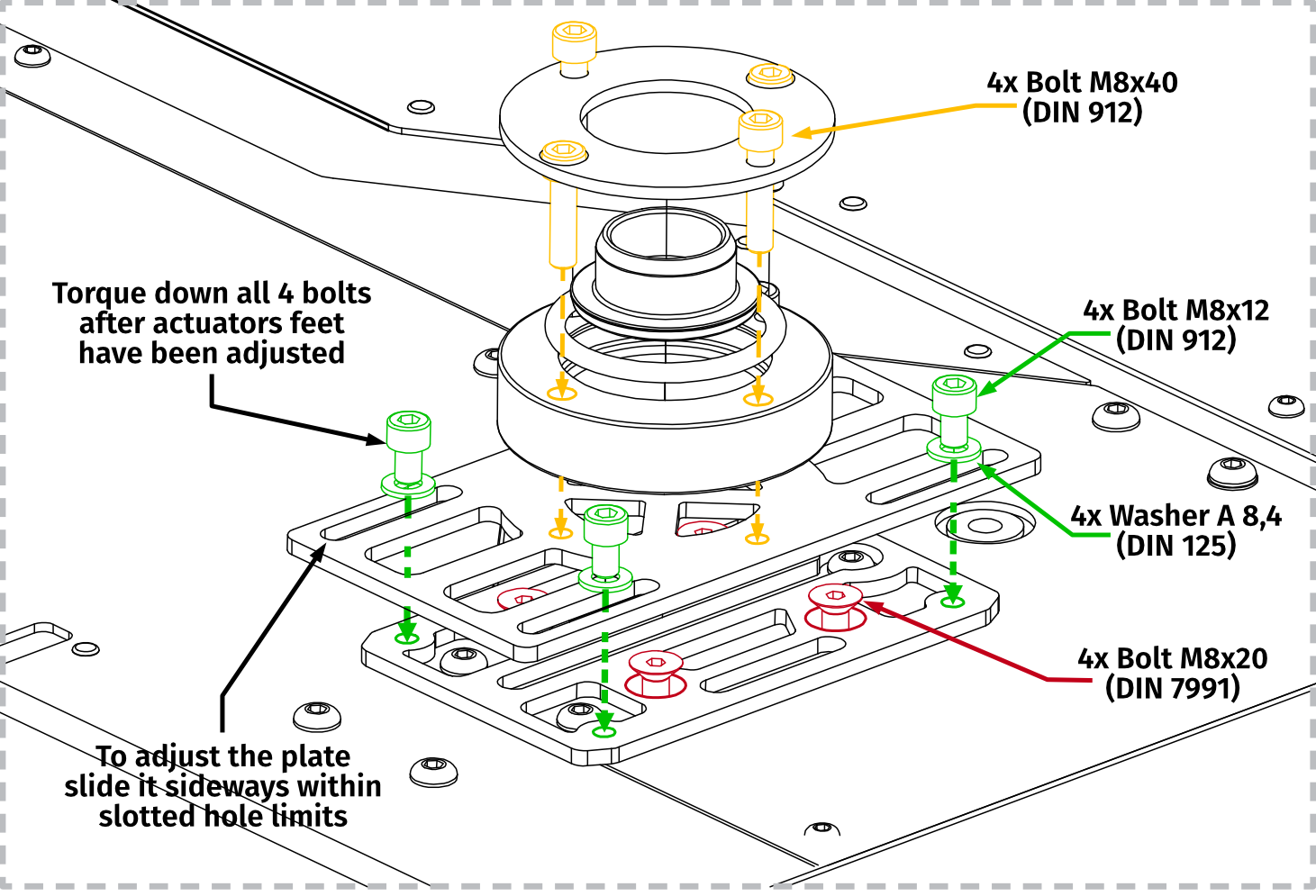
3.5 Universal cockpit adapter brackets
In order to install an aluminum profile cockpit, use included Universal adapter brackets and fasteners.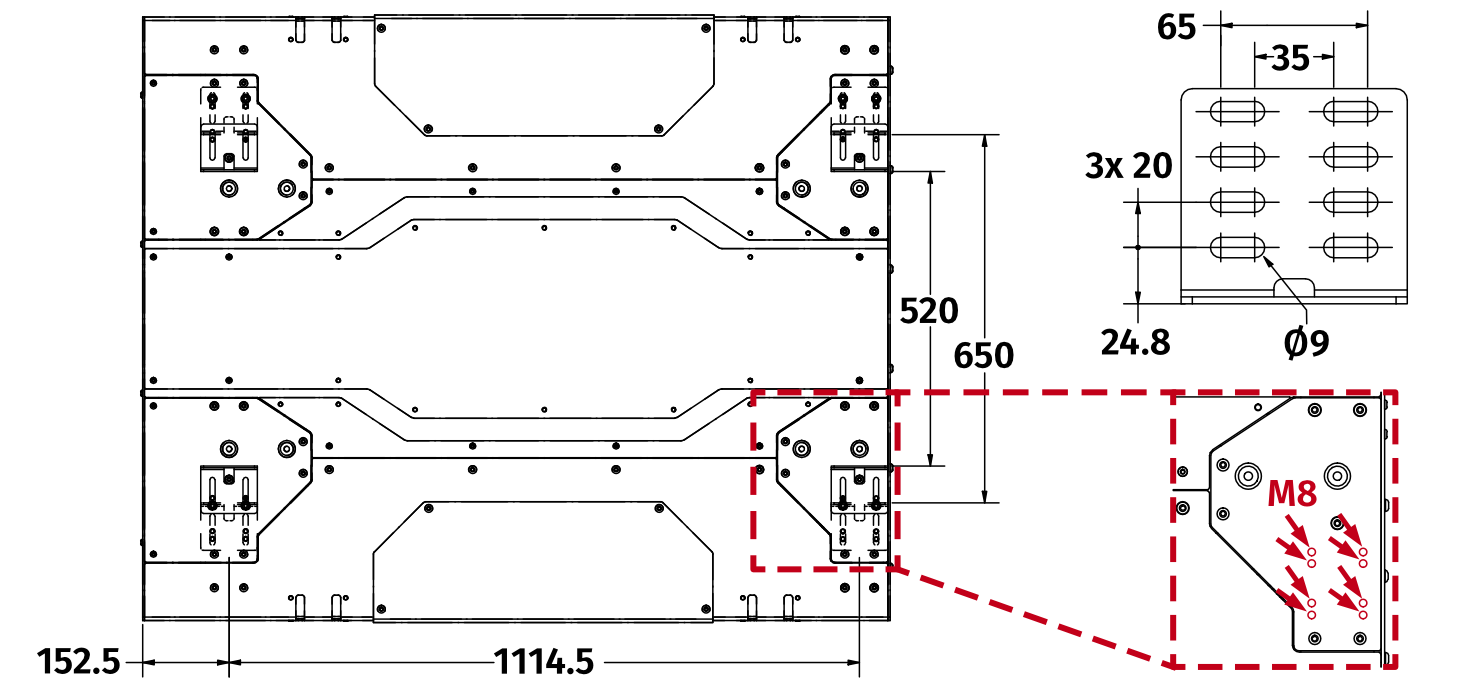
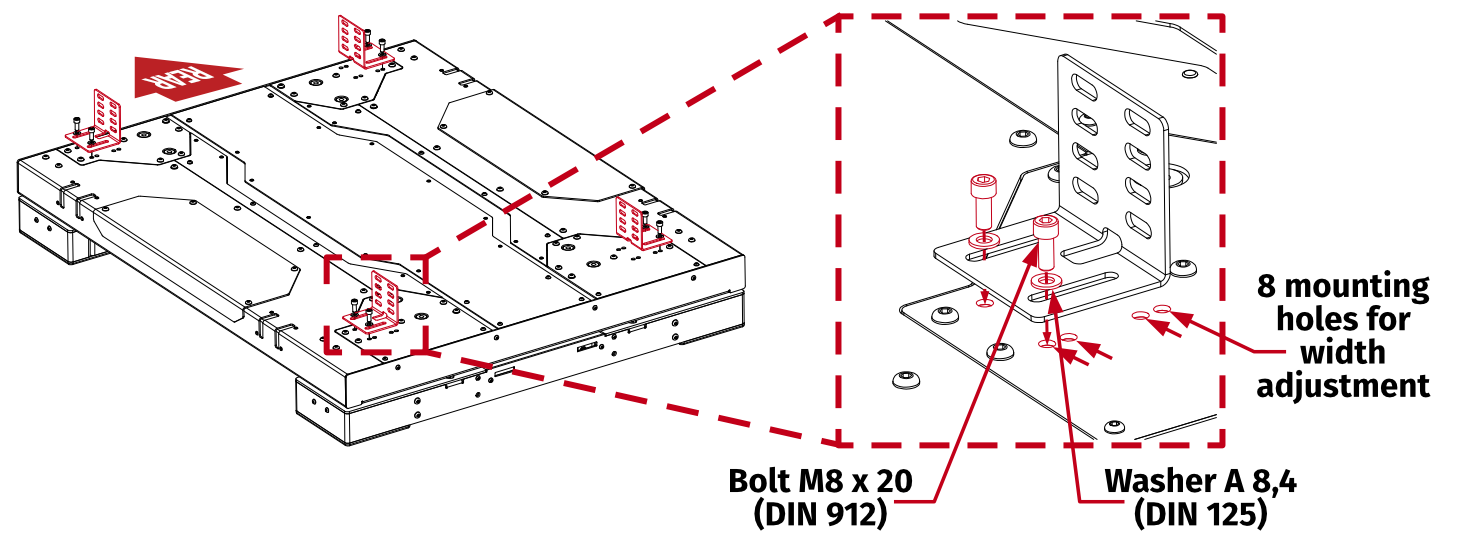
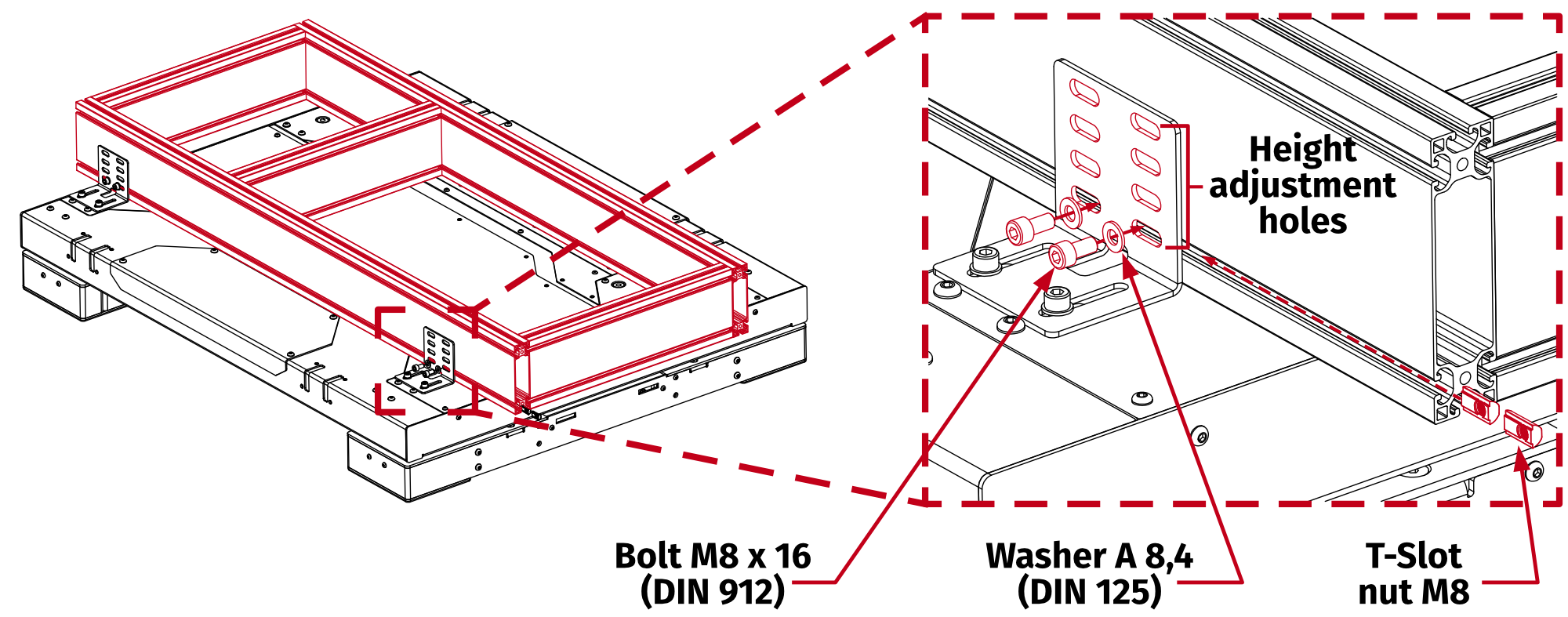
3.6 Optional mounting holes
QS-CH2 is equipped with optional mounting holes for custom user-defined applications: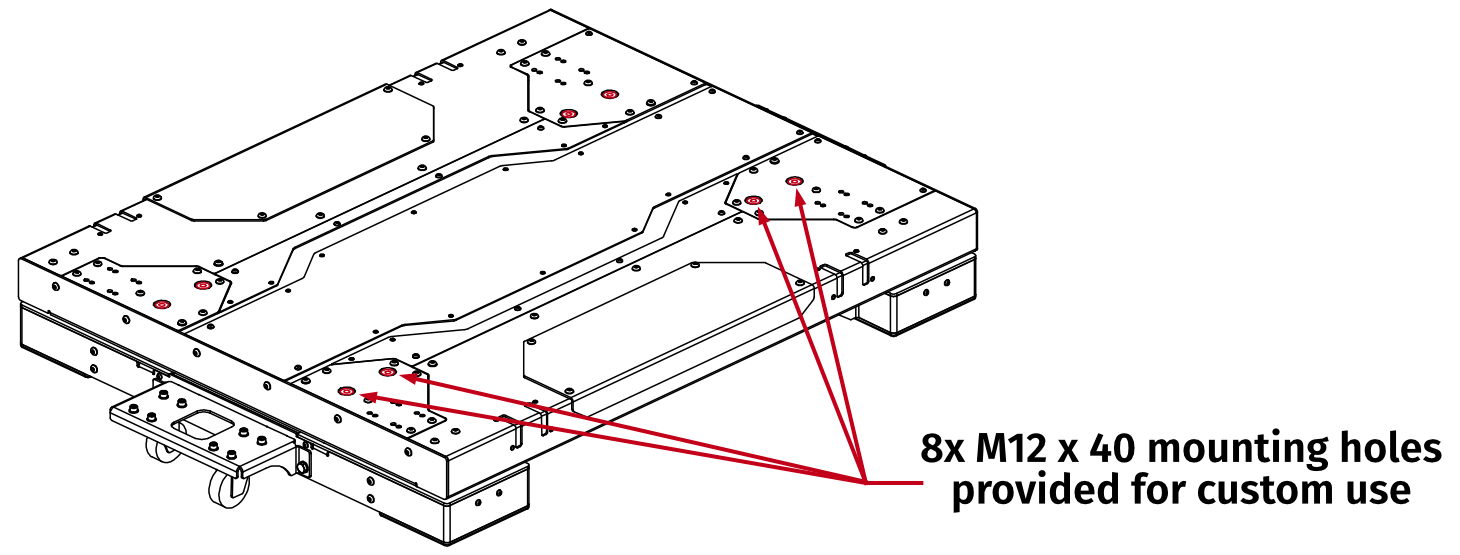
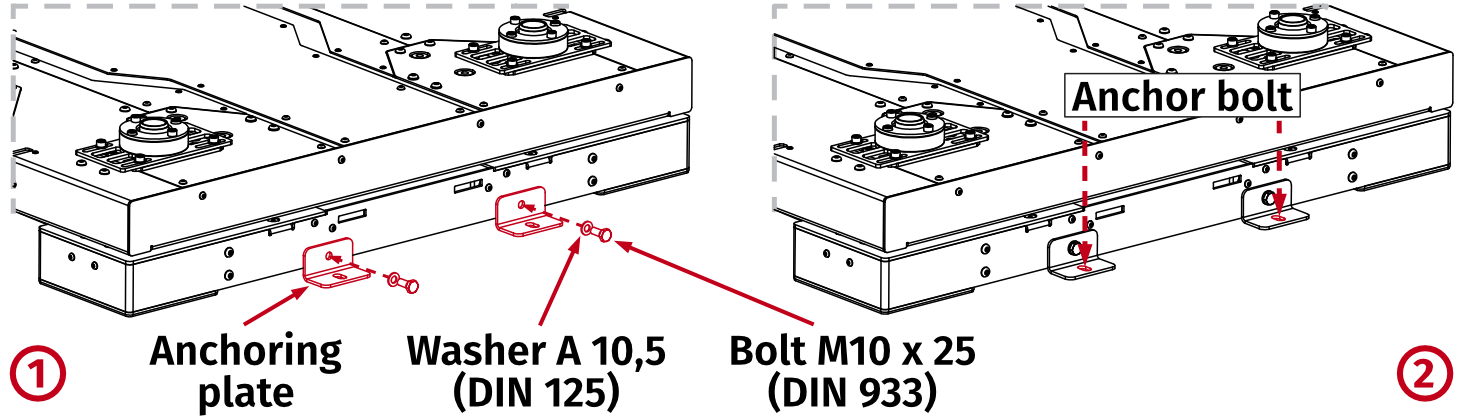
3.7 Anchoring
To prevent QS-CH2 from moving around during gameplay - it is recommended to anchor it to the ground.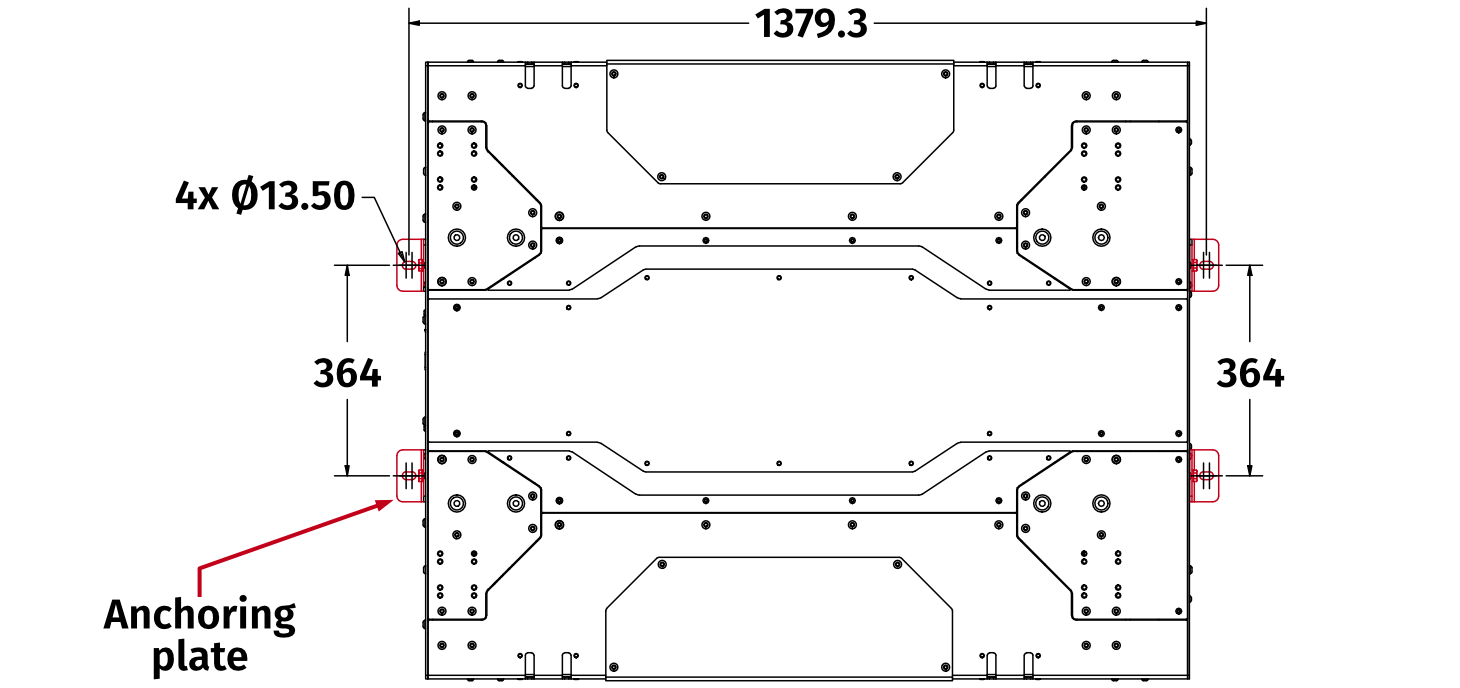
3.8 CFG Switch configuration
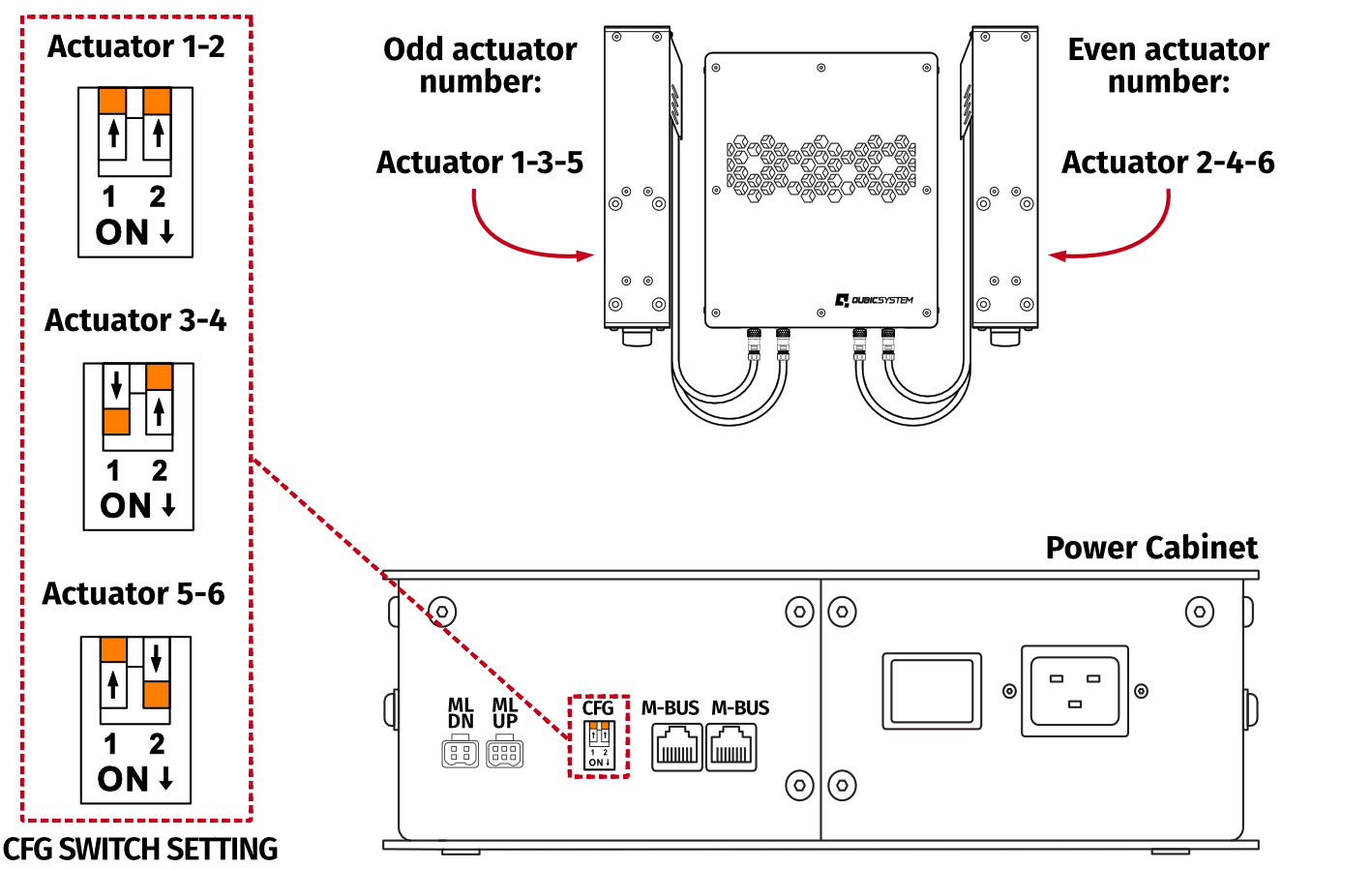
CFG switches needs to be set to appropriate positions in accordance with actuator number. Actuator number can be found on the sticker on the Power Cabinet. If you want to change the layout of the actuators you need to change the CFG switches setting by switching to number of the actuators they represent.Info
By default, the CFG switches are set for a 5DoF setup - actuators 5-6 (QS-CH2 last in the M-BUS circuit):
Warning
- The CFG Switch CANNOT be set in the same position in either of power cabinets.
- When changing CFG Switch setting the main power must be SWITCHED OFF.
- When changing the CFG Switch setting FIRMLY SET THE SWITCH into lower or upper position. Do not leave the switch in the floating position (neither up or down position), otherwise the device will not work.
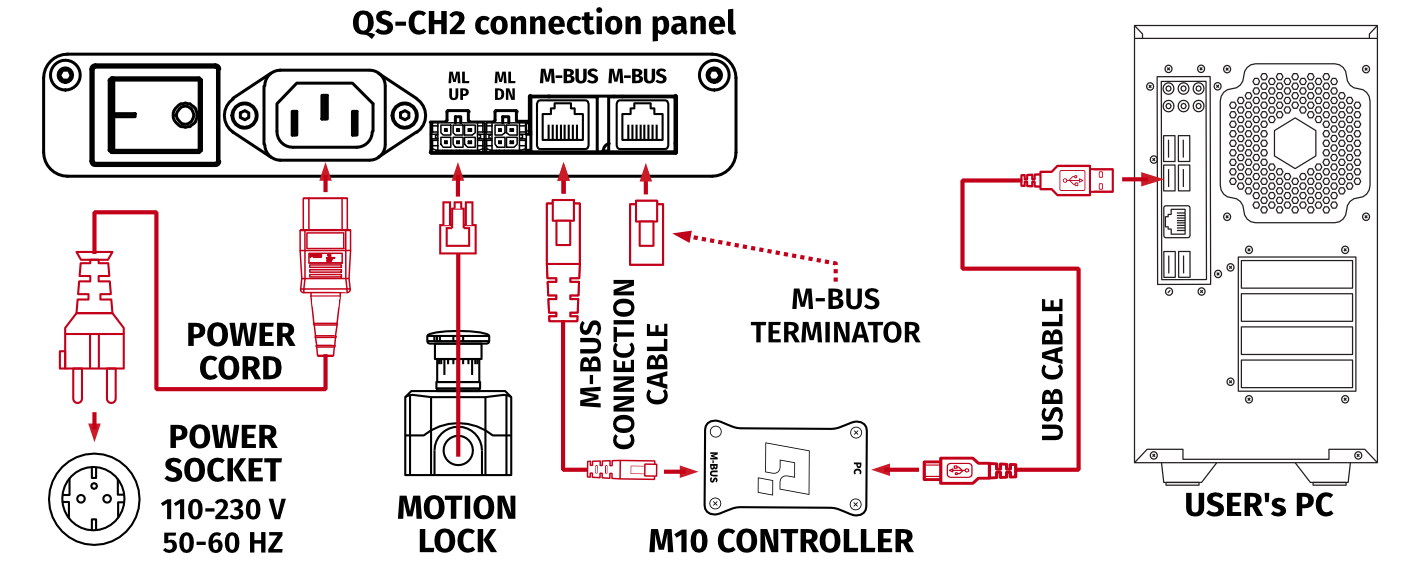
3.9 Connecting QS-CH2 independently with user's PC
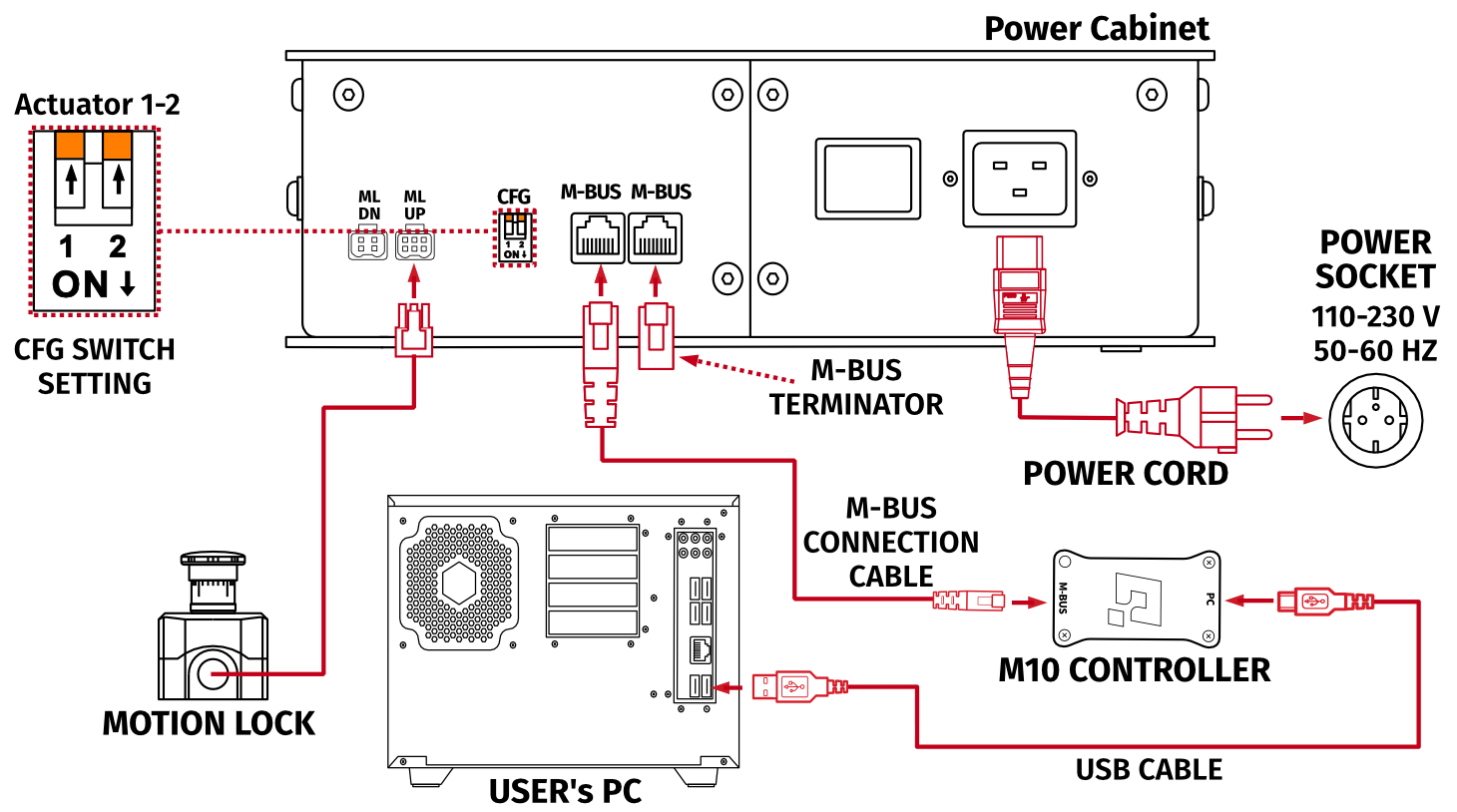
When running QS-CH2 independently, QS-MC6 set (including M10 controller, Motion Lock button and M-Bus terminator) is required. It is not included in a base QS-CH2 set and has to be purchased separately.Info
- By default, the CFG switches are set for a 5DoF setup - actuators 5-6 (QS-CH2 last in the M-BUS circuit). When QS-CH2 is connected independently - the CFG dipswitches must be changed to 1-2. You must gain access to the Power cabinet - go to section 3.1 for top cover removal instructions.
Info
Previous revisions were not equipped with a connection panel - all cable connections must be performed at the Power cabinet directly.
3.10 Connecting QS-CH2 with QS-210/220
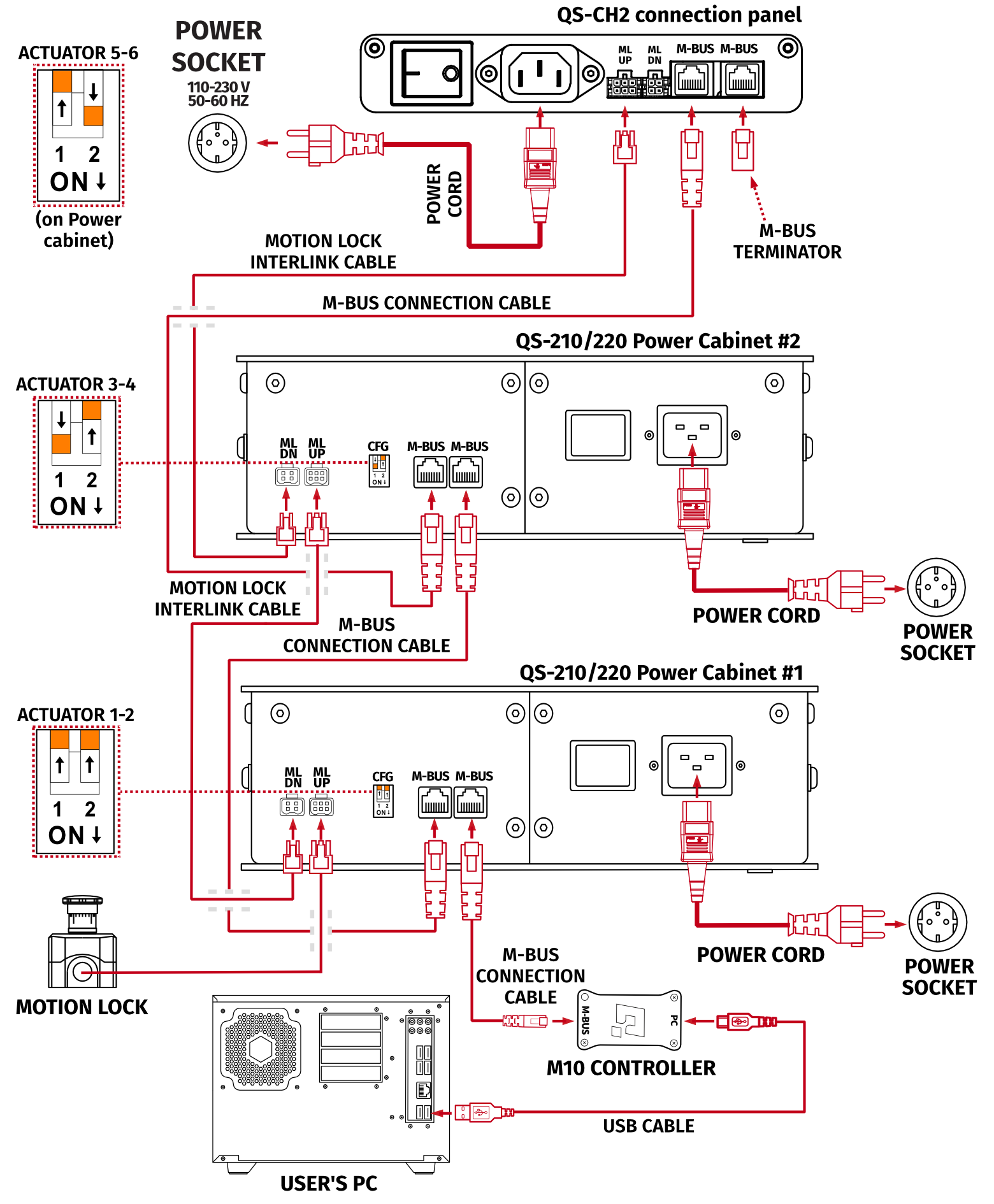
Info
- Order of connecting the cables is not important, you can connect the M10 controller or Motion Lock Switch to either one of the Power Cabinets.
- When connecting QS-CH2 with 3DoF set of QS-210/220 the CFG switches in the QS-CH2 must be set to actuator 5-6 setting (as shown on in section 3.8).
Info
Previous revisions were not equipped with a connection panel - all cable connections must be performed at the Power cabinet directly.
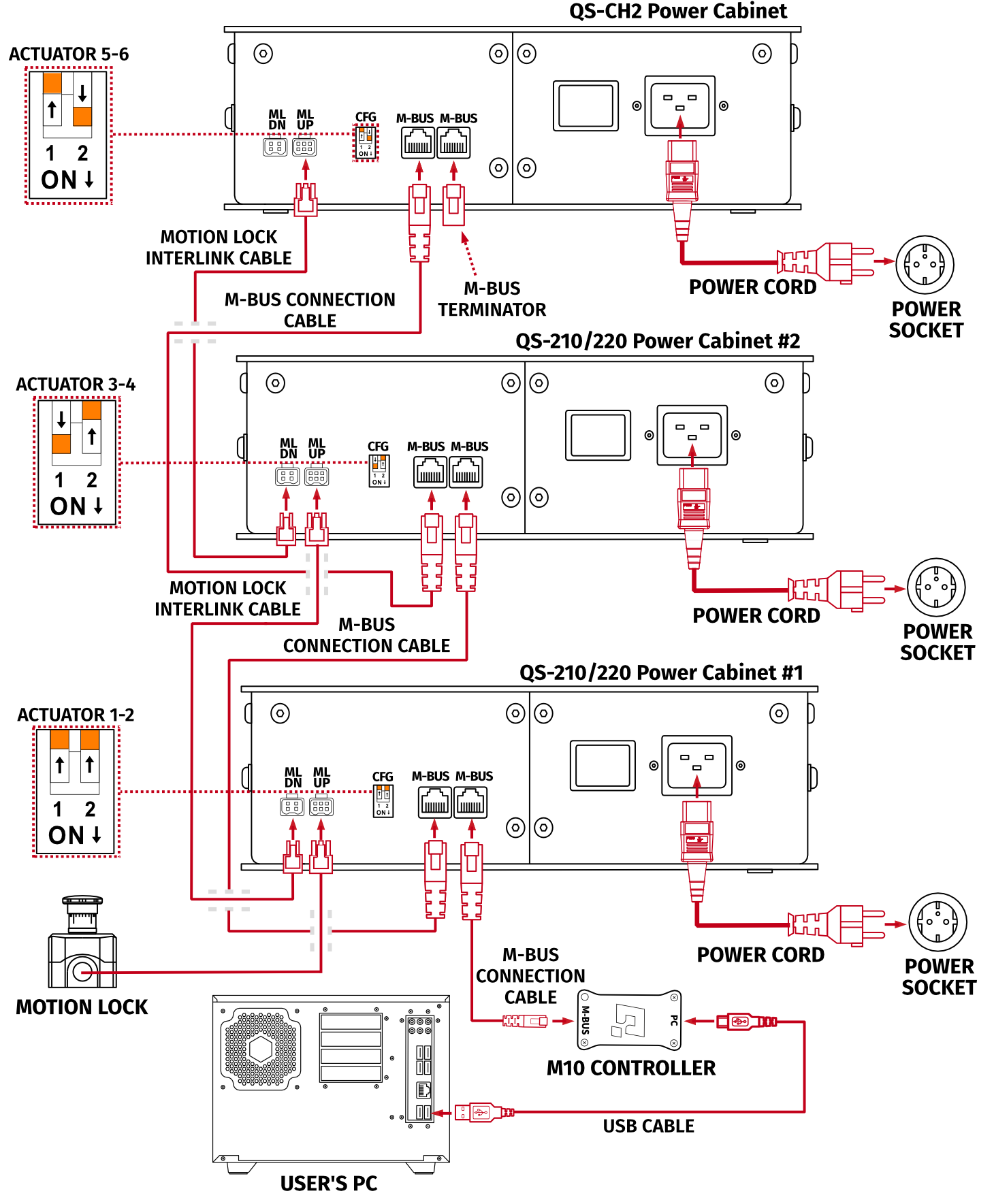 If you must gain access to the Power cabinet - go to section 3.1 for top cover removal instructions.
3.11 Connecting with a compatible QS-CH1 motion platform
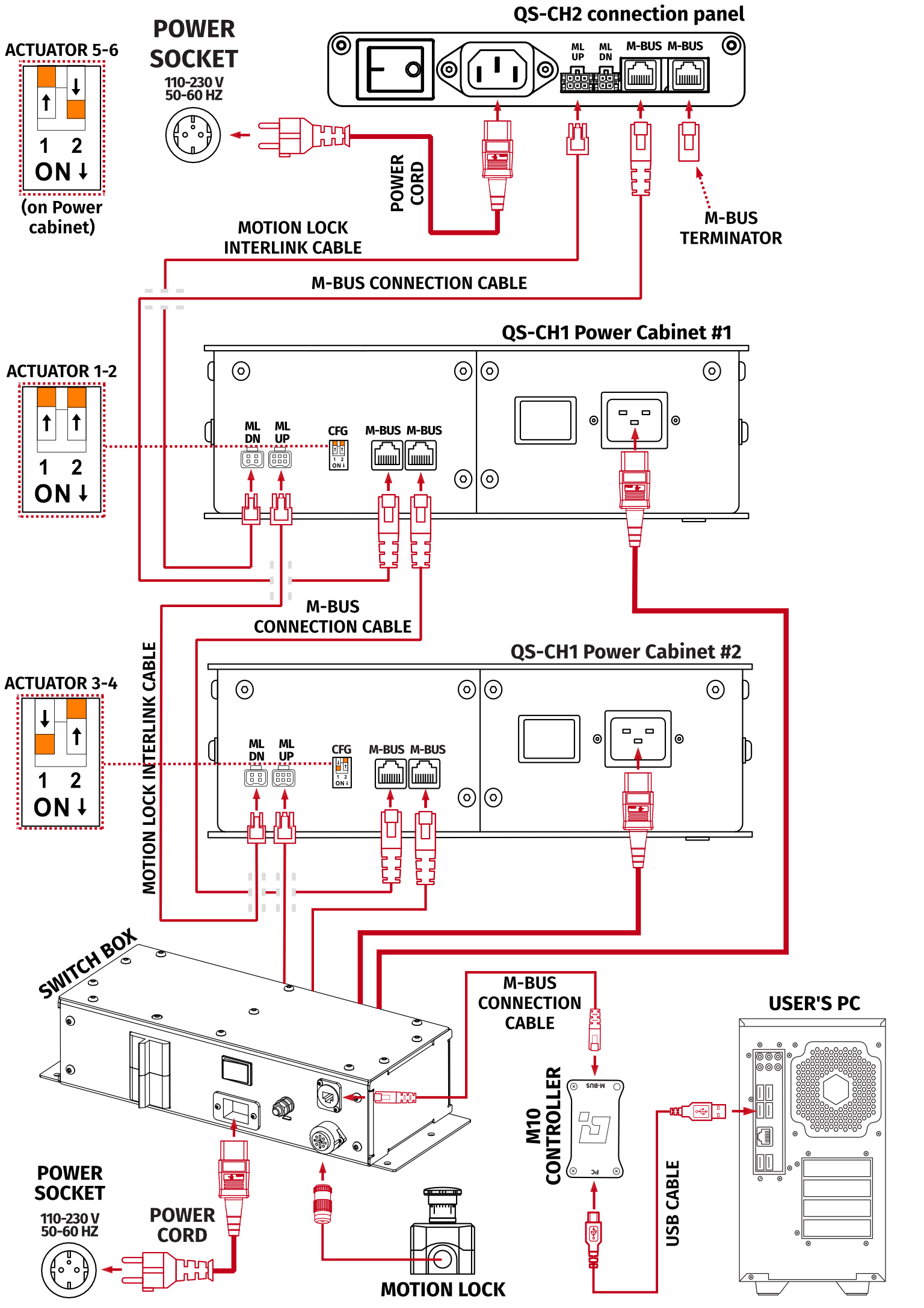
Info
Previous revisions were not equipped with a connection panel - all cable connections must be performed at the Power cabinet directly. Go to section Previous revisions for details.
3.12 Connecting with QS-CH1 and QS-BT1 belt tensioner
QS-BT1 belt tensioner can be implemented into the Motion Lock circuit, by using Motion lock interlink cable. Data communication with the PC is separate from M-BUS circuit via USB.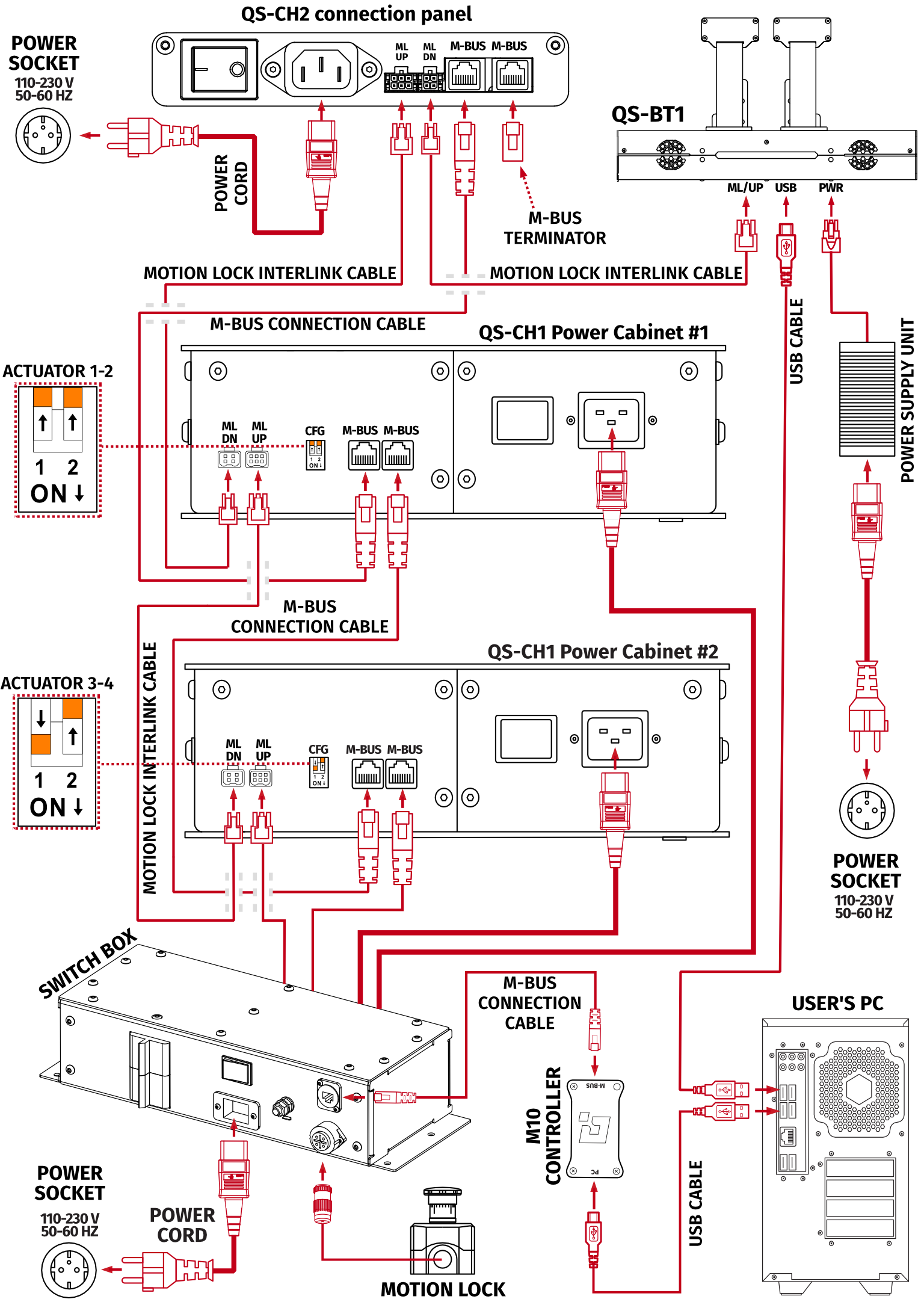
3.13 Software Installation
Info
Note down the QS-CH2 serial number before installation as it is needed to access software download page.
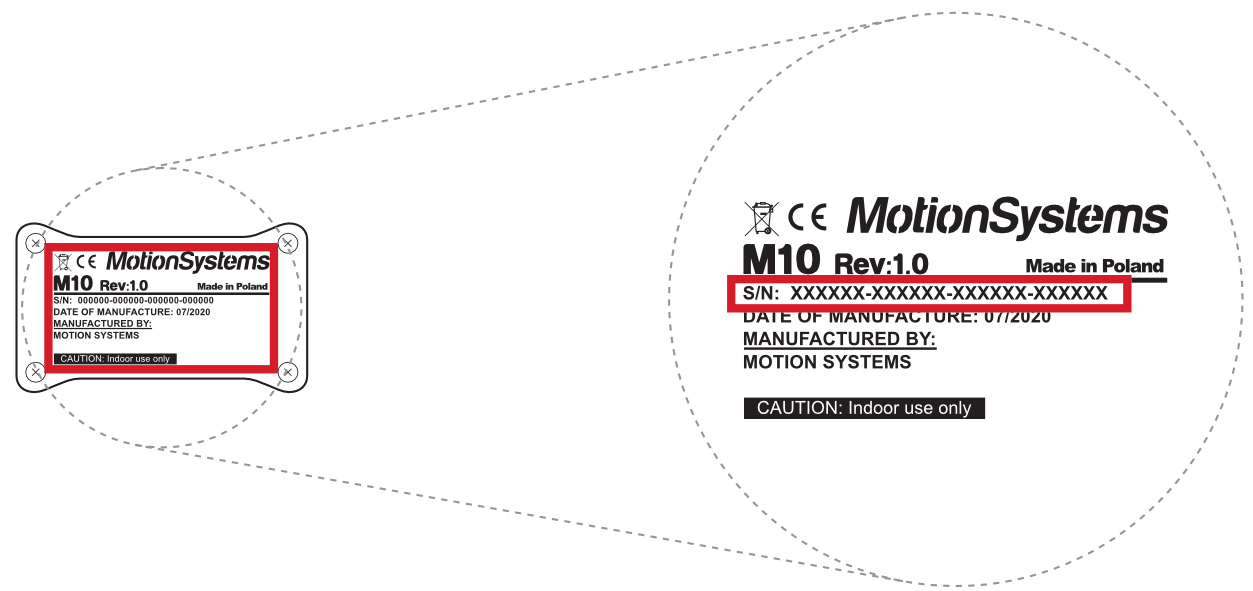
To download the software visit: QubicSystem.com/Download
Once the QS-CH2 is installed and connected correctly:
- Download Qubic Manager Software.
- Proceed with the installation steps and launch the application.
- Connect power connection cord to the wall socket.
- Turn on the system by switching on the power switch button (section 3.2).
- Cycle through the Motion Lock Switch positions - press and unpress it (go to section 2.9 for a details on the procedure).
- The QS-CH2 will perform a start-up calibration.
Warning
- DO NOT change the payload during the start-up calibration.
- DO NOT enter the cockpit during the start-up calibration.
- If Qubic Manager has recognized the QS-CH2 correctly, the status of the machine visible in the lower left corner will change to Parked/Centered.
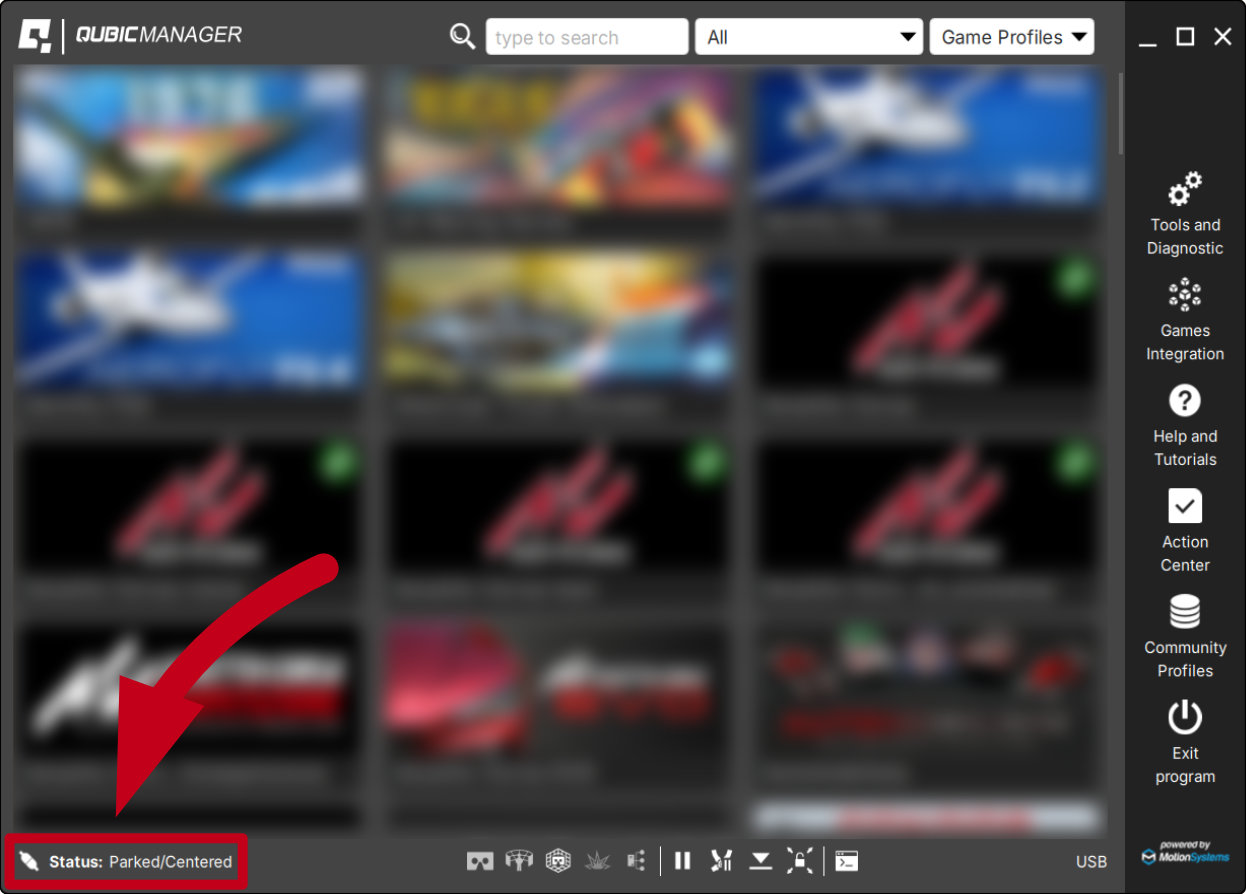 WarningIf the device did not connect correctly:
- Go over the cable connections - compare the connections to the diagram again, look for loose plugs or damaged cords.
- Go to Troubleshooting section.
- Check Action Center on the right side panel for a list of actions that requires attention:
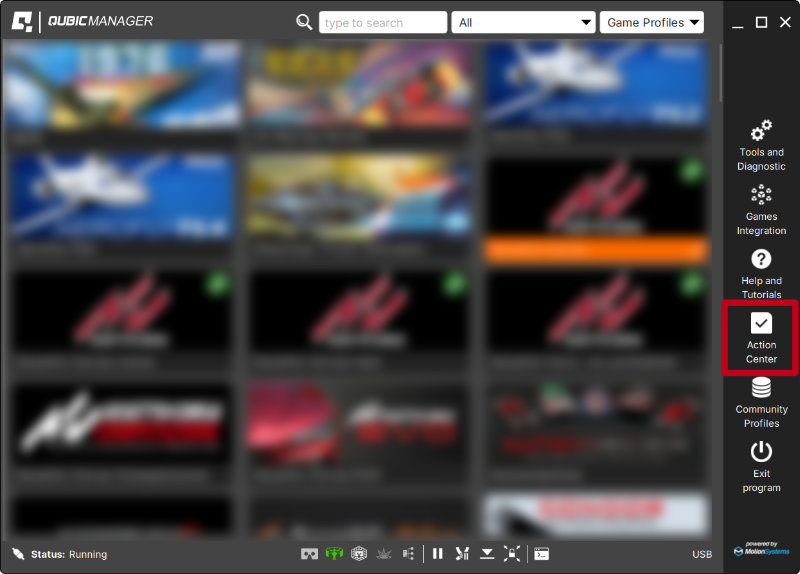
- It is possible to solve them one by one or by pressing the Resolve All button. Firmware update may require additional confirmation in the dialogue box.
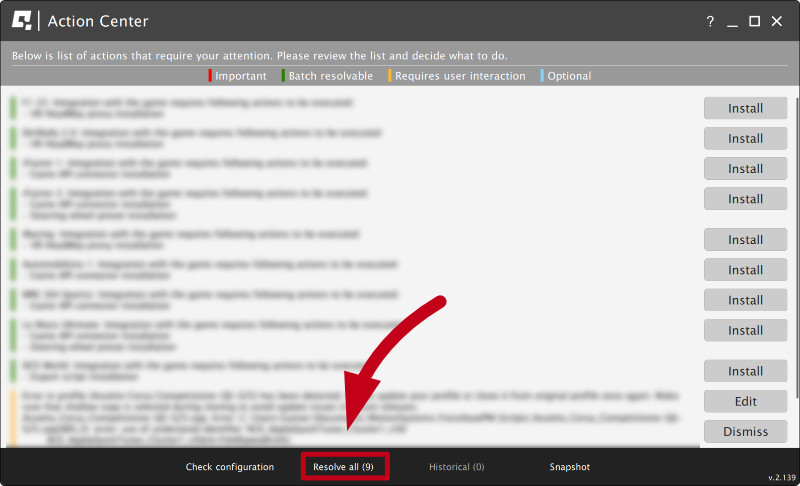
- Go to Tools and Diagnostics → Devices and select Configure.
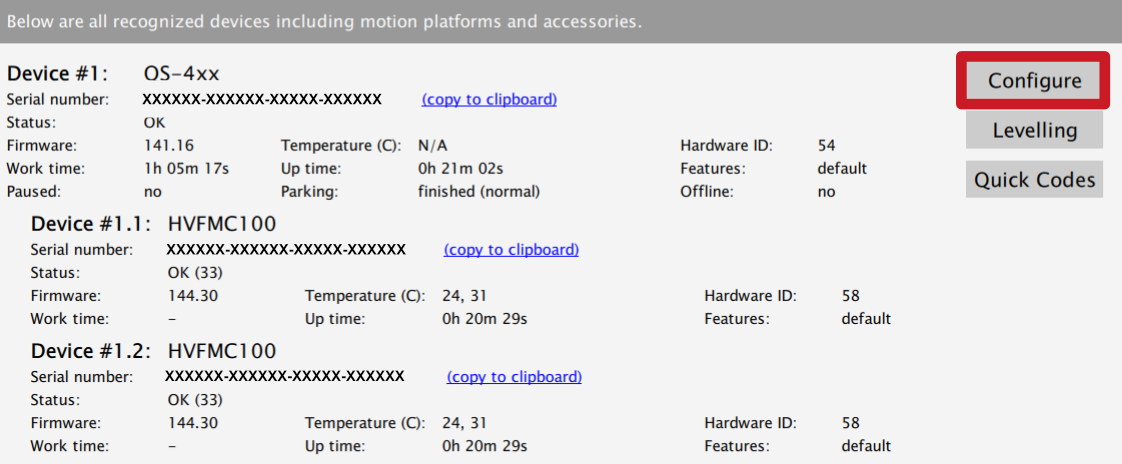
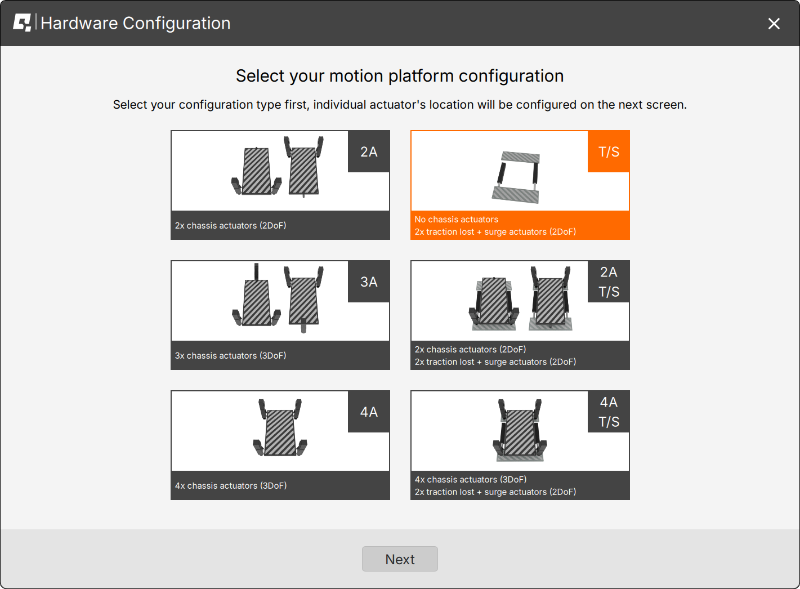
- Choose the correct layout variant from the list (traction loss).
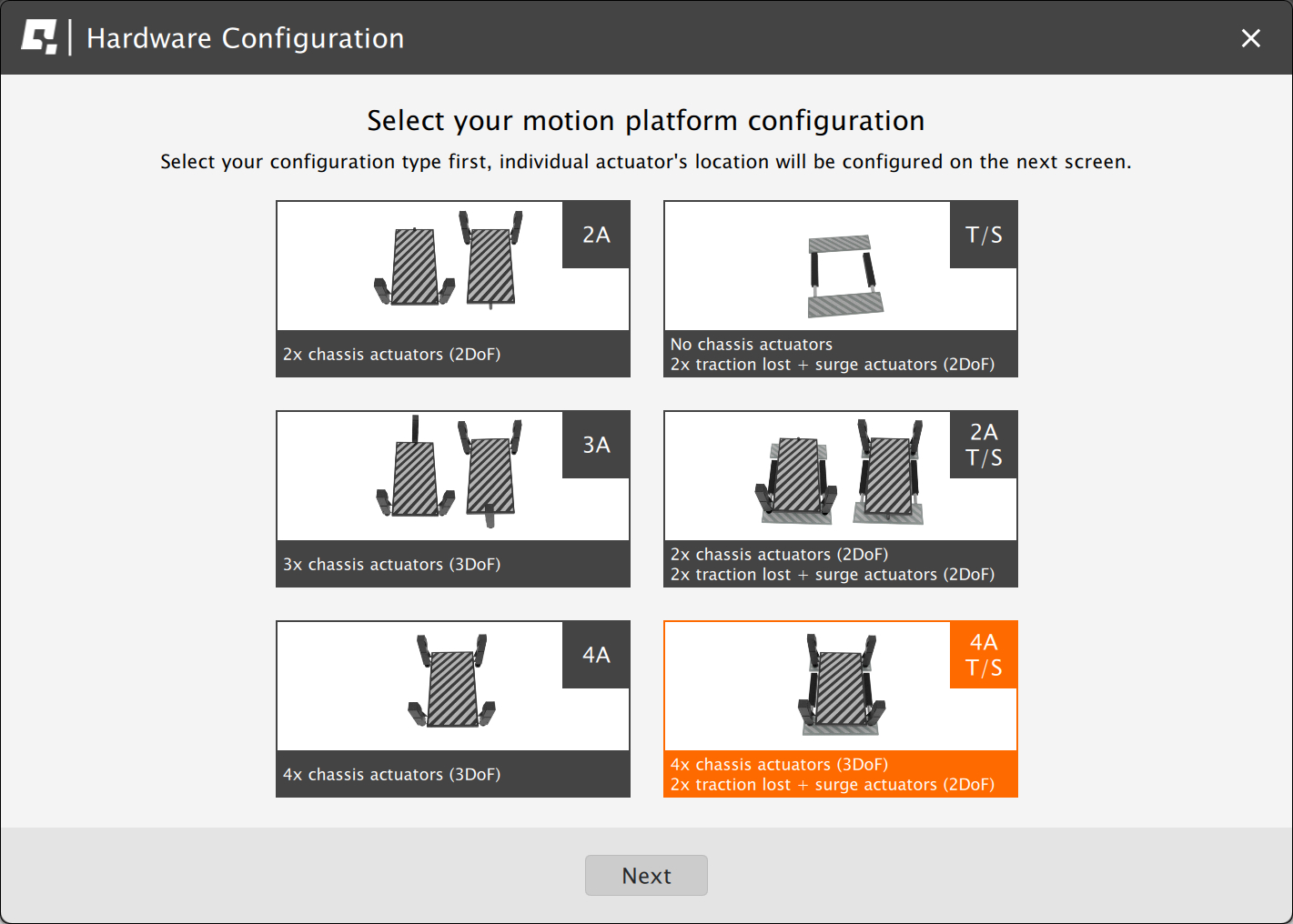
For QS-210/220 3DoF setup with traction loss control (QS-CH2): Choose the correct layout variant from the list (4A T/S setup).
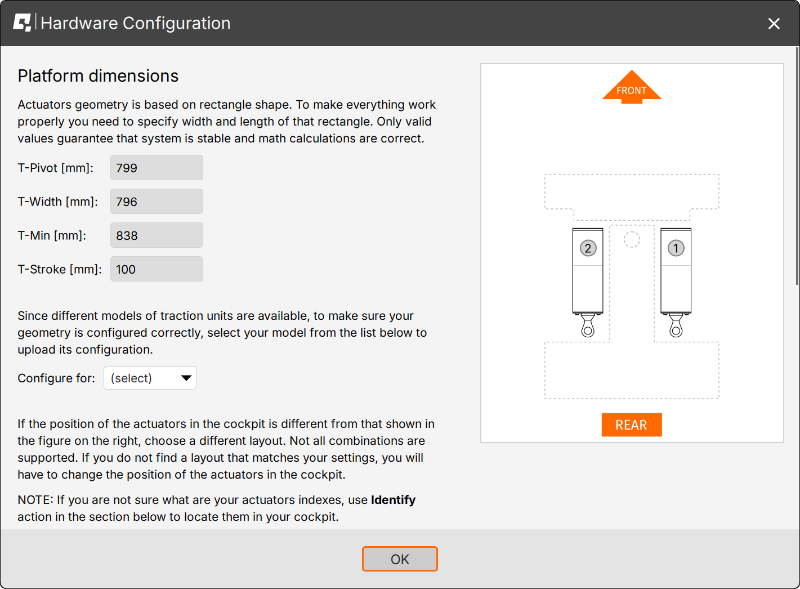
- Platform dimensions for QS-CH2 are entered by default. In case of 5DoF platform (4A T/S) for dimensions between vertical actuators of QS-CH1 or QS-210/220 - follow instructions in the window or refer to User Manual of the specific QS-device (QubicSystem.com/User-Manuals).
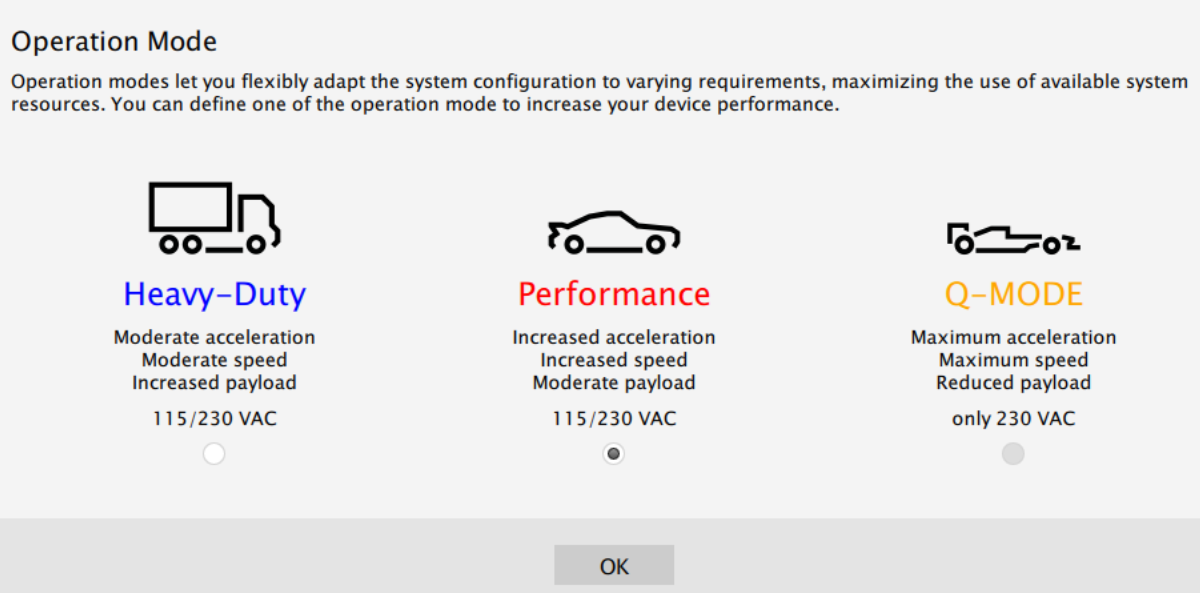
- Scroll down and choose one of the operation modes:
 Info
Info- Q-MODE is unavailable for QS-CH2 .
- 2DoF single set of QS-210/220 works only in Heavy-Duty mode with QS-CH2 .
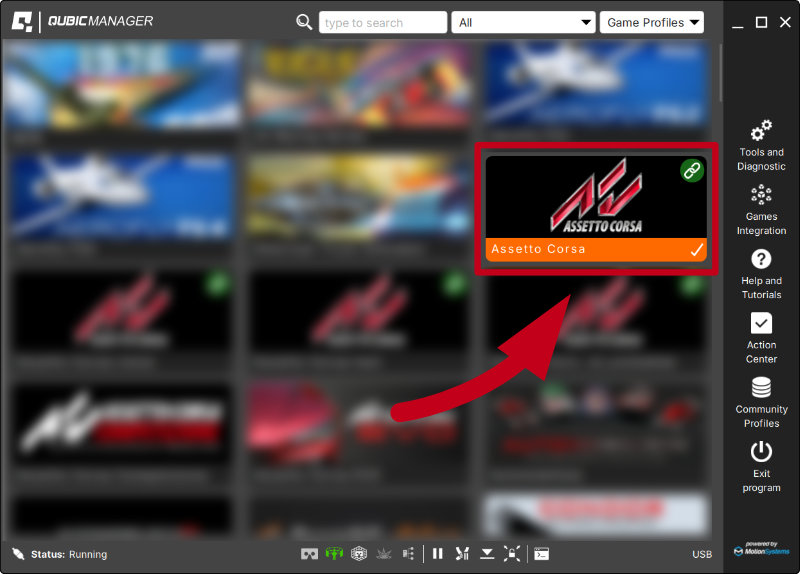
- Close the configuration and return to the main application window. Choose the game and check profile details by clicking on the game tile.
InfoDefault profiles are integrated with the software and do not require additional installation. List of supported games is available at: QubicSystem.com/Supported-games.
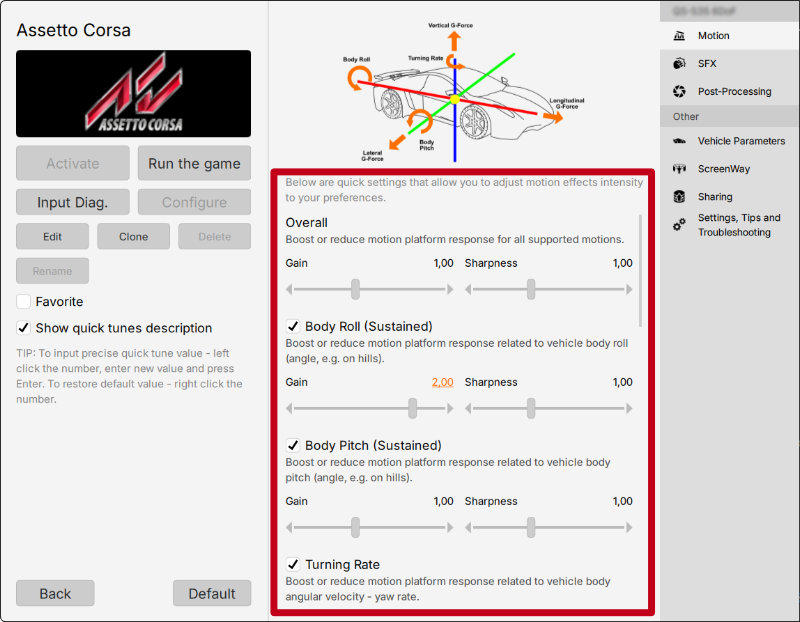
- Adjust the motion effects intensity up to your preferences in the game profile window. Scroll down to see all of the settings.
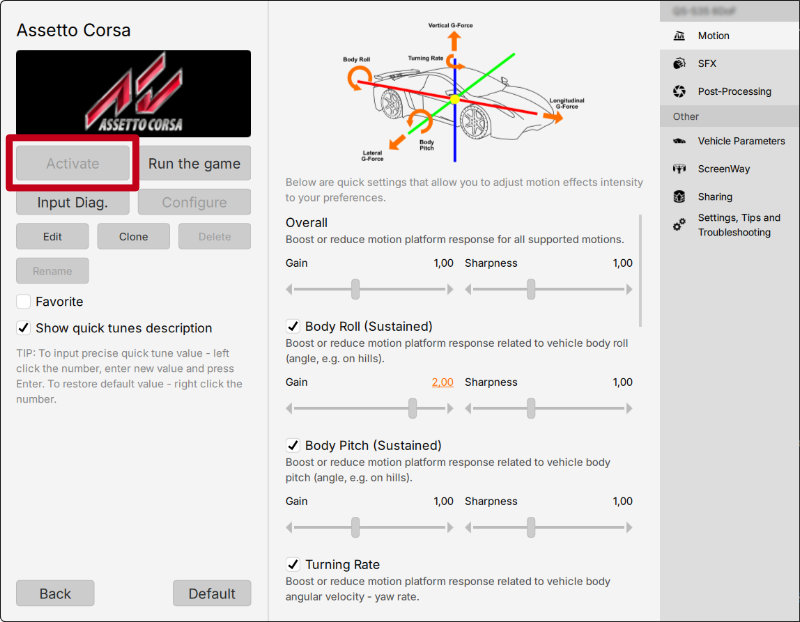
- Activate a profile by clicking the Activate button.
- Launch the game by clicking the Run the game button.
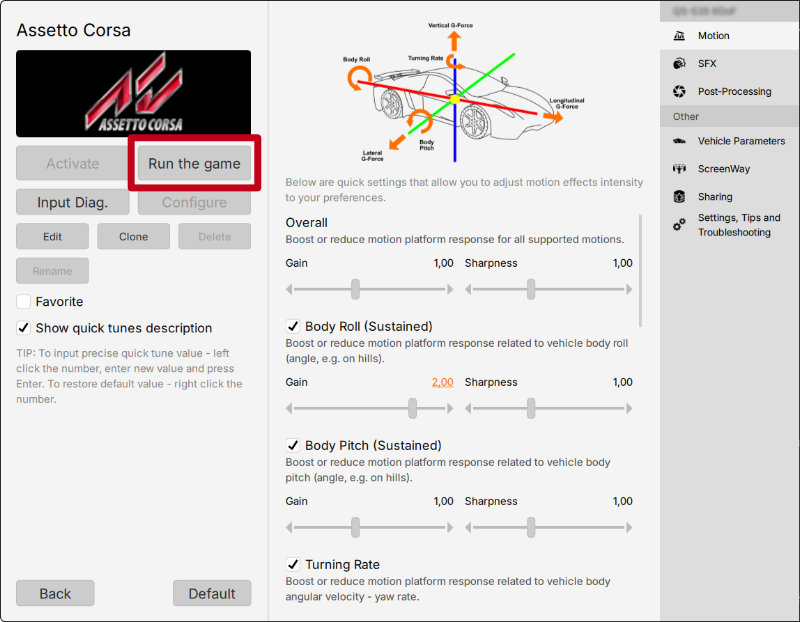
- You can also adjust the settings during the game simulation by pressing ALT+TAB and switching between the applications - once the profile is active changes will apply instantly.
Info
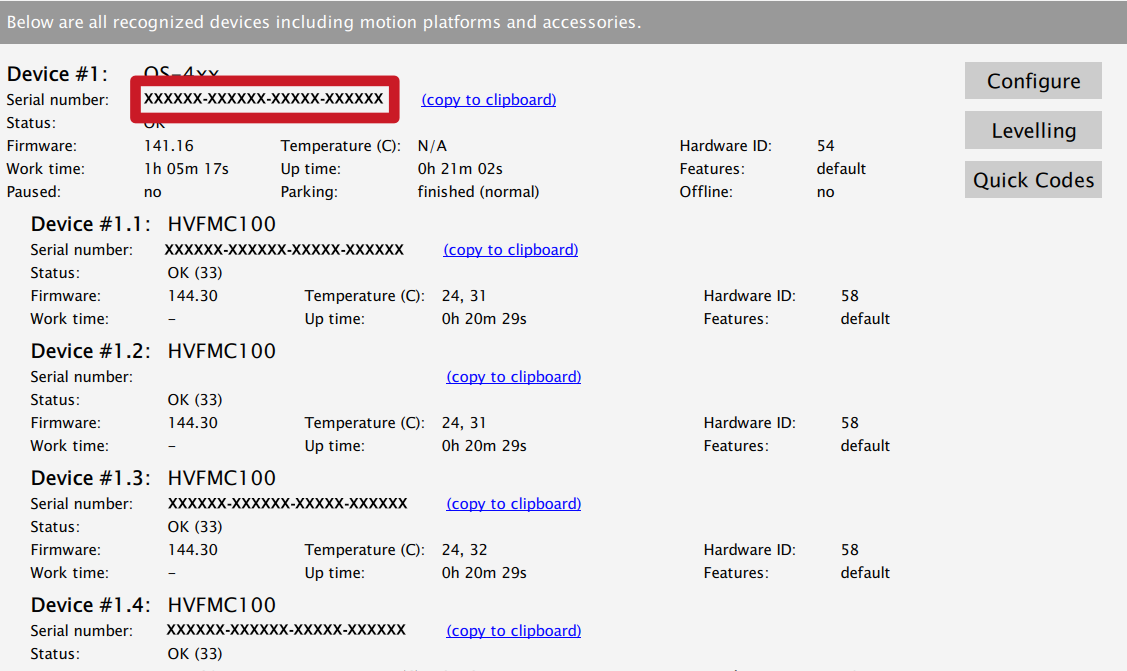
Warning
The software is provided "as is", without warranty of any kind, express or implied, including but not limited to the warranties of merchantability, fitness for a particular purpose, and non-infringement. In no event will the authors or copyright holders be liable for any claim, damage, or other liability, whether in an action of contract, tort or otherwise, arising from, out of, or in connection with the software or the use or other dealings in the software.
The software sends anonymous usage data to the Motion Systems company. The data is used to improve the software and game profiles. The data is not used for advertising purposes.
4 Maintenance and Cleaning
Info
Cleaning should be conducted every 160 working hours or once a month.
To see the working hours counter, go to Tools and diagnostics → Devices. It is displayed in the QS-CH2 device listing:

4.1 Checking Motion Lock button
At least once a month check if Motion Lock button is working correctly:- Before anyone steps into the platform - turn on the QS-CH2 .
- Push the red Motion Lock button. Device status will change:

- The machine should stop and not react to any signal.
- Turn on a simulation or a game to confirm that - with a correct profile activated proceed to a game or a simulation and engage movement.
✓
If the Motion Lock Button works correctly - platform does not react nor move in any way.
x
If the Motion Lock button does not work correctly - platform proceeds to simulate motion from the game/simulation. Check the cable connection and repeat the test. If the problem persists - DO NOT use the platform, power it off and contact technical support immediately.
4.2 Greasing the slider pads
If the QS-CH2 will start emitting squeaky noises during operation - the device is not broken but needs to be greased.- In Platform diagnostics move the platform to maximum front position (surge slider).
- Spray some penetrating oil on the rear metal pads.
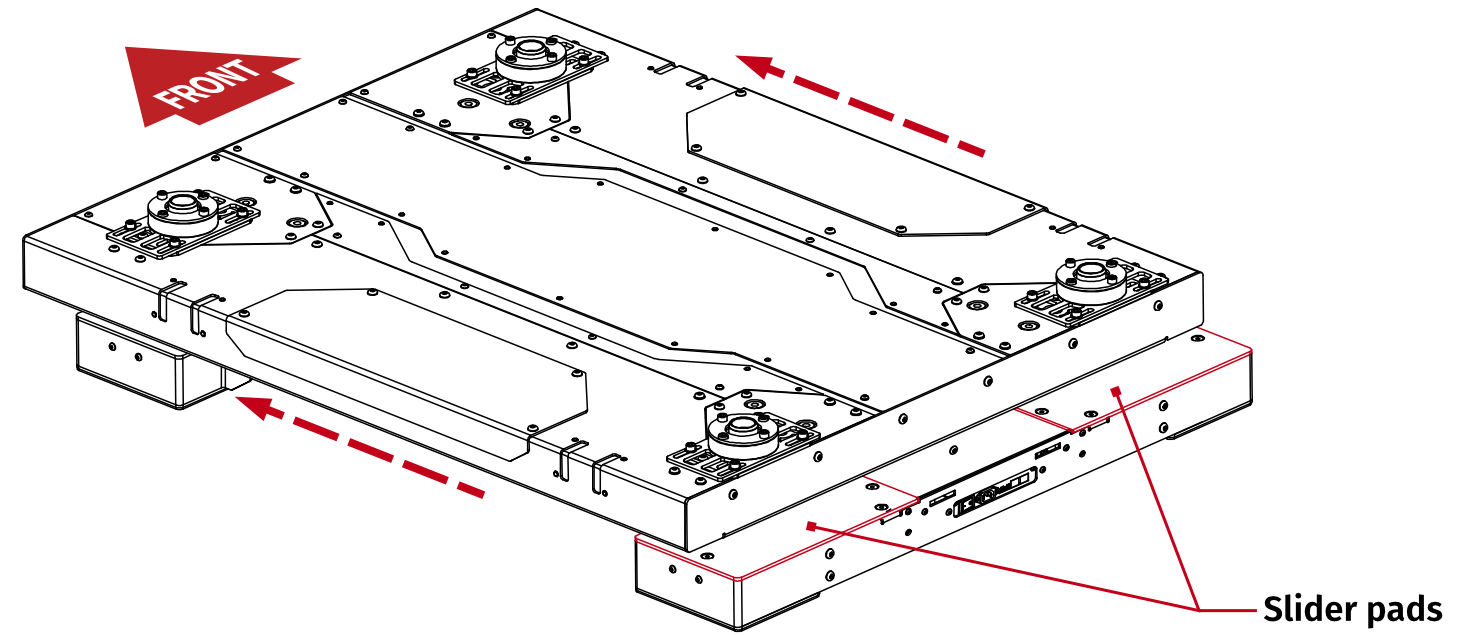
- In Platform diagnostics move the platform back and forth and to the sides (Yaw slider) so that it cleans the pads itself.
- Wipe off penetrating oil residue and any dirt that will be moved to the edges of the pads with soft and dry cloth.
- Use a SMALL AMOUNT of bearings grease (red, lithium based, NLGI-2) on back metal pads.
- Move the platform back and forth and to the sides so it distributes the grease evenly and until the squeaks are gone.
- Wipe off any grease residue collected on the sides with a soft and dry cloth.
Info
Greasing process must be performed ONLY if QS-CH2 starts emitting squeaky noises.
5 Troubleshooting
Warning
DO NOT attempt to do any repairs by yourself. It could be dangerous and will result in loss of warranty! Repairs should be consulted with technical support and then performed by a qualified technician.
- Check Action Center in QubicManager.
- Check all cable connections in the device.
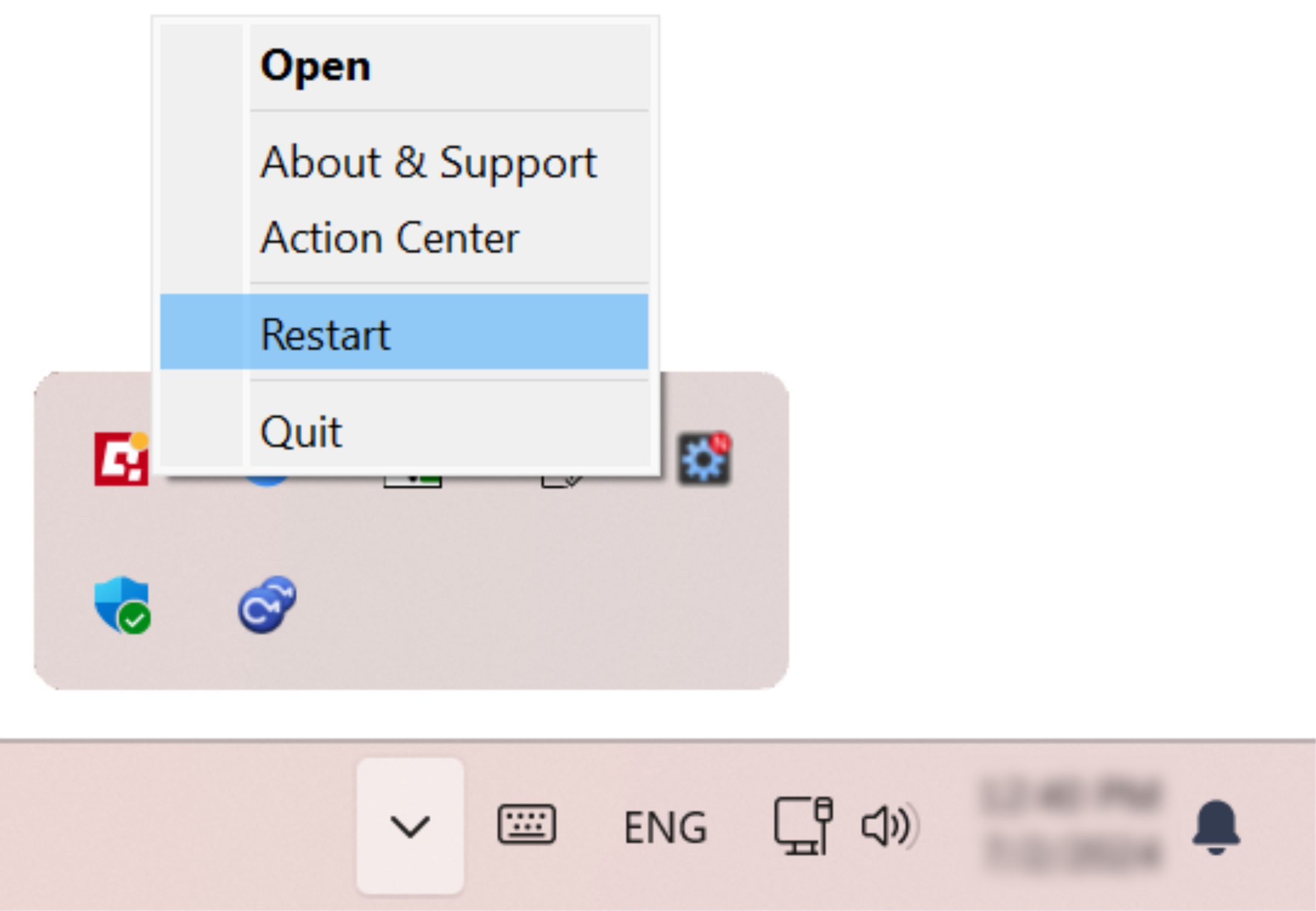
- Restart QubicManager application by right-click on the application icon in the system tray and selecting Restart:
- Check Motion Lock Switch position (should be unpressed to activate the motion) :
- Try different USB ports (also try bypassing the USB hub by a direct PC connection).
- If a problem occurred abruptly, it could be caused by a thermal protection. Turn off the QS-CH2 , disconnect it from power outlets and wait at least 15 minutes to let it cool down. Try turning it on again later.
- In case of any unclear electrical issues, strange behavior or abnormal work conditions, contact technical support.
5.1 QubicManager device statuses










Info
- ALL diagnostics and cable connection inspections MUST be performed with the device powered OFF.
- If any of error statuses persist after performing the troubleshooting steps - please contact technical support.
5.2 Common problems with solutions
- Problem: QubicManager software crashes on launch with an OpenGL error.
Solution long-term #1: This issue is caused by graphics drivers. Try to downgrade to a previous version of graphics drivers or check for updates.
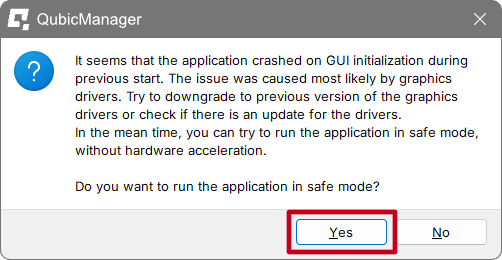
Solution short-term: To open the app, click OK on all the operating system errors. Restart the QubicManager software and you will be presented with a window:
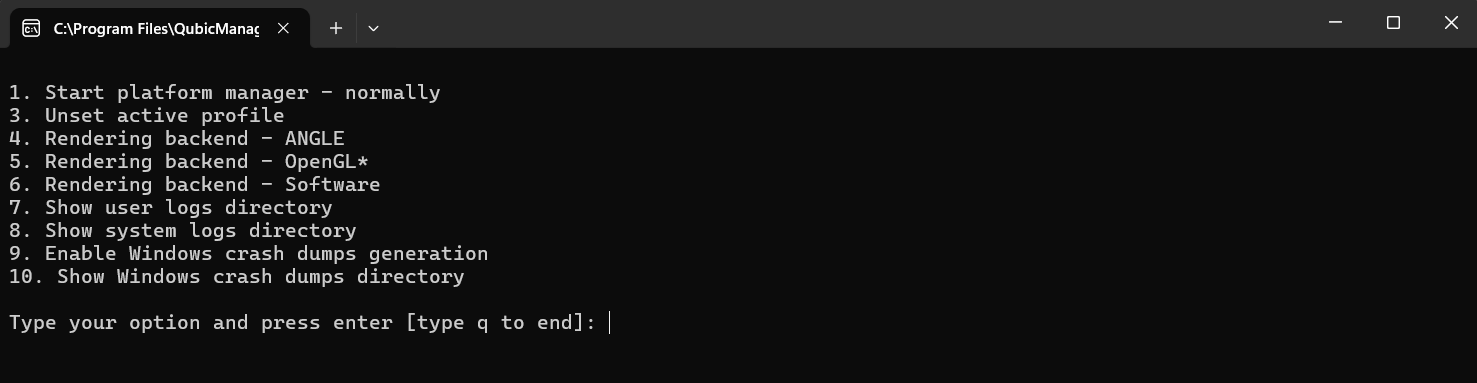
Click "YES" if you want run the application in Safe Mode (it will run a little slower). Solution long-term #2: In order to overwrite the OpenGL rendering backend permanently, type in troubleshooting in Windows search bar. Select Qubic System Troubleshooting Assistant.
 In the prompt window, type 6 on your keyboard and click Enter. Restart the QubicManager application.
5.3 Creating a snapshot
A snapshot is the easiest and fastest way to diagnose a problem. If you send in the zip file generated in the snapshot menu along with a description of the problem, technical support receives all the necessary information about the product and its configuration. It can be then analyzed to provide the best solution.Info
The QS-CH2 and all interconnected Power Cabinets MUST BE be powered up when creating the snapshot.
- Open the main window of the QubicManager application.
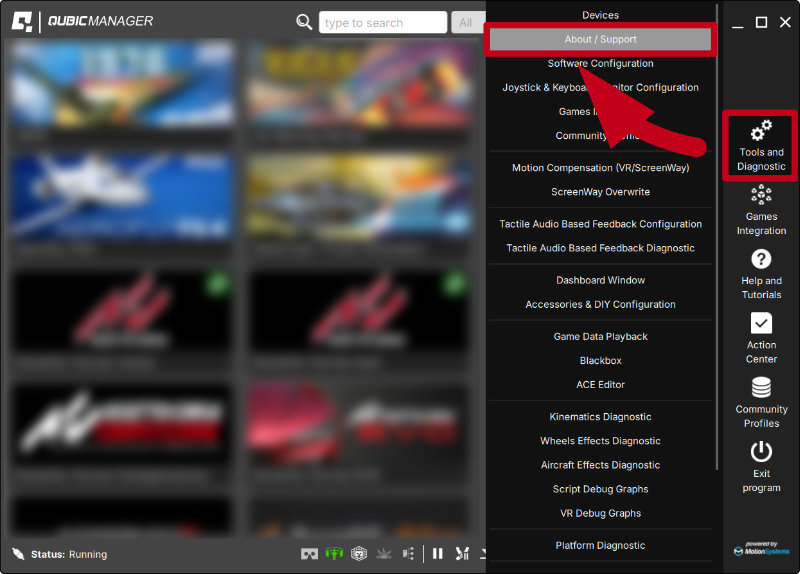
- Go to Tools and Diagnostic → About / Support.
- Open the Snapshot window:
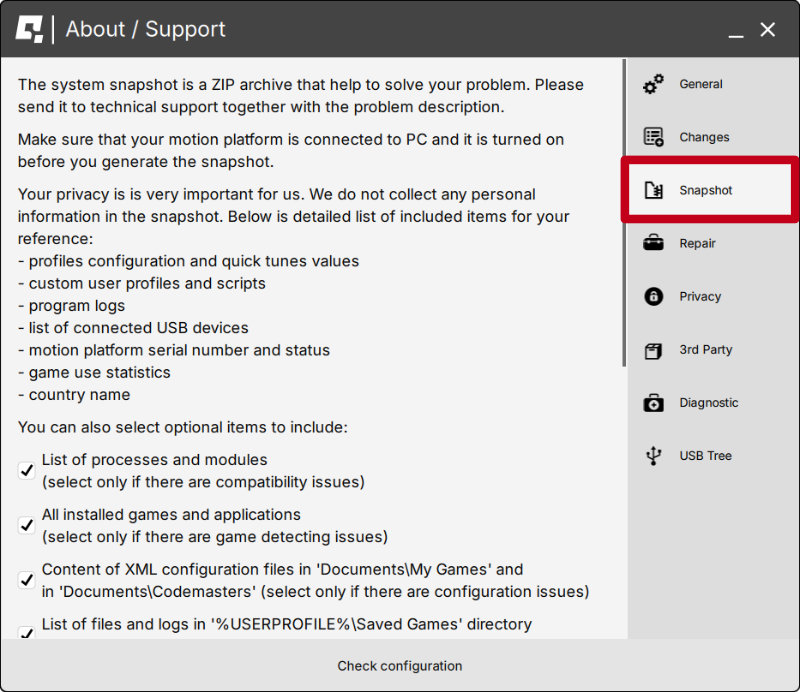
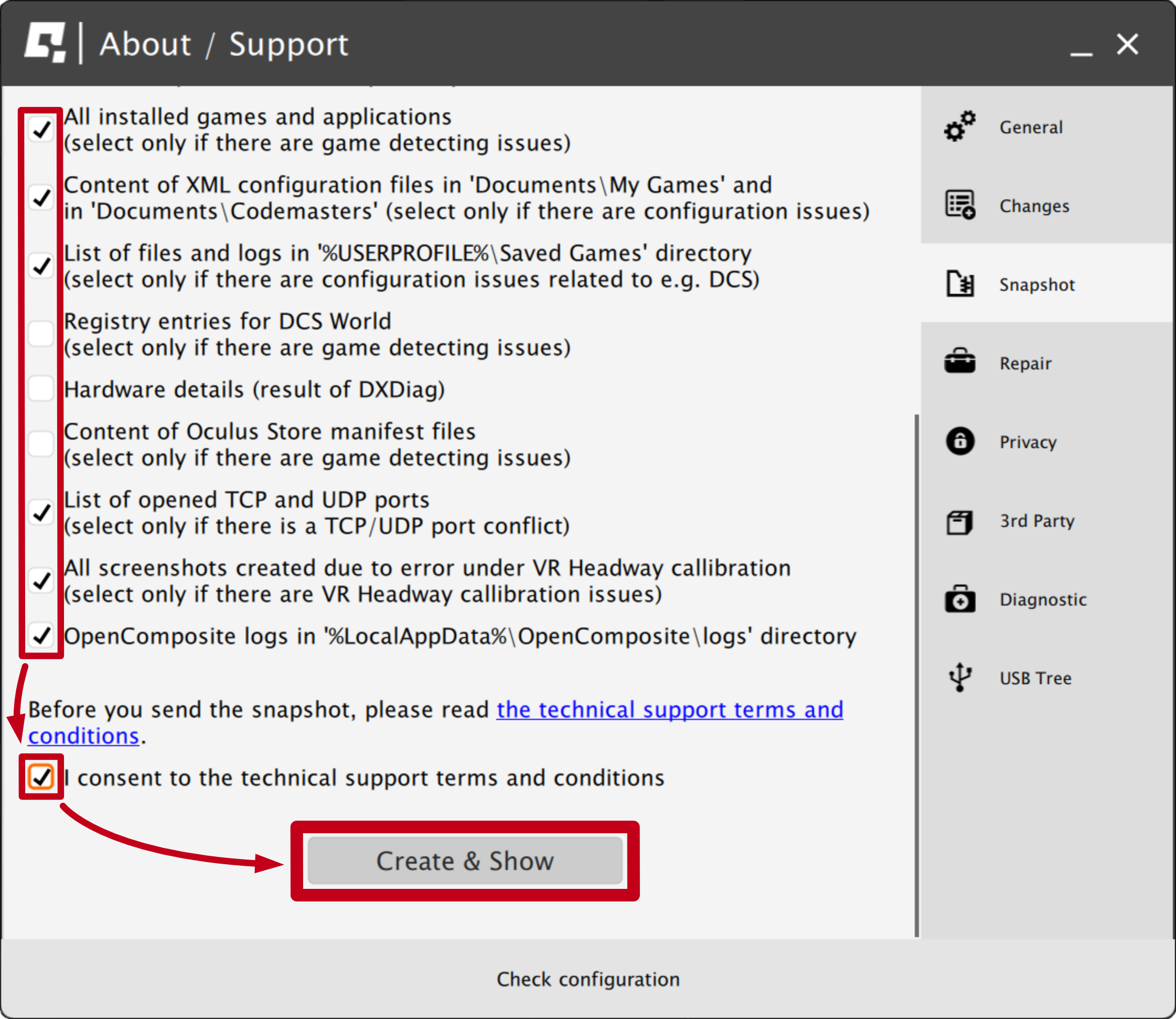
- Select data that will be included in the snapshot.
- Scroll down, consent to the technical support terms and conditions and select Create & Show:
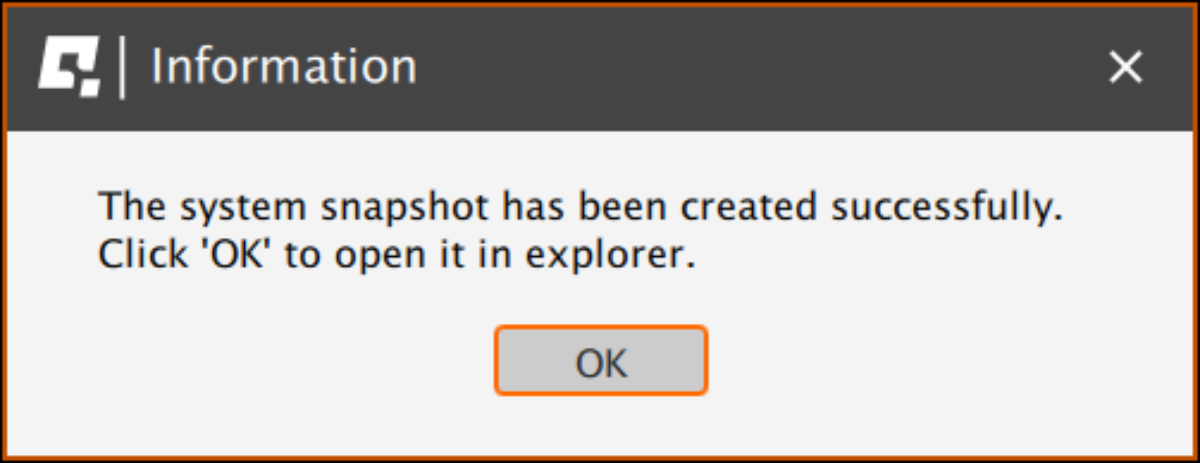
- The snapshot has been created, click the OK button - the folder with the snapshot ZIP file will open.
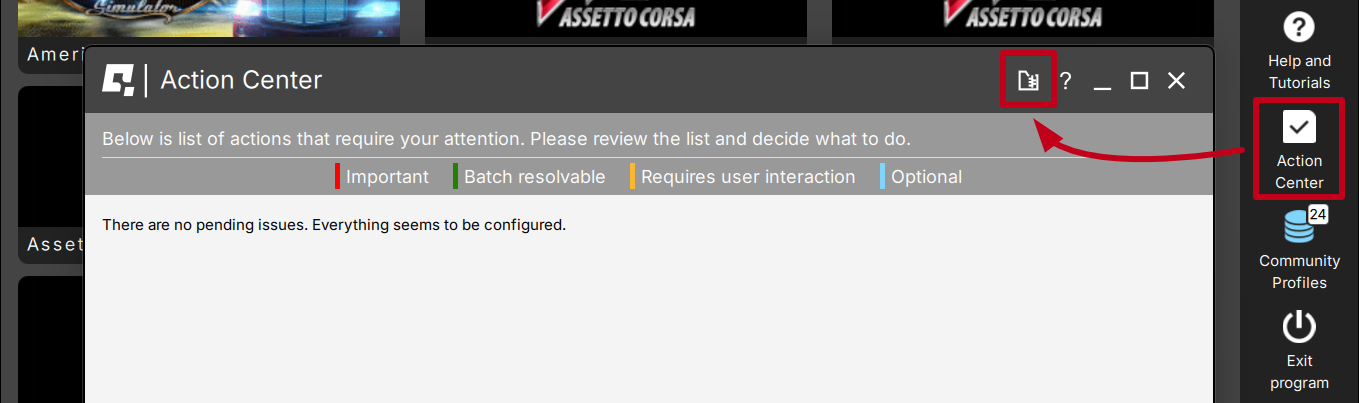
- Attach the snapshot ZIP file to your support request.
5.4 Discord channel
We strongly recommend joining our discord channel, where our growing community is sharing amazing tips and ideas of how to set up, use and tune the Qubic System products. You can also send questions for our staff or get answers directly from the community.
Join our discord channel by following the invitation link:

6 Advanced applications
Info
Examples shown in this section describe optional application of external safety and power cut-off devices. If you wish to expand the functionality of your motion system, read the whole section to have a good understanding of how to apply and what functionality to expect. Apply at your own discretion.
Warning
Motion Lock input is not a SIL/PL (safety integrity level/performance level) rated and DOES NOT guarantee safety. If you wish to achieve specific SIL/PL ranking, consider introducing a power cut-off device that is controlled by an external safety relay and cuts off the power to all QS-SB2. Example application of the power cut-off contactor can be found in section 6.3.2 and 6.3.3.
Info
When applying safety relay to the Motion Lock :
- Use input cables according to your safety relay manual.
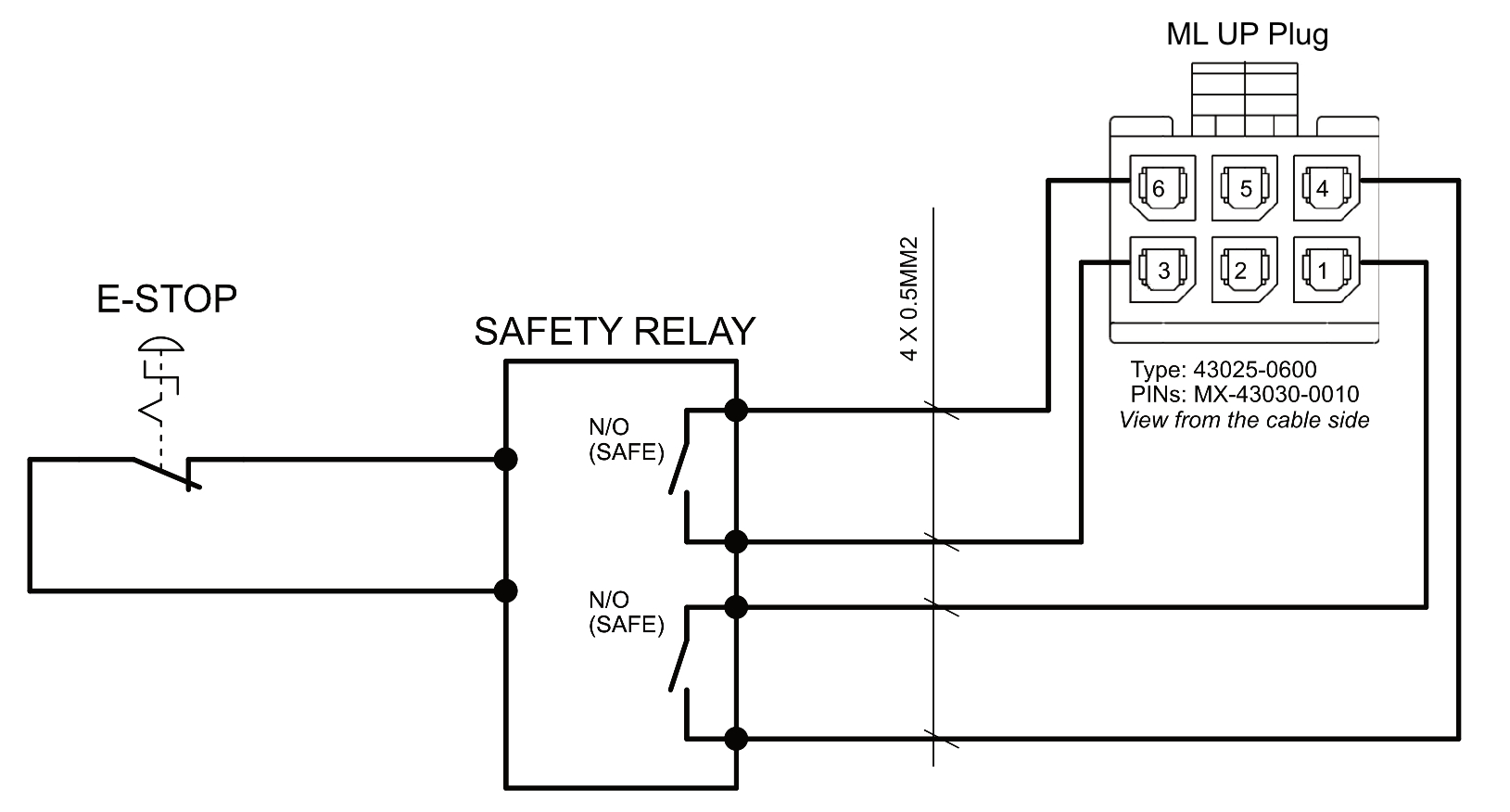
- Use output cables according to your safety relay manual and cross section no less than 0,75 mm2
- Implementing an additional safety relay requires deactivating Motion Lock cycle procedure at the power up. In order to do that, go to "Tools and diagnostics" → "Devices" → click "Quick codes" next to a "HVFMC200" item → enter code "7c2f47a2" → click "Execute" → wait for the operation to finish → repeat for every HVFMC200 with an unique Serial Number (every second item).
6.1 Adding additional devices to the motion lock circuit
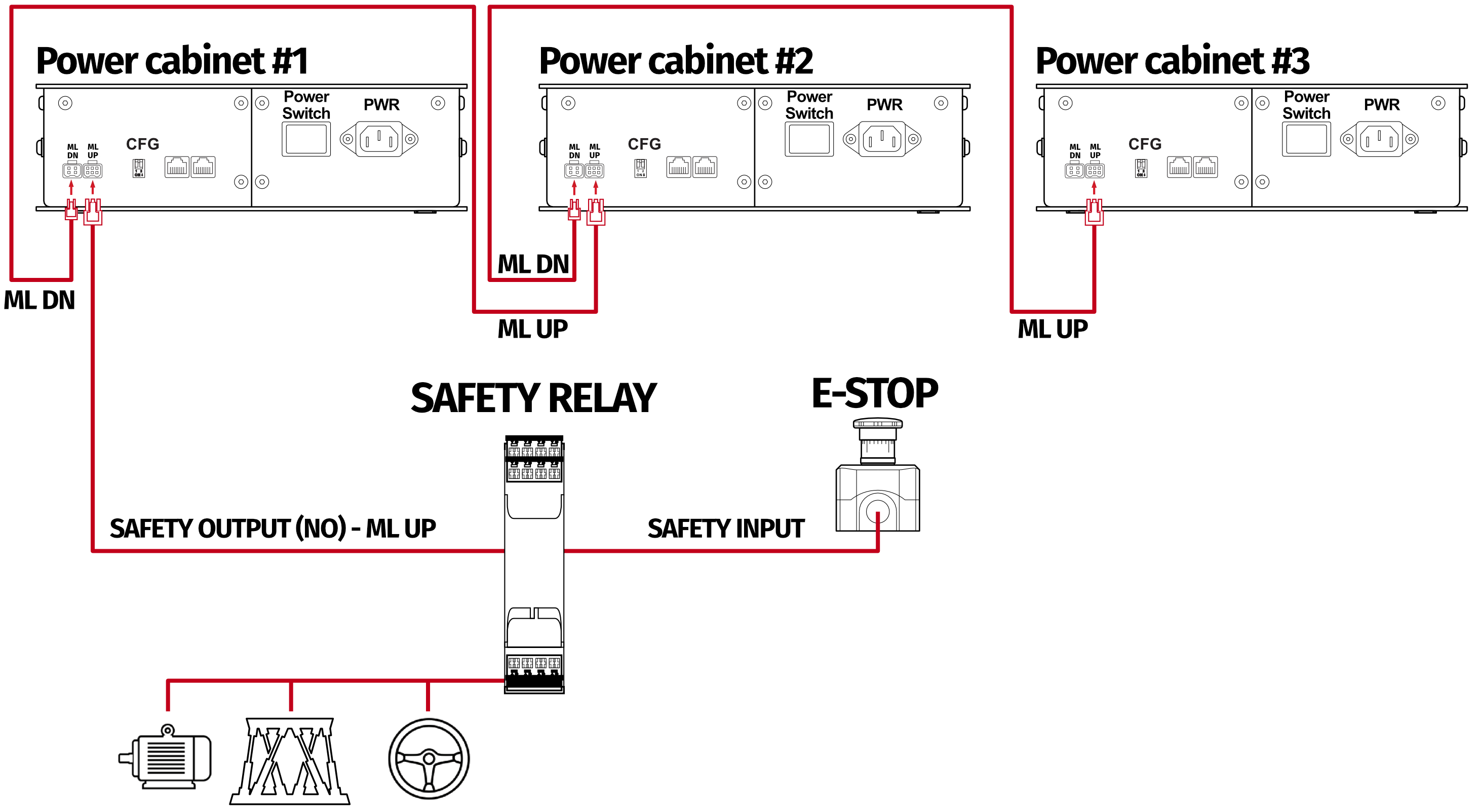
If there is necessity to stop other devices, apart from the QS-CH2 , ML (Motion Lock) and additional user devices can be controlled by safety relay outputs. In the example application, the E-STOP button is connected to the external safety relay. When the E-STOP is triggered, the safety relay will activate the Motion Lock function, which will stop motion of the platform and additional devices.
Example application of single-channel safety relay that controls ML and additional devices:
Example wiring diagram of application of one-channel safety relay with E-STOP button:
6.2 Implementing the working zone protection
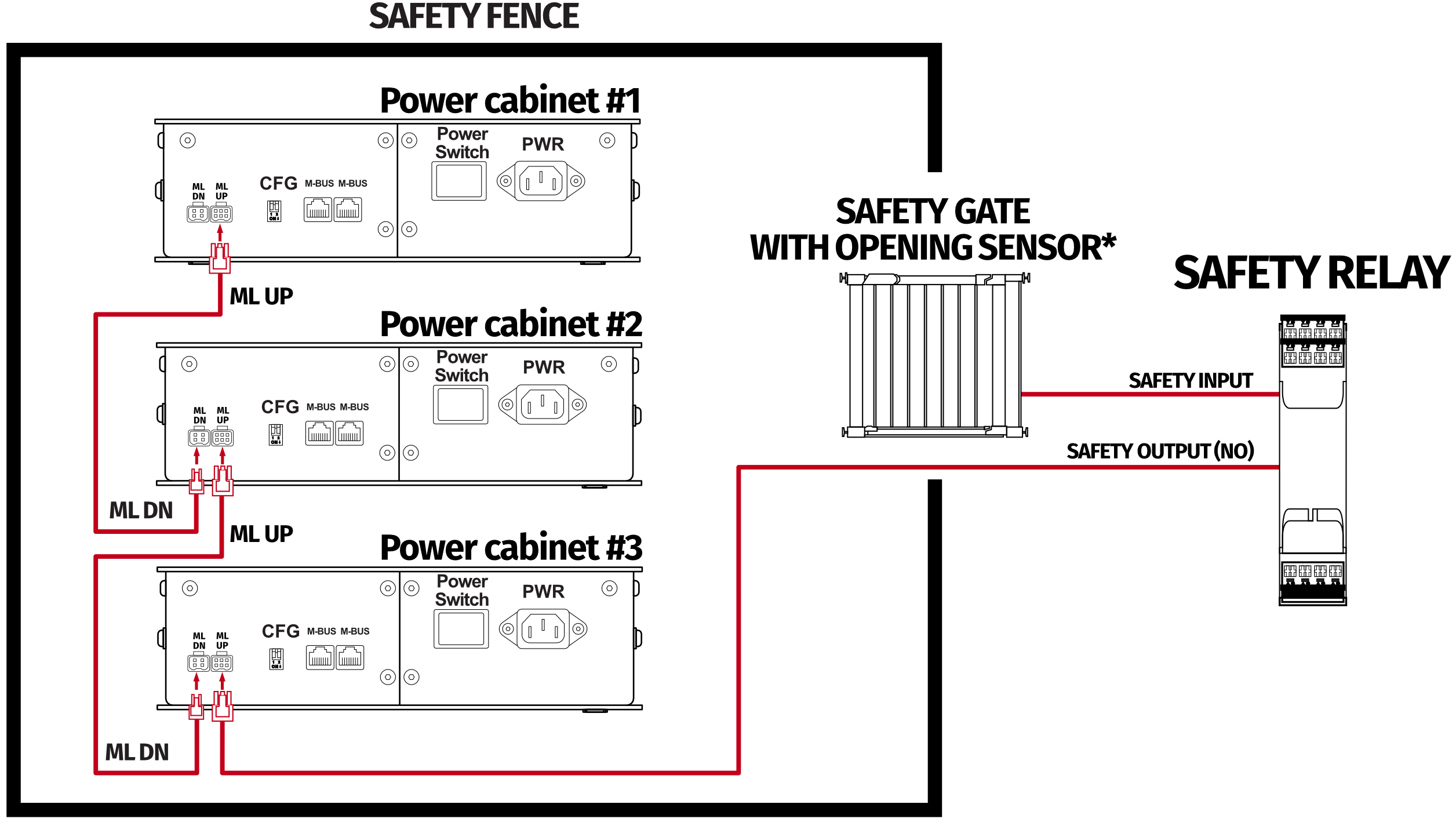
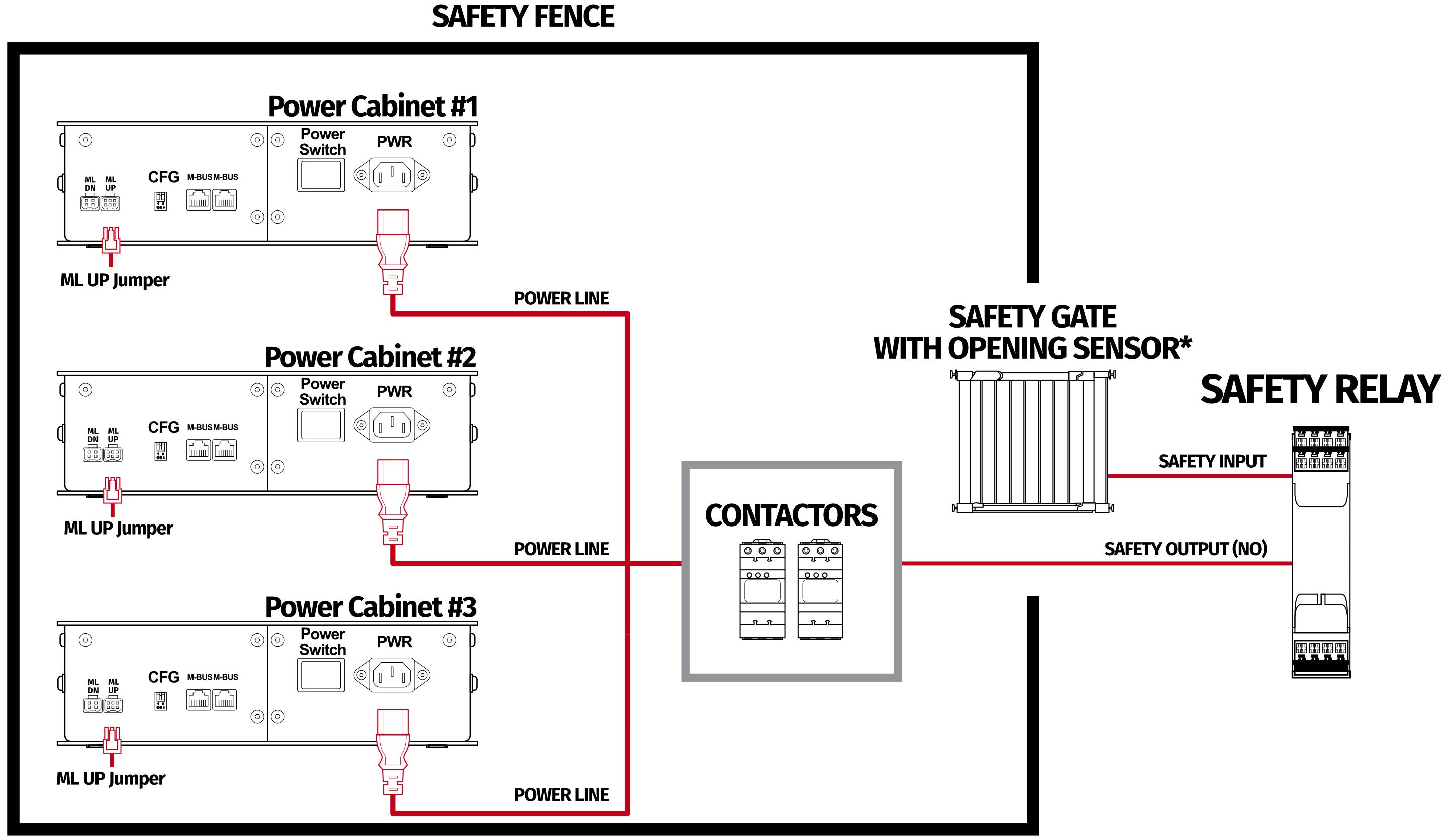
To protect bystanders from accidental hit from moving parts of the platform, safety gate with opening sensor* can be connected to safety relay input for activating ML function. When the gate opens, the safety relay output activates the ML (Motion Lock) function and stops the motion of the platform.
Example application of safety gate opening sensor:
6.3 Increasing safety level
Warning
Modifications of the safety system, involving application of the power line contactors, shall be performed only by somebody competent. A competent person is a qualified and knowledgeable person, who because of their training and experience has the knowledge required to apply those changes. It is user responsibility to commission modification of the safety system to a competent person, experienced with industrial wiring practices, which will be required to undertake the installation. Commissioning shall be undertaken by a trained electrical technician experienced in safety installations.
6.3.1 Assembling Motion Lock jumper
To apply solutions which require using power line contactors, Motion Lock connection cables in the QS-SB2 power cabinet needs to be replaced with jumpers. To prepare a jumper, you need to assemble recommended connector as shown below: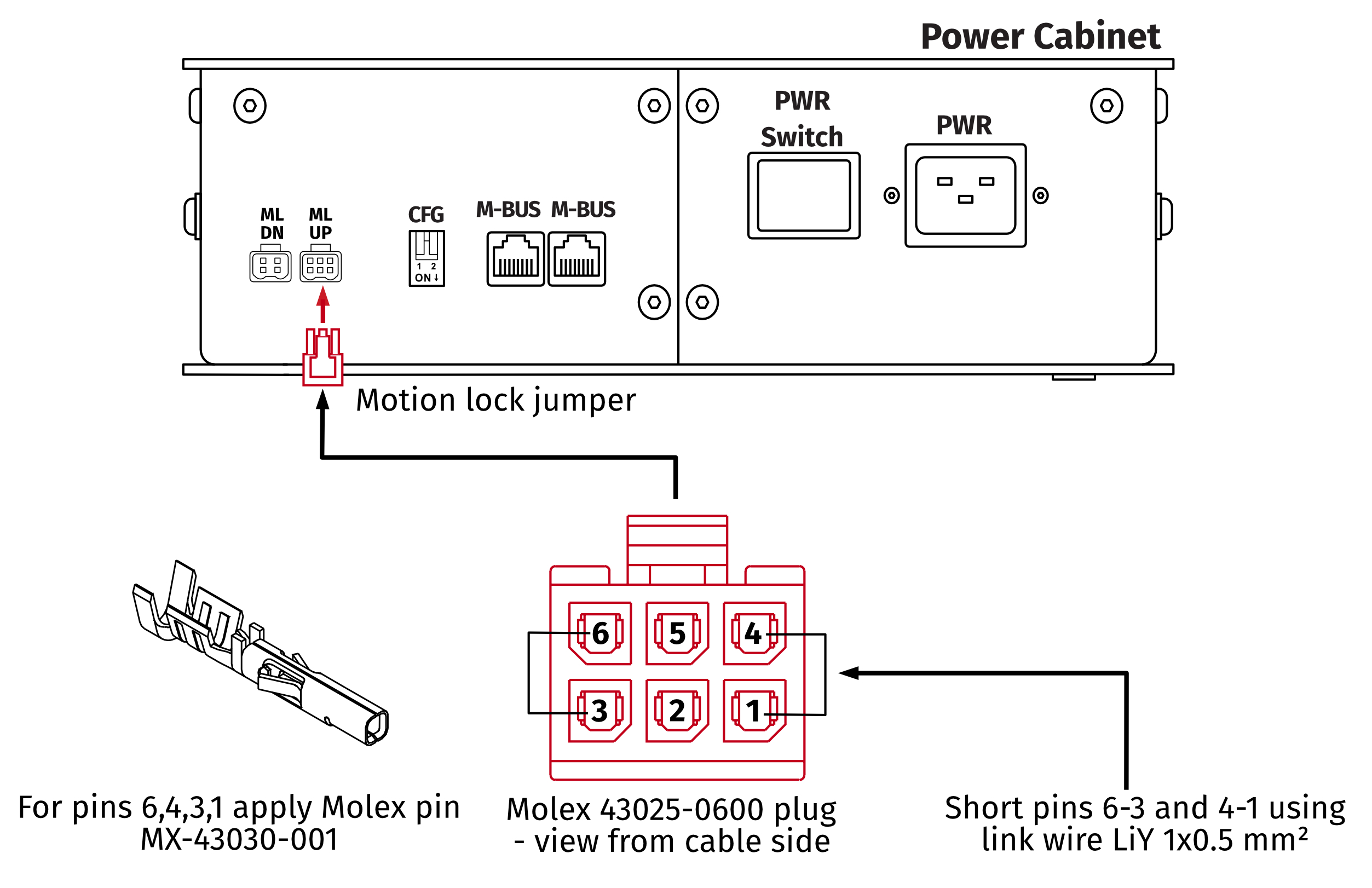
6.3.2 Adding power-cut circuit with E-STOP button
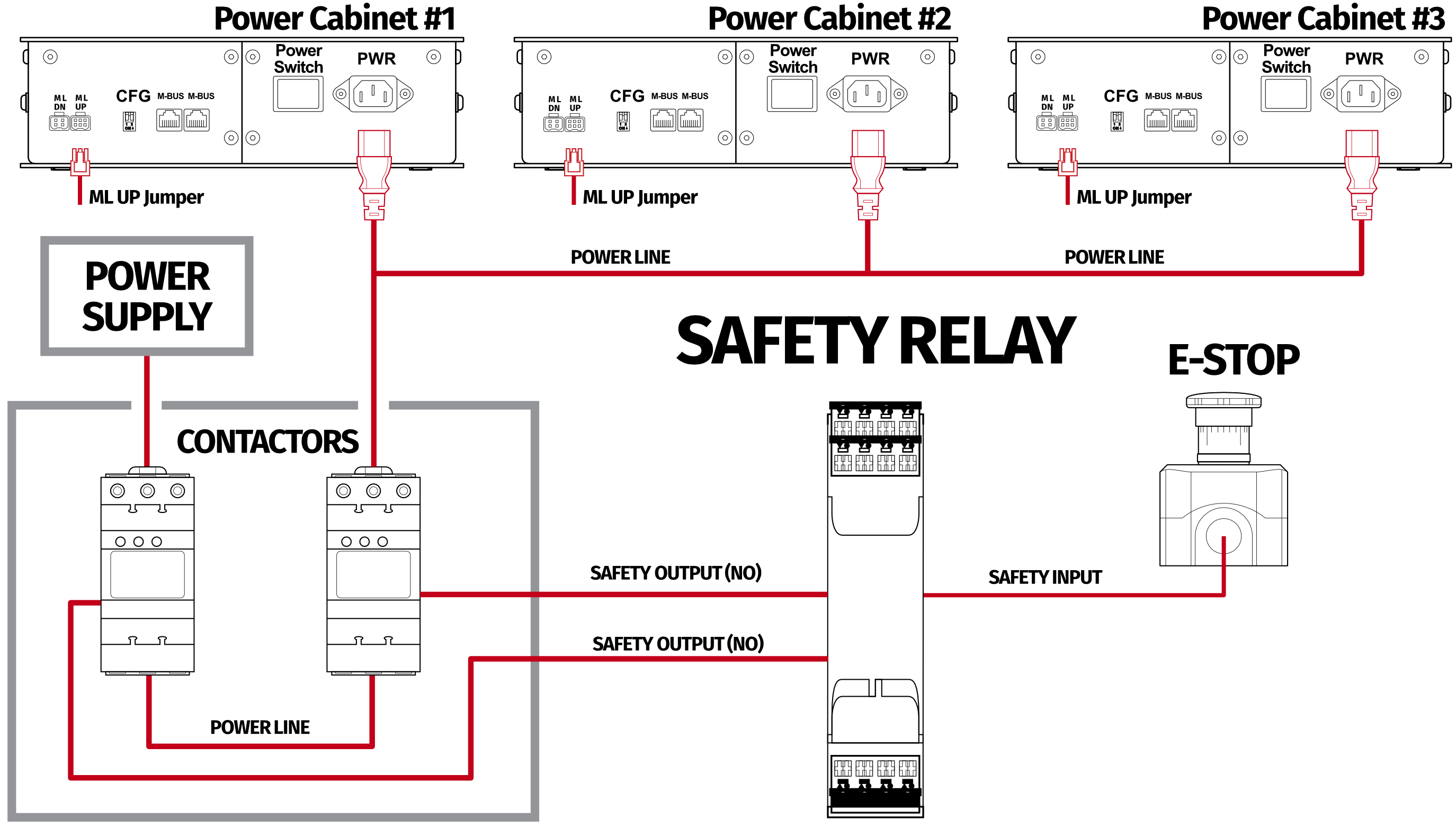
If specific SIL/PL rated level needs to be achieved, it might be necessary to install a power cut-off device. Two contactors connected in series and controlled by safety relay can be used to provide or cut-off power line to QS-SB2 power cabinets. When safety function on safety relay input is triggered, a safety relay will switch off the contactors, thus cutting-off the power to the platform. To apply this solution, ML UP connection cables needs to be replaced with prepared jumper as described in section 6.3.1.Info
To achieve required safety performance level it is necessary to perform safety risk assessment at user site.
Example application of power line contactors and E-STOP button:
Info
In order to increase SIL/PL level it's a good practice to apply well-known contactors of two different manufacturers in order to decrease probability of failure resulting from serial production.
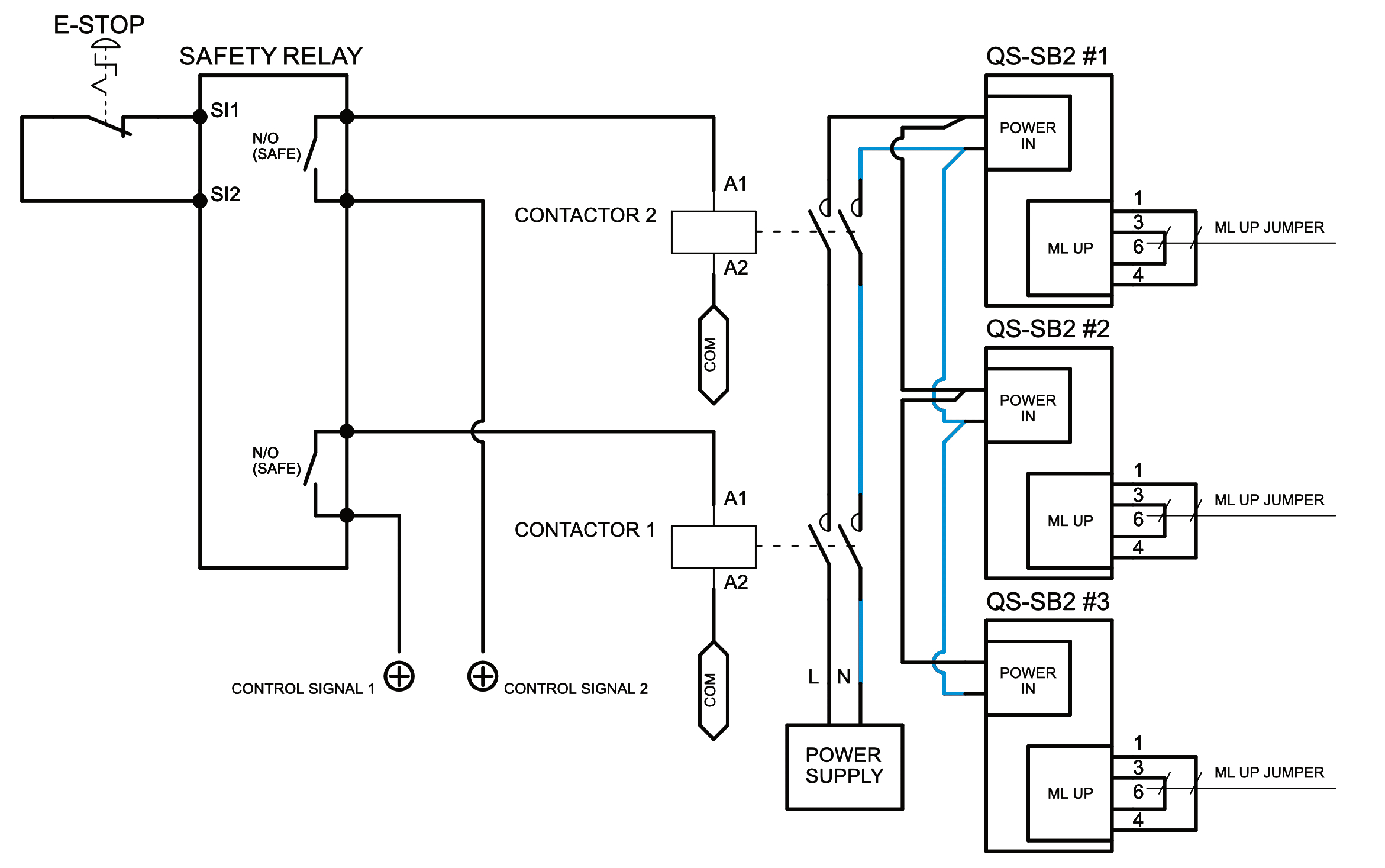
Example wiring diagram of application of power line contactors and one-channel safety relay with E-STOP:
Info
PE (protective grounding/earthing) connection is omitted for better transparency
6.3.3 Implementing the working zone protection with power-cut circuit
In example application contactors connected in series provide power line to the QS-SB2 power cabinets. When safety function on safety relay input is triggered, a safety relay will switch off the power contactors, thus cutting-off the power to the platform.
Example application of power line contactors with safety gate opening sensor:
Info
When applying safety relay and contactors to the power line remember to:
- Use control cables according to your safety relay manual
- Power line cables shall be chosen accordingly to power requirements of motion system. See power requirements of specific motion system.
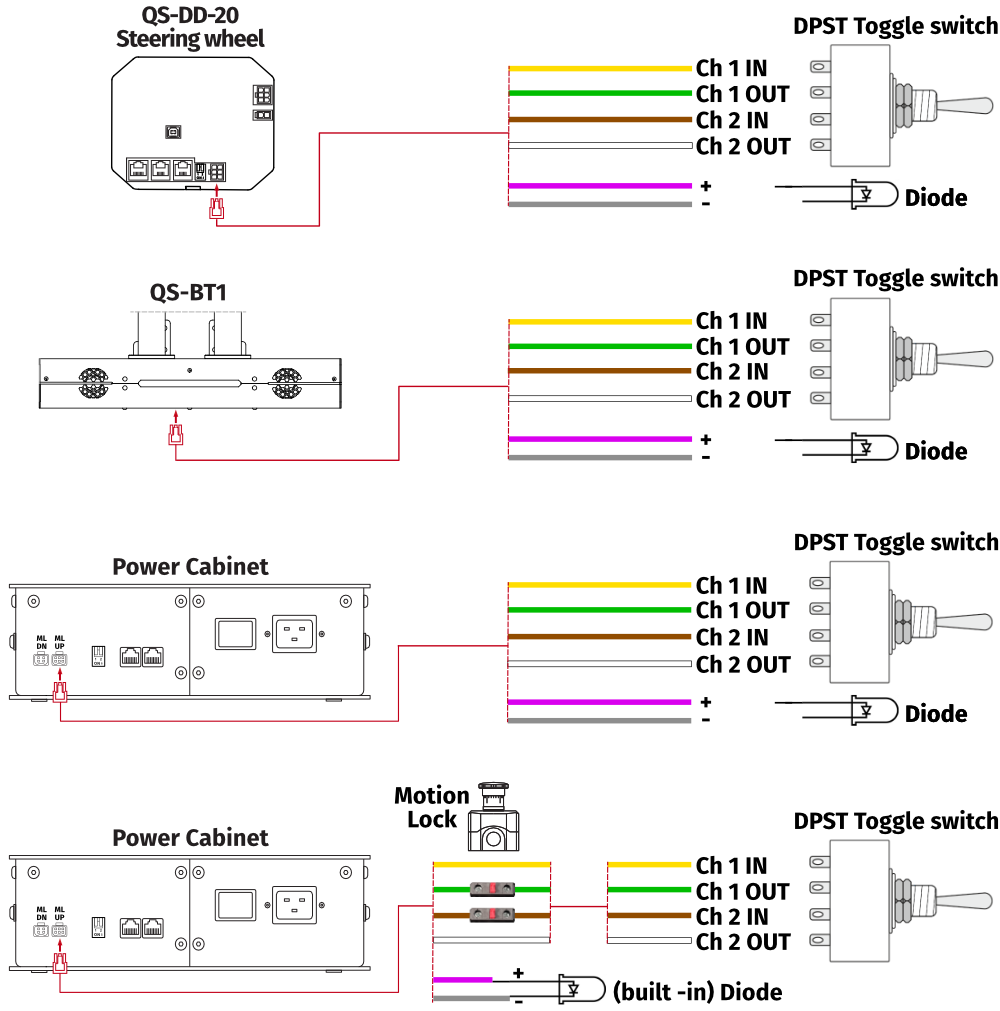
6.4 Implementing non-factory Motion lock switch
For non-factory Motion Lock plug setup, you must assemble plug and connectors as shown below: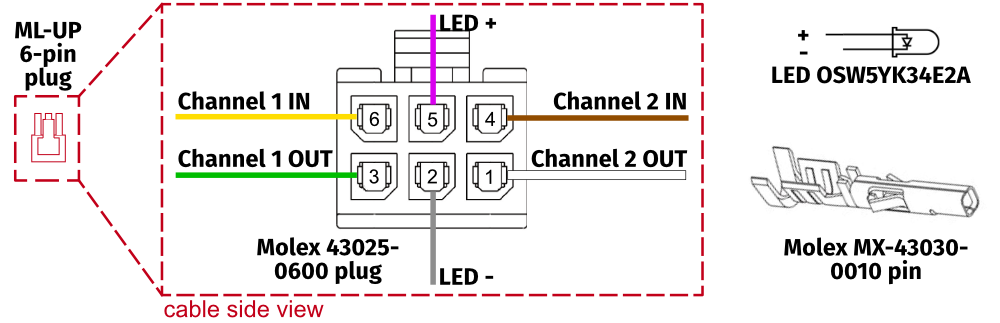
7 Conformity information

The QS-CH2 meets the requirements of CE marking and relevant regulations of the EMC Directive 2014/30/EU.
8 Environmental Impact and Disposal

DO NOT dispose of this product with standard household waste but drop it off at a collection point for the disposal of Waste Electrical and Electronic Equipment for recycling.
- Metal parts should be scrapped.
- Electric and electronic components should be disposed of in the specialized disposal center.
- Other materials should be sorted and disposed of accordingly to the local law and regulations.
9 Liability Disclaimer
If permitted under applicable law, Motion Systems and its subsidiaries disclaim all liability for any damages caused by one or more of the following:- The product has been modified, opened, or altered.
- Failure to comply with assembly instructions.
- Inappropriate or abusive use, negligence, an accident (an impact - for example).
- Normal wear.
Info
If permitted under applicable law, Motion Systems and its subsidiaries disclaim all liability for any damages unrelated to the material or manufacturing defect with respect to the product (including, but not limited to, any damages caused directly or indirectly by any software, or by combining the QS-CH2 with any unsuitable element or other elements not supplied or not approved by Motion Systems for this product).
10 Warranty
Motion Systems warrants to the consumer that this product shall be free from defects in materials and workmanship, for a warranty period which corresponds to the time limit to bring an action for concerning this product. For commercial customers there is a one (1) year limited warranty, starting on the original date of purchase. For non-commercial customers there are two (2) years warranty, starting on the original date of purchase. Within the warranty period, the product will be repaired or replaced free of charge, excluding shipping charges. This warranty shall not apply:- If the product has been modified, opened, altered, or has suffered damage as a result of inappropriate or abusive use, negligence, an accident, normal wear, or any other cause unrelated to a material or manufacturing defect (including, but not limited to, combining the QS-CH2 with any unsuitable element, including in particular power supplies, chargers, or any other elements not supplied or approved by Motion Systems for this product).
- In the event of failure to comply with the instructions provided by technical support.
- To software (said software being subject to a specific warranty).
- To accessories (cables, cases, for example).
- If the product was sold at public auction or if the product has suffered damage as a result of force majeure: flood, fire, earthquake, storm.
11 Copyright
Qubic System is a trademark of Motion Systems. All rights reserved. All the contents in this user manual are the intellectual property of Motion Systems. No part of this manual, including the products and software described in it, shall be modified or translated into any language without the prior written permission of Motion Systems. Specifications and information in this manual are subject to change at any time without obligation to notify any person of such revision or changes. Illustrations are not binding.Info
Trademark Notice - All brand names, icons, and trademarks that appeared in this manual are the sole property of their respective holders.
12 Manufacturer information
Qubic System is a brand
that belongs to Motion Systems
HQ address:
Miedziana 7 Street
55-003 Nadolice Wielkie
Poland
that belongs to Motion Systems
HQ address:
Miedziana 7 Street
55-003 Nadolice Wielkie
Poland


Info
In support queries please contact your reseller.