
Documentation Library
Qubic System — product manuals and technical documentation.
76 manuals
·
6 categories
Software
Software applications and simulation guides
Hardware
Motion platform hardware manuals
Tutorials
Step-by-step guides and tutorials
Product Cards
Product specification sheets and datasheets
Miscellaneous
Wallpapers and additional resources
3D Prints
3D printable models for motion platforms






QS-DD-20
User manual for QS-DD-20.
1 Device description
The QS-DD-20 is a steering wheel controller and is intended to be used as steering controller for various simulations.2 Safety precautions
Info
Read all safety instructions before installing and using this product. Save this document for future reference. If ownership of this product is transferred, be sure to include this manual.
Warning
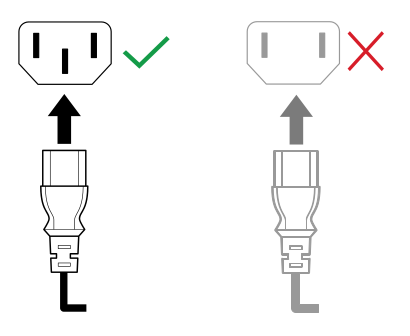
Check if the power supply cable has grounding connection in the plug (with 3 pins). In order
to reduce risk of electric shock DO NOT use plug without grounding connection
(without center pin).
Warning
QS-DD-20 is not intended for use by children under 16 years of age. Close supervision and safety instruction is required when this product is used by or near children or people with reduced physical, sensory or mental capabilities. Keep the packaging away from small children as it poses a suffocation risk.
Warning
It is forbidden to interfere with the device to be compatible with other devices.
- Use the QS-DD-20 only for its intended purpose, according to instructions.
- Unplug the QS-DD-20 from the power supply if it is not used for an extended period or when there is a need to perform hardware installation, maintenance, servicing or repairs.
- Turn off the QS-DD-20 when it is not in use.
- The QS-DD-20 was designed for indoor use only - DO NOT store or use the product outdoors.
- Keep the QS-DD-20 away from the heat sources, high humidity, water, and other liquids. DO NOT store in cold place where water condensation may occur.
- DO NOT disassemble the product. Any tampering with or altering the product will void the warranty, poses a serious risk of electric shock, and may irreparably damage the product.
- Keep the power cord plug and the socket dry, clean and dust-free.
- Protect the power cord from damage caused by being stepped on, rubbed against, or pinched.
- DO NOT use the QS-DD-20 if the ambient temperature is below 4° Celsius (39° Fahrenheit) or above 45° Celsius (113° Fahrenheit).
- DO NOT use the QS-DD-20 if it has been damaged, or any component is broken or missing. Please contact technical support.
- DO NOT use attachments or replacement parts not recommended or approved by the manufacturer. If you have to replace the power cord use only certified one with the same rating as replaced one.
- Do not grab, hold or insert anything into the steering wheel or driving shaft to stop the rotation.
- Use Motion Lock button or switch off the power to stop the motions of the device.
- Keep away cables, clothing, hair and other items that could tangle into the rotatory shaft.
- At least once a month test if Motion Lock button is working correctly - after pressing there shall be no noticeable force feedback when moving the steering wheel.
WarningIn case if the motions are not stopped and there is noticeable force feedback after pressing the Motion Lock button, DO NOT use the device and contact technical support.
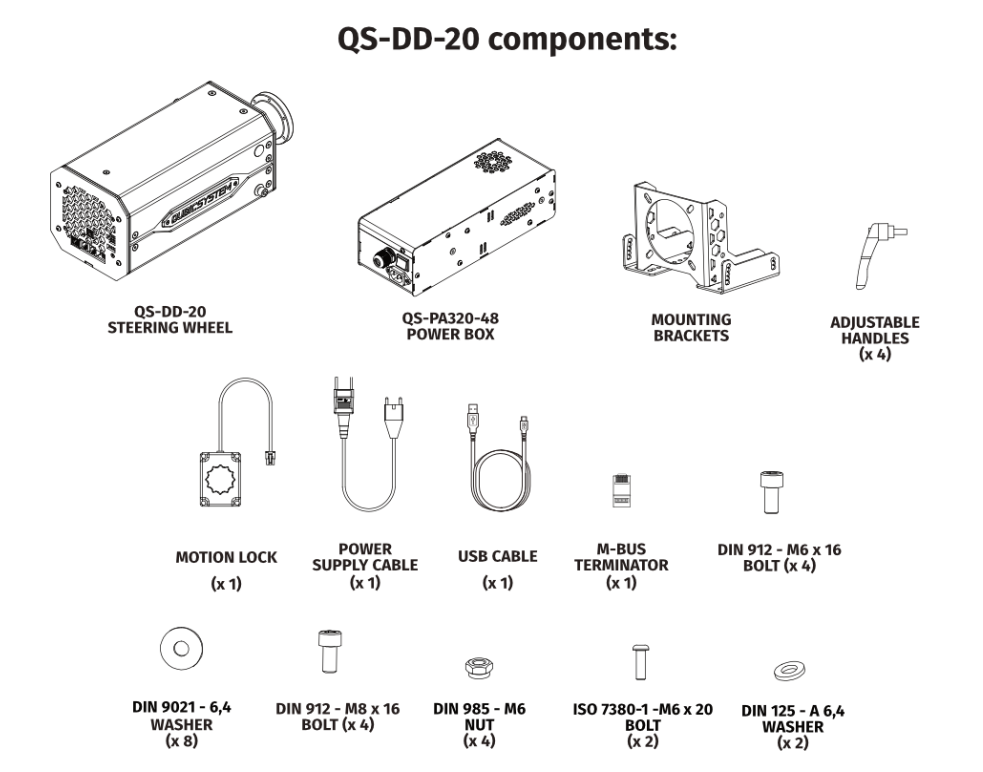
3 List of components
4 Installation
4.1 Connecting mounting brackets
In order to connect steering wheel module with mounting brackets connect it using side mounting points with M8 plastic washer inserted on both side as shown on the illustration: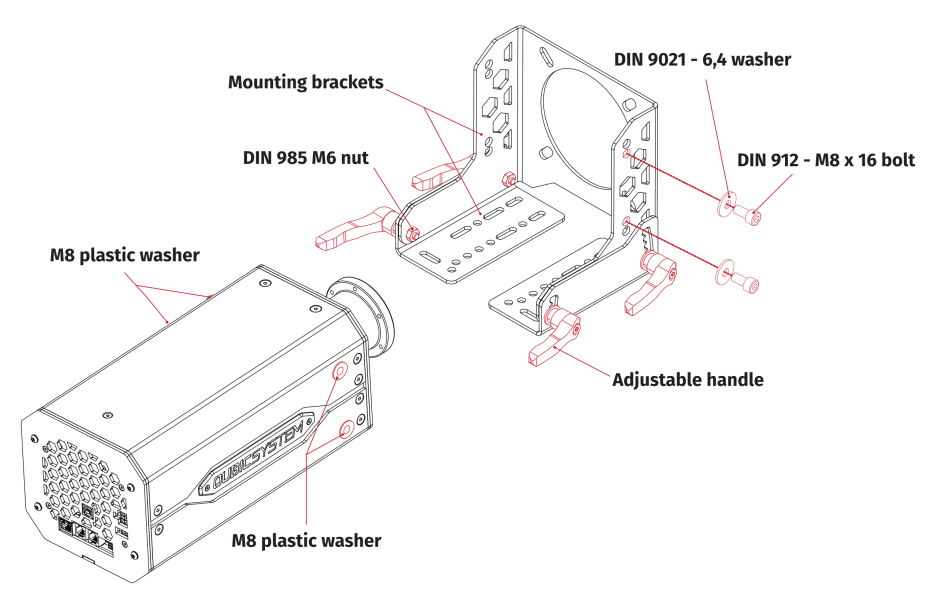
Warning
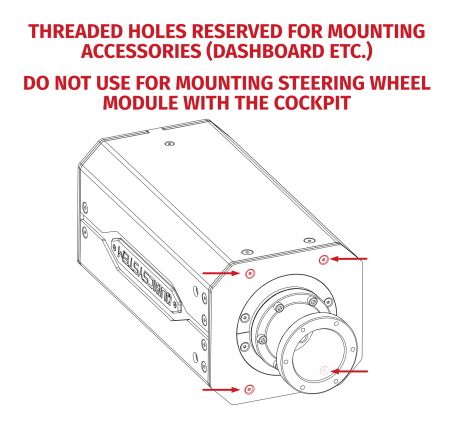
DO NOT use front threaded holes to mount the steering wheel module to the cockpit. Front mounting holes are reserved for mounting additional accessories. Unscrew 2 x cover bolts and use ISO 7380-1 - M6 x 20 bolts with DIN 125 - A 6,4 washers for mounting accessories.
4.2 Connecting steering wheel
To install the steering wheel (not included in the set), connect it with the flange by screwing in the connection bolts provided with the steering wheel. Steering wheel dish size shall be φ 70 mm with 6 mounting holes. Align the top and bottom of the flange with the steering wheel as indicated on the TOP and BOTTOM stickers which are located inside the flange: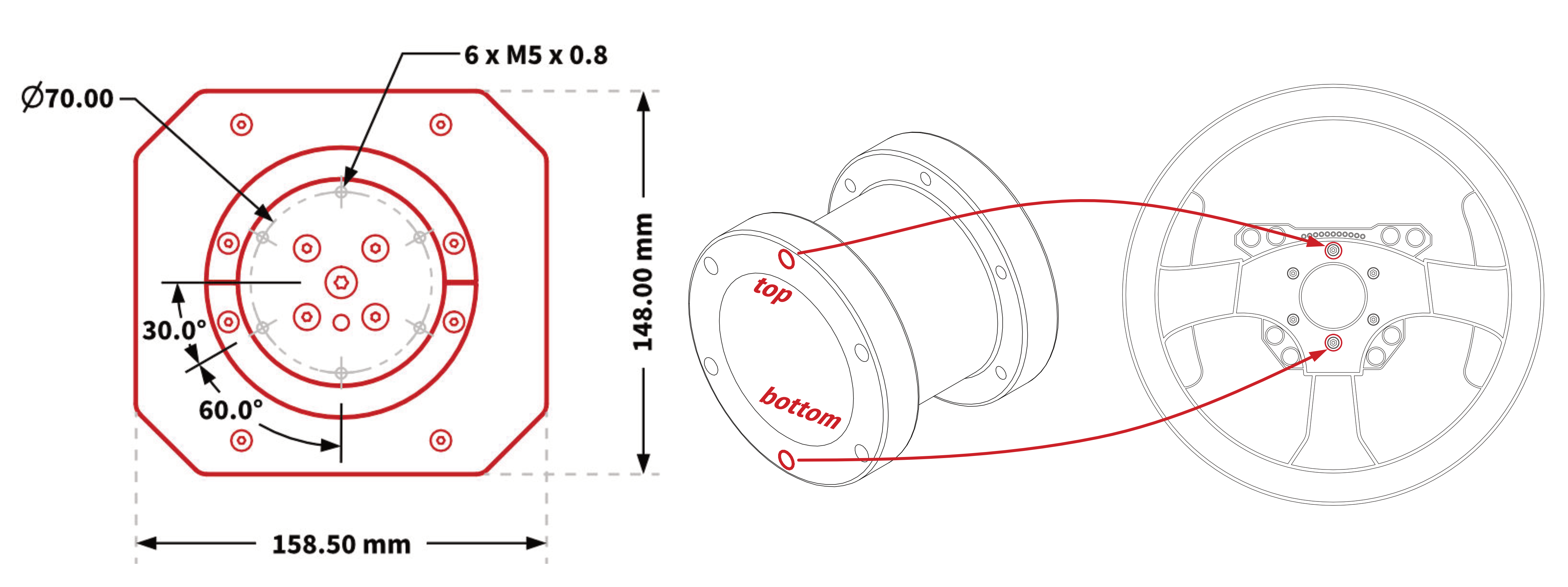
4.3 Connecting devices
Warning
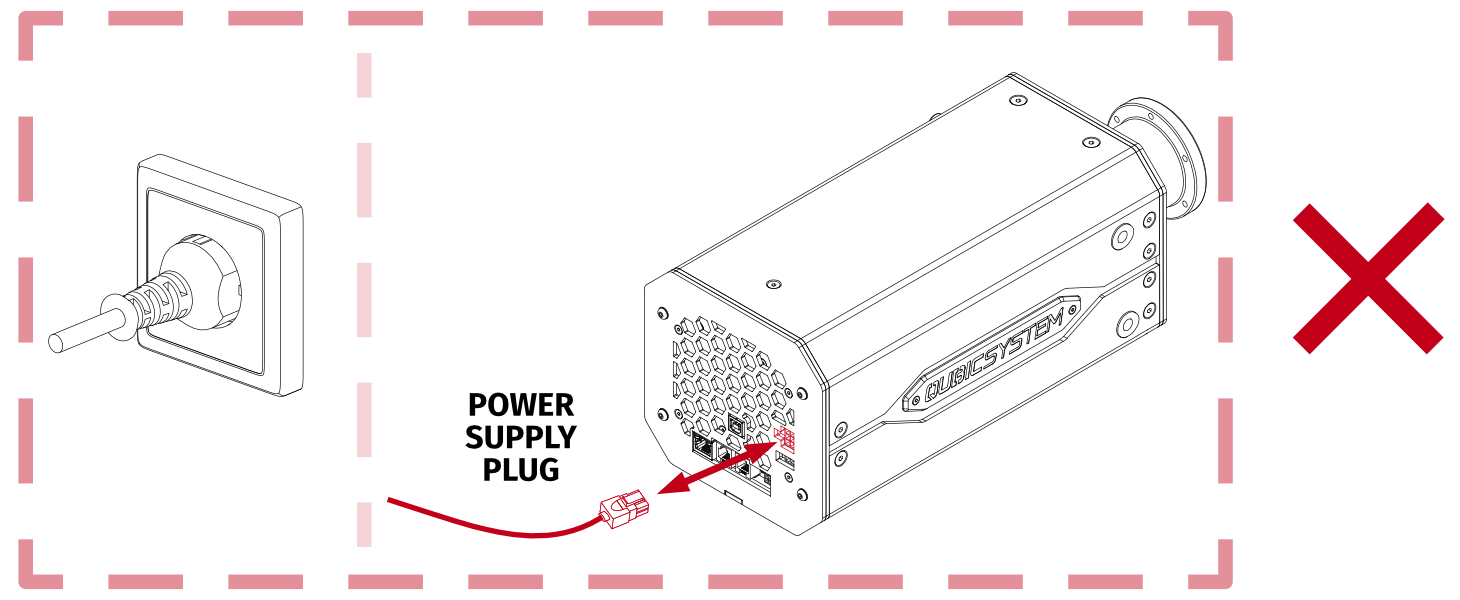
ALWAYS turn the power OFF with a switch on a Power Supply or from the wall socket first before plugging or unplugging the power supply plug from the device. Wait until the light on a power supply goes out or for 2 minutes.
Info
To ensure safe power disconnection from QubicSystem device power supplies, it is recommended to use an external power switch — such as a power strip with a switch or a smart plug (rated for min. 15A).
Info
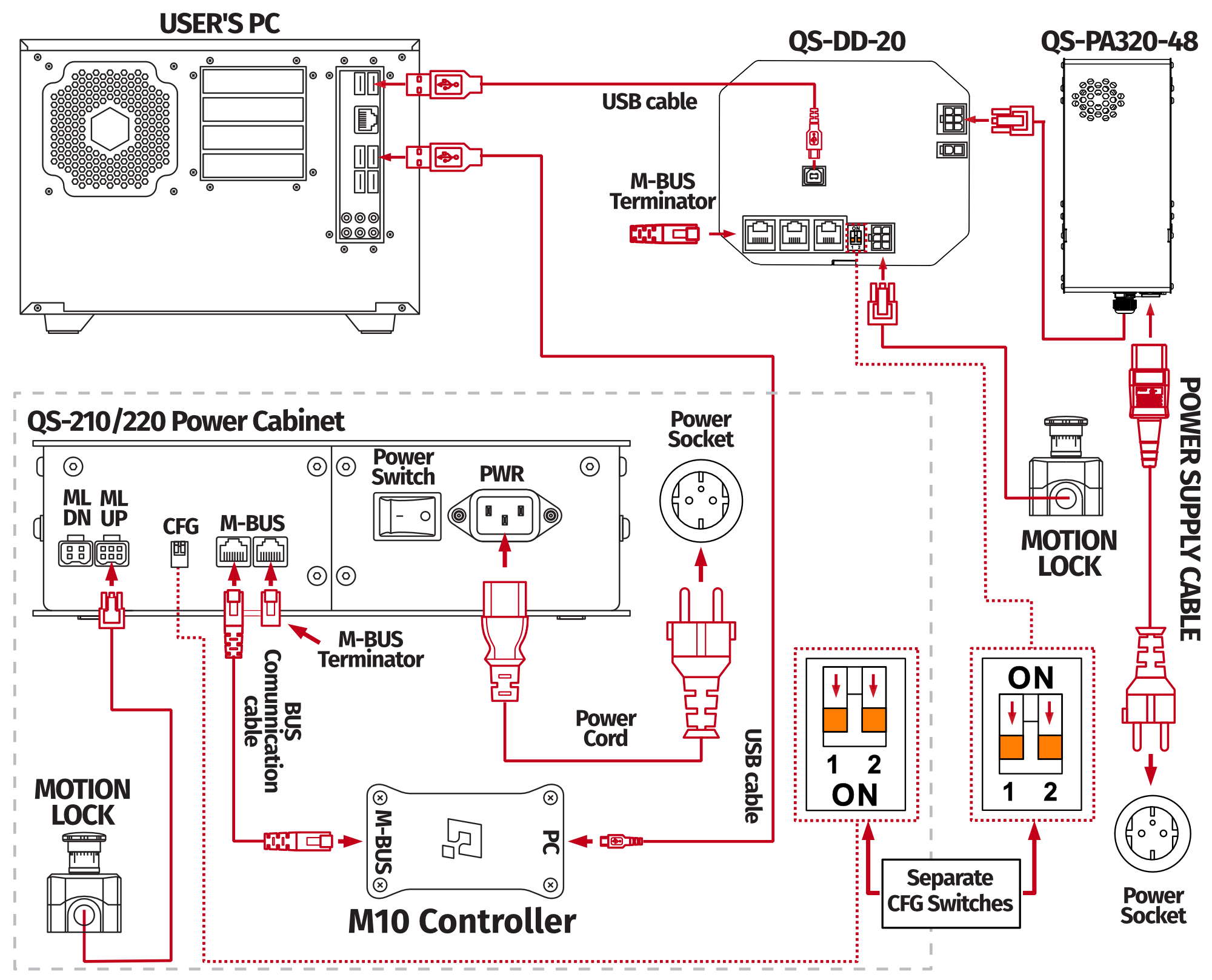
- For details on motion platform connection - go to a specific User Manual - visit QubicSystem.com/UM to see full user manual data base.
- It is possible to create a motion lock circuit using single Motion Lock button for all QubicSystem devices - visit QubicSystem.com/UM to see a specific motion platform product user manual with Motion lock button connection diagrams.
Warning
- When changing CFG switch setting the main power must be SWITCHED OFF
- When changing the CFG Switch setting FIRMLY SET THE SWITCH into lower or upper position. Do not leave the switch in the floating position (neither up or down position), otherwise the device will not work.
5 Software
QubicManager is professional and specialized software for the platform and is click and play compatible with all major racing and flight titles. The QubicManager is a powerful engine, yet it is easy to use meaning you can adjust levels of motion, bumps, roll and pitch with a click of a button.5.1 Download and installation
The SERIAL NUMBER required to access software download can be found on the underside of the steering wheel module housing. It's printed on the rating label in the XXXXXX-XXXXXX-XXXXXX-XXXXXX format.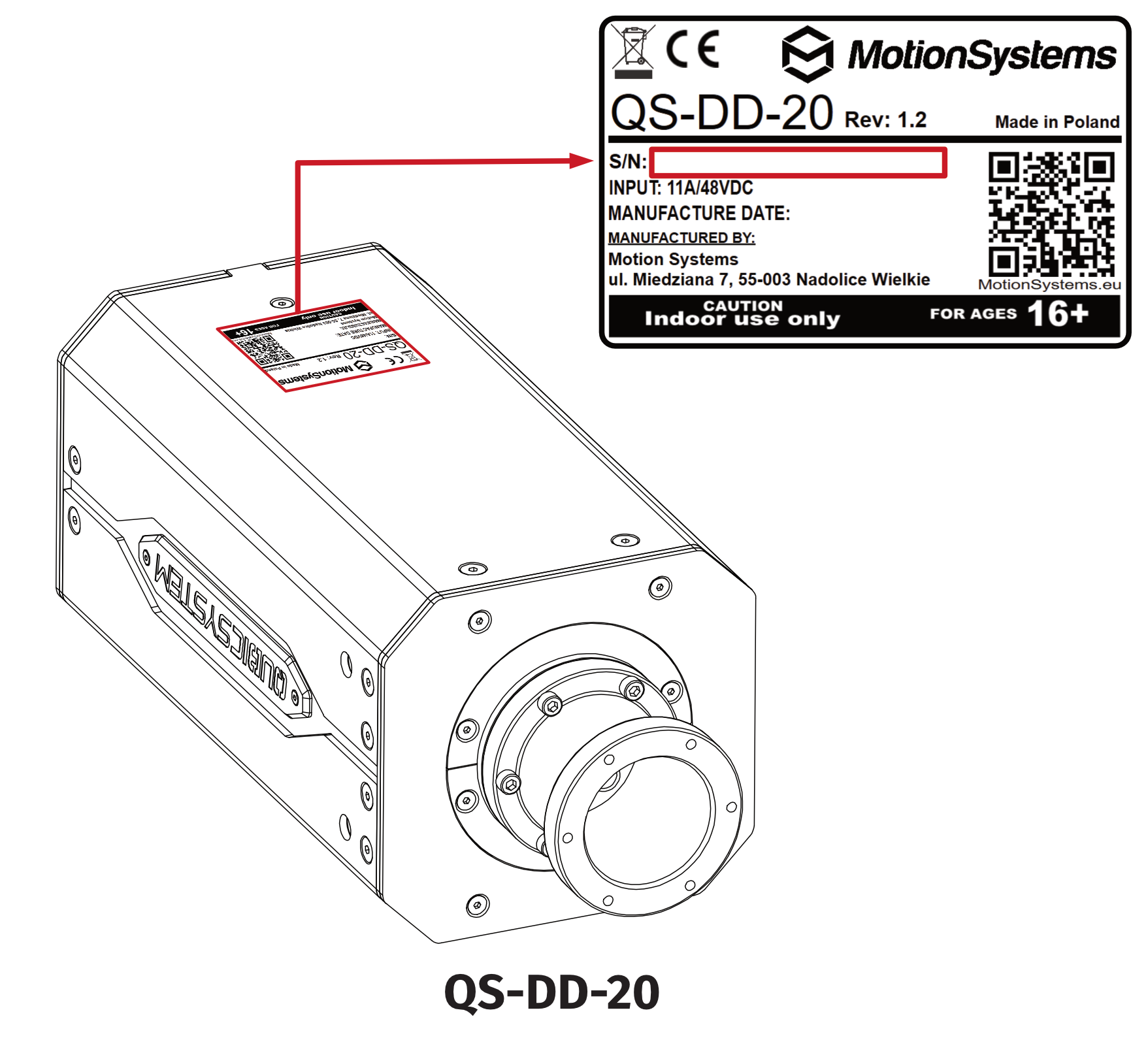
Software installation procedure:
- Connect the devices according to the interconnections scheme - see section 4.3.
- Download QubicManager from QubicSystem.com/Download
- Enter the serial number located on the identification label.
InfoTo check your serial number you can download a small program that can read code directly from your device when it is connected via USB : Download link or visit QubicSystem.com/Download
- Proceed with the installation steps and launch the application.
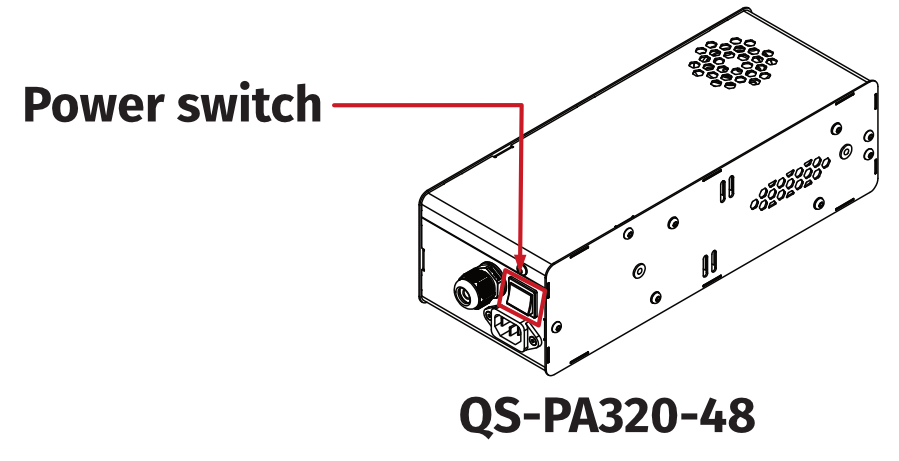
- Turn on the device by switching on the power switch button on the QS-PA320-48 power box.
- Check position of Motion Lock Switch, unpress if needed.
- The QS-DD-20 will perform a start-up calibration.
WarningDO NOT touch the steering wheel during start-up calibration.
- If QubicManager has recognized the QS-DD-20 correctly, the status of the device visible in the lower left corner will change to Connected.
- Check Action Center on the right side panel for a list of actions that requires attention. It is possible to solve them one by one or by pressing the Resolve All button. Firmware update may require additional confirmation in the dialogue box.
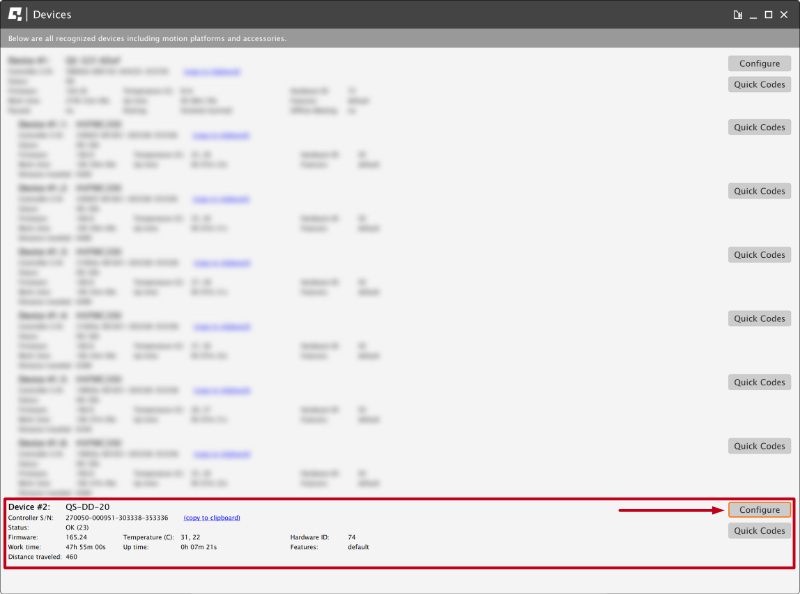
- Go to Tools and Diagnostics → Devices and select Configure to configure connected devices
.
6 Devices configuration
6.1 Adjusting steering wheel
1. To adjust the steering wheel select the Configure button in Devices tab of QubicManager. Steering wheel will be recognized as QS-DD-20 in the devices list.
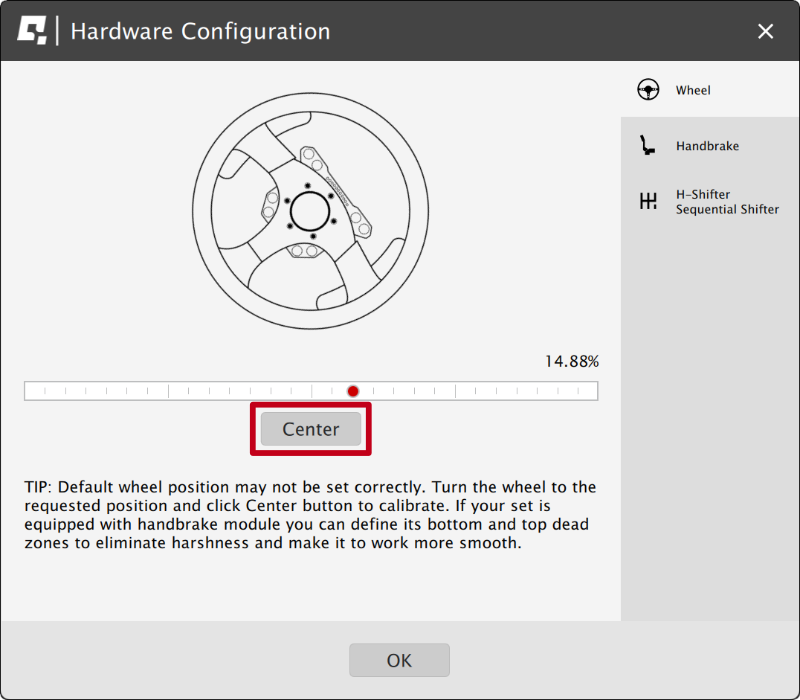
2. Rotate the steering wheel and adjust the center point to your preference, select Center button to save the position.
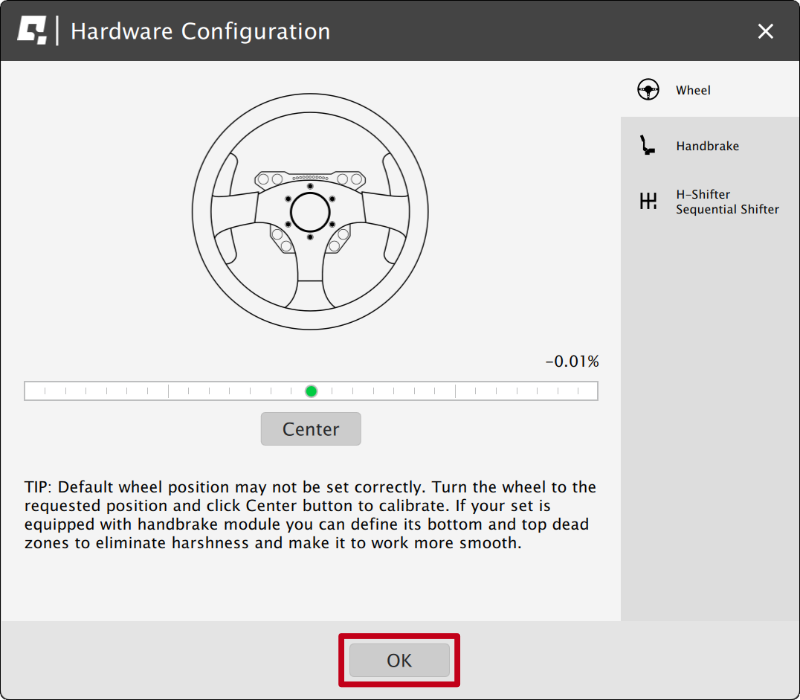
3. After setting center of the steering wheel to your preference select OK button, the configuration will be saved and used in the simulations.
Info
Steering wheel controller arrives with pre-adjusted factory settings
7 Troubleshooting
Warning
DO NOT attempt to do any repairs by yourself. It is dangerous and voids the warranty! Repairs should be consulted with technical support and then performed by a qualified technician.
- Check Action Center in QubicManager.
- Check all cable connections in the device.
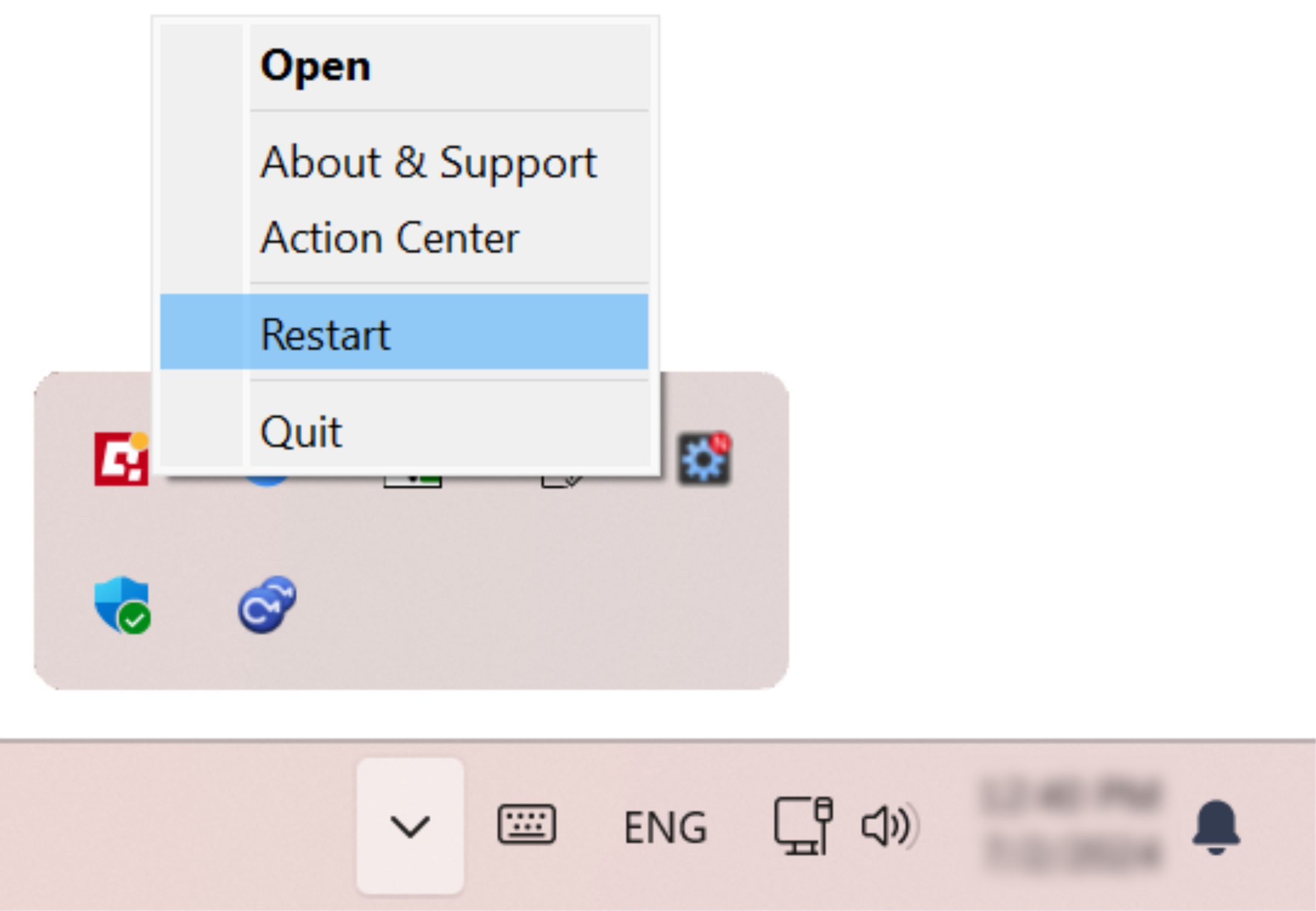
- Restart QubicManager application by right-click on the application icon in the system tray and selecting Restart:
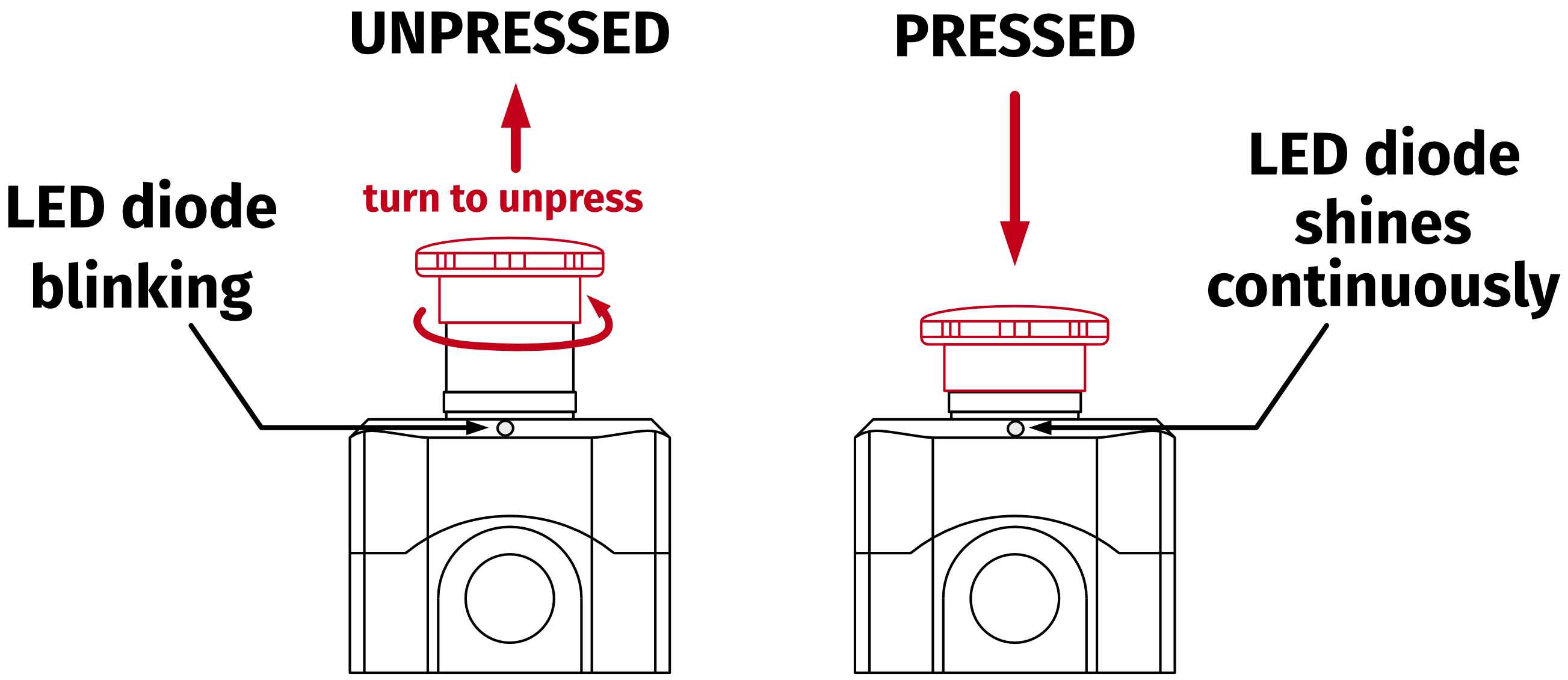
- Check Motion Lock Switch position (it should be unpressed to activate the motion)
- Try different USB ports.
- If a problem occurred abruptly, it could be caused by a thermal protection. Turn off the QS-DD-20 , disconnect it from power outlets and wait at least 15 minutes to let it cool down. Try turning it on again later.
- In case of any unclear electrical issues or strange behavior, contact technical support
- If the device suffers from abnormal work conditions, please immediately contact the distributor/reseller for technical support.
7.1 Creating a snapshot
A snapshot is the easiest and fastest way to diagnose a problem. If you send in the zip file generated in the snapshot menu along with a description of the problem, technical support receives the necessary information about the product and its configuration. It can be then analyzed to provide the best solution.Warning
The QS-DD-20 and all interconnected Power Cabinets MUST BE be powered up when creating the snapshot.
- Open the main window of the QubicManager application.
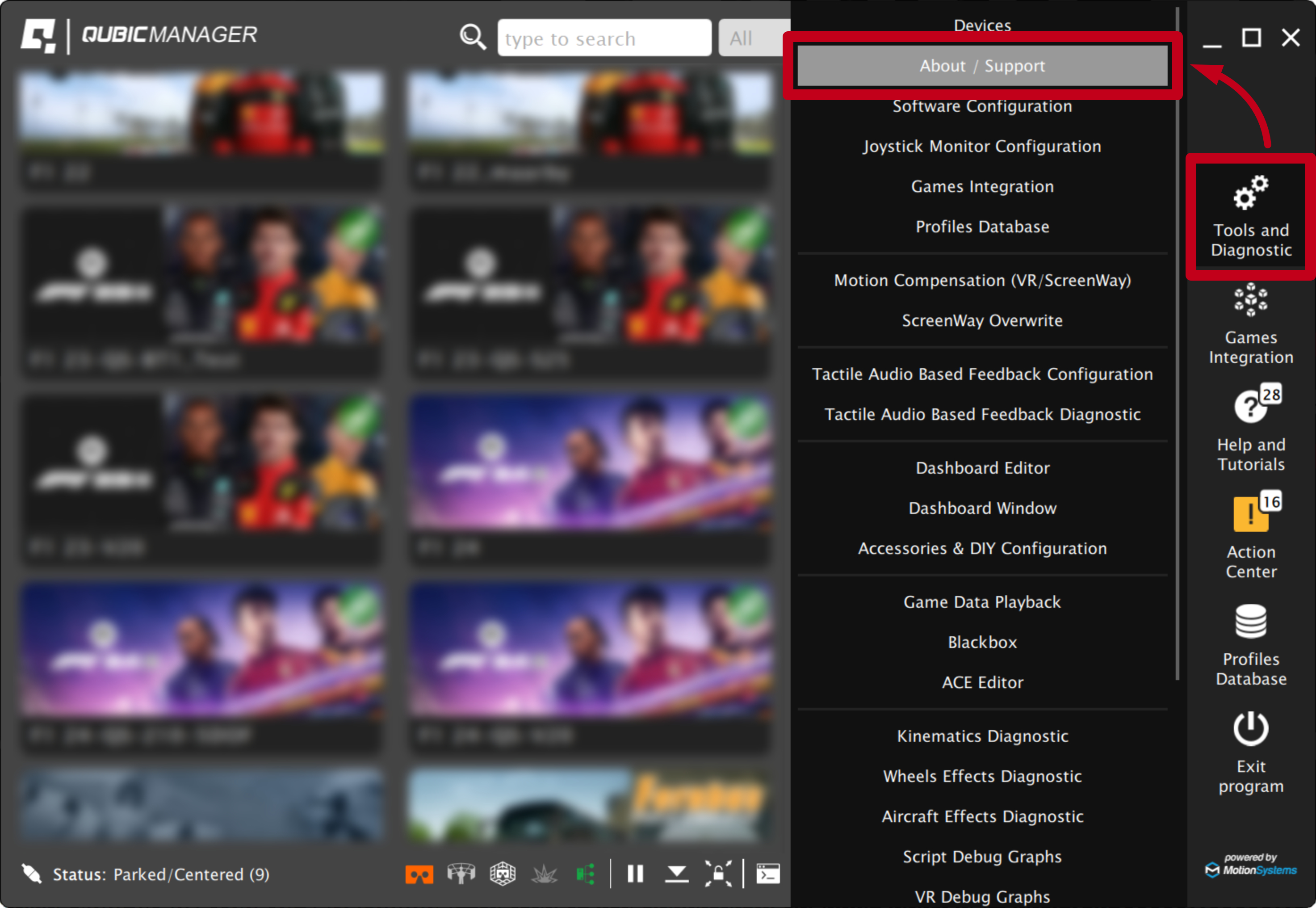
- Go to Tools and Diagnostic → About / Support.
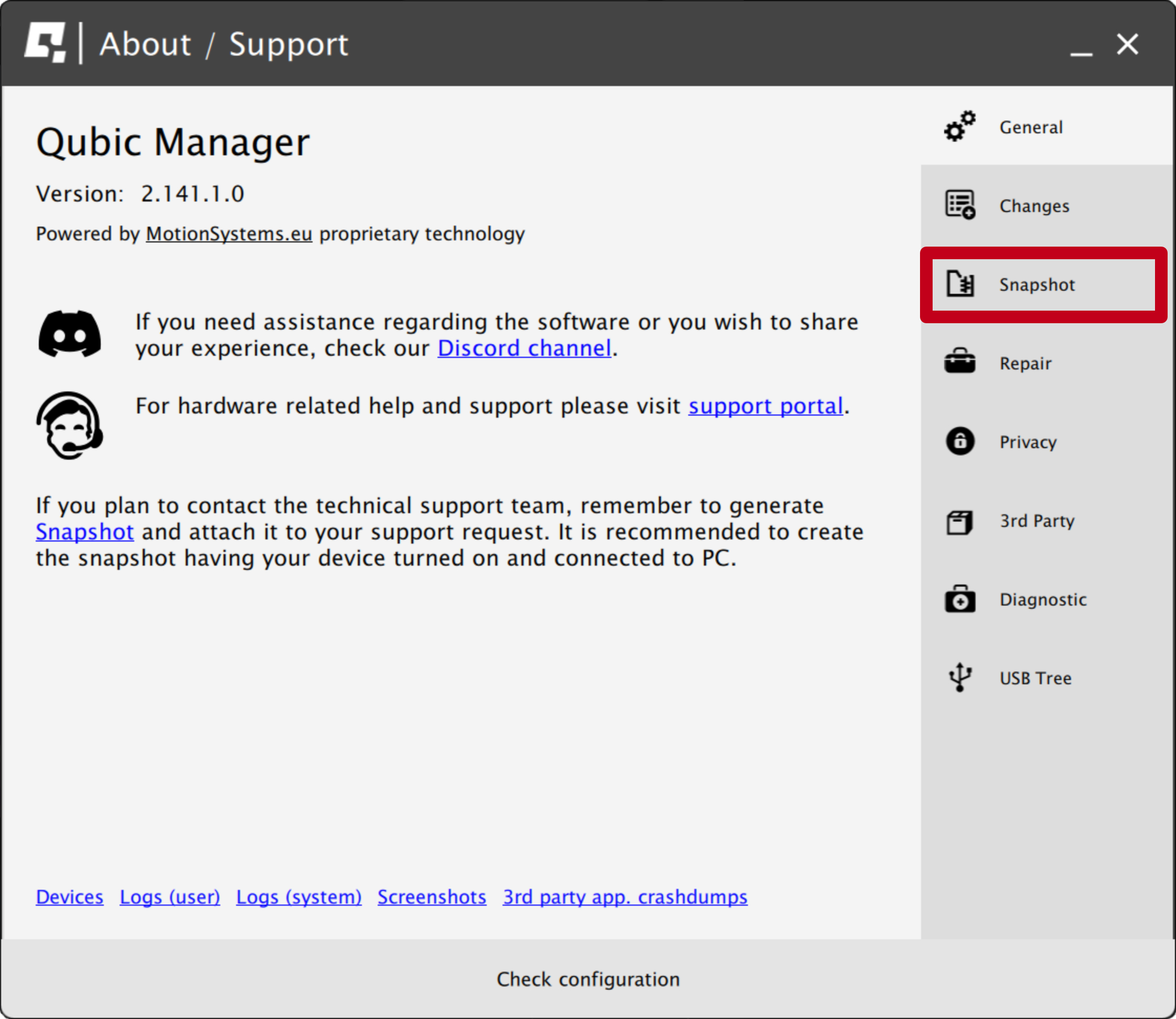
- Open the Snapshot window:
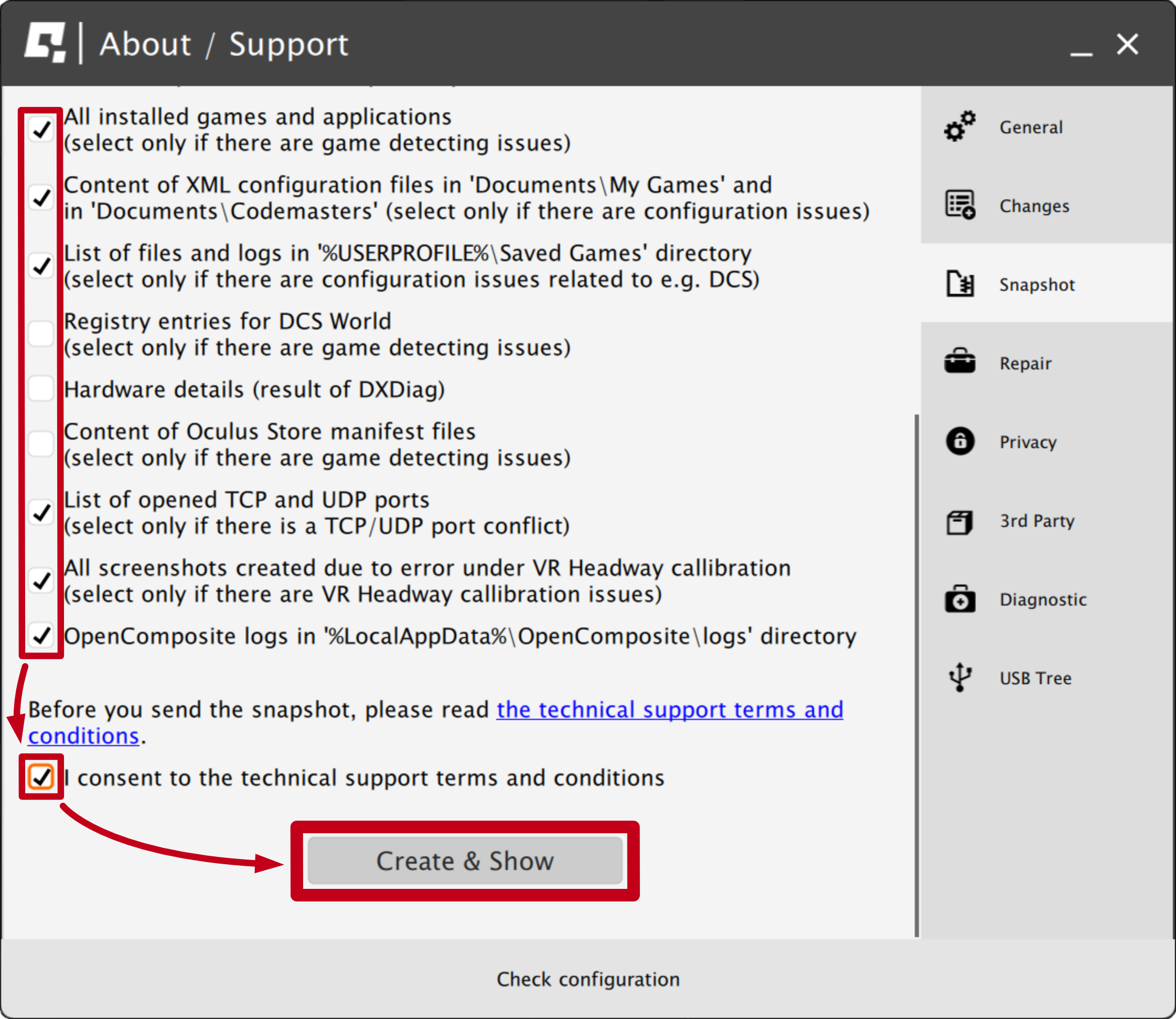
- Select data that will be included in the snapshot.
- Scroll down, consent to the technical support terms and conditions and select Create & Show:
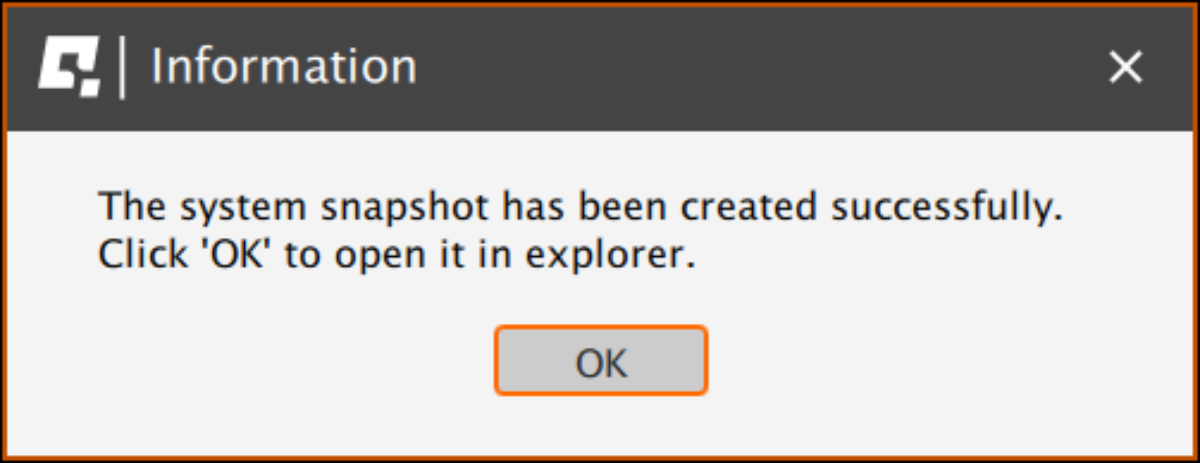
- The snapshot has been created, click the OK button - the folder with the snapshot ZIP file will open.
- Attach the snapshot ZIP file to your support request.
7.2 Discord channel
We strongly recommend joining our discord channel, where our growing community is sharing amazing tips and ideas of how to set up, use and tune the Qubic System products. You can also send questions for technical support or get answers directly from the community.
Join our discord channel by following the invitation link:

8 Conformity information

The QS-DD-20 meets the requirements of CE marking and relevant regulations of the EMC Directive 2014/30/EU.
9 Environmental Impact and Disposal

DO NOT dispose of this product with standard household waste but drop it off at a collection point for the disposal of Waste Electrical and Electronic Equipment for recycling.
- Metal parts should be scrapped.
- Electric and electronic components should be disposed of in the specialized disposal center.
- Other materials should be sorted and disposed of accordingly to the local law and regulations.
10 Liability Disclaimer
If permitted under applicable law, Motion Systems and its subsidiaries disclaim all liability for any damages caused by one or more of the following:- The product has been modified, opened, or altered.
- Failure to comply with assembly instructions.
- Inappropriate or abusive use, negligence, an accident (an impact - for example).
- Normal wear.
Info
If permitted under applicable law, Motion Systems and its subsidiaries disclaim all liability for any damages unrelated to the material or manufacturing defect with respect to the product (including, but not limited to, any damages caused directly or indirectly by any software, or by combining the QS-DD-20 with any unsuitable element or other elements not supplied or not approved by Motion Systems for this product).
11 Warranty
Motion Systems warrants to the consumer that this product shall be free from defects in materials and workmanship, for a warranty period which corresponds to the time limit to bring an action for concerning this product. For commercial customers there is a one (1) year limited warranty, starting on the original date of purchase. For non-commercial customers there are two (2) years warranty, starting on the original date of purchase. Within the warranty period, the product will be repaired or replaced free of charge, excluding shipping charges. This warranty shall not apply:- If the product has been modified, opened, altered, or has suffered damage as a result of inappropriate or abusive use, negligence, an accident, normal wear, or any other cause unrelated to a material or manufacturing defect (including, but not limited to, combining the QS-DD-20 with any unsuitable element, including in particular power supplies, chargers, or any other elements not supplied or approved by Motion Systems for this product).
- In the event of failure to comply with the instructions provided by technical support.
- To software (said software being subject to a specific warranty).
- To accessories (cables, cases, for example).
- If the product was sold at public auction or if the product has suffered damage as a result of force majeure: flood, fire, earthquake, storm.
12 Copyright
Qubic System is a trademark of Motion Systems. All rights reserved. All the contents in this user manual are the intellectual property of Motion Systems. No part of this manual, including the products and software described in it, shall be modified or translated into any language without the prior written permission of Motion Systems. Specifications and information in this manual are subject to change at any time without obligation to notify any person of such revision or changes. Illustrations are not binding.Info
Trademark Notice - All brand names, icons, and trademarks that appeared in this manual are the sole property of their respective holders.
13 Manufacturer information
Qubic System is a brand
that belongs to Motion Systems
HQ address:
Miedziana 7 Street
55-003 Nadolice Wielkie
Poland
that belongs to Motion Systems
HQ address:
Miedziana 7 Street
55-003 Nadolice Wielkie
Poland


Info
In support queries please contact your reseller.